Showing posts with label hours-minutes-seconds. Show all posts

Saturday, November 16, 2024

Spotlight: Casio DF-320TM (updated 6/17/2025)

Spotlight: Casio DF-320TM


Just the Facts


Model: DF-320TM

Company: Casio

Type: Desktop

Number of Digits: 12

Display: 3 lines

Power: Solar plus backup battery, LR 44

Years of Production: My guess is somewhere in the 2000s


Sales tax calculation

Exchange rate calculation

Time calculation example


Several months ago, I found this calculator at a thrift shop in Montclair, California for a $1.35 (after discount). The DF-320TM is a nice desktop calculator with three lines. The top two lines are used for specific purposes, while the bottom on line has general calculation and results on the third line.


Features


The features of the DF-320 TM include:

* 12 digit display. For those of us working with large numbers, the extra digits are nice.

* Two slide settings that are found on desktop calculators: rounding and the fixed decimal settings. Add mode is available for those who are proficient with adding machines or those who like working with dollars and cents without having to enter the decimal point.

* Cost/Sell/Margin* calculation

* Sales tax and discount

* Exchange rate calculations between two currencies

* An [ H/M/S ] button which allows for hours-minutes-seconds calculation.

* Tracking of grand total every time when the equals key ( [ = ] ) is pressed. The grand total is retrieved by pressing the [ GT ] key.

* Determining change with the [ CHANGE CAL ] button.


(*I made a mistake in calling it Markup.   Gratitude to Christopher Brown for letting me know about the error.)  


All examples have the following setting: 5/4 rounding fixed to 2 decimal places.


Cost/Sell/Markup


The three keys, [ COST ], [ SELL ], and [ MAR ] (MAR for Markup) solve cost-sell-markup problems. Entries are made on the top screen and solving for the third variable occurs automatically.


Example:

1200 [ COST ] 12 [ MAR ]


Display:

COST> 1,200.00

MAR> 12.00%

= 1,363.64 (selling price)


Setting Tax and Exchange Rates


The DF-320TM employs the traditional way to set tax rate and currency exchange rate.


1. Start by pressing and holding [ AC ] and [ % ] until the screen reappears with the SET indicator.


2a. For the tax rate: Press [ TAX+ ], enter the tax rate, then press the [ % ]/

2b. For the currency rate: Press [ C2/EX RATE ]. Symbols such as $, €, £, A, B appear on the top left hand display as such: £ → $. Cycle through the symbols by pressing the [ + ] (↓RATES) key. Type in the rate and press [ % ]. You can view the rates going both ways by pressing the [ - ] key in this mode.


3. Press [ AC ] to return to normal calculator mode.


Example: $1 is converted to € 0.9027


Hold [ AC ] and [ % ] until SET appears. Press [ C2 ]. Press [ + ] until $ → € appears.

Enter 0.9027 and press [ AC ]. In this setting $ belongs to C1 and € belongs to C2.


$15 converted to Euros: 15 [ C2 ]. Display:


$ 15

RATE > 0.9027

€ 13.54


€200 to U.S. Dollars: 200 [ C1 ]. Display:


€ 200

RATE > 1.10778774786

$ 221.56


The three line display in used in a similar structure with tax calculations.


Change Calculation


The [ CHANGE CAL ] is used for change calculations, after a calculation is completed with the equals key [ = ]. I discovered this function by accident because the manuals I could find online did not give a thorough description of the function.


< calculation > [ = ] amount [ CHANGE CAL ]


Example 1:


Three items are priced 13.84, 17.01, and 19.99 are purchased. Assume that sales taxes are included in the price. You gave the cashier 100.


[ AC ] 13.84 [ + ] 17.01 [ + ] 19.99 [ = ]

Display:

GT = 50.84


100 [ CHANGE CAL ]

Display:

PRICE> 50.84

PAYMENT> 100.00

GT = 49.16

(Change: 49.16)


Example 2:


Three items are priced 11.95, 9.95, and 31.85. Sales tax is 9%. You give the cashier 100.


Press [ AC ] and [ % ] until SET appears. [ TAX + ] 9 [ % ]

[ AC ] 11.95 [ + ] 9.95 [ + ] 31. 85 [ = ]

Display:

GT 53.75


[ TAX+ ]

Display:

TAX 4.84

9%

T + GT 58.59


[ = ]

Display:

GT 58.59


100 [ CHANGE CAL ]

Display:

PRICE> 58.59

PAYMENT> 100.00

GT = 41.41

(Change: 41.41)


That is the Casio DF-320 TM in a nutshell. I understand that several calculators with the change calculation are or were sold in Asia, if memory serves me correctly.


Until next time,


Eddie


All original content copyright, © 2011-2024. Edward Shore. Unauthorized use and/or unauthorized distribution for commercial purposes without express and written permission from the author is strictly prohibited. This blog entry may be distributed for noncommercial purposes, provided that full credit is given to the author.


Saturday, July 9, 2022

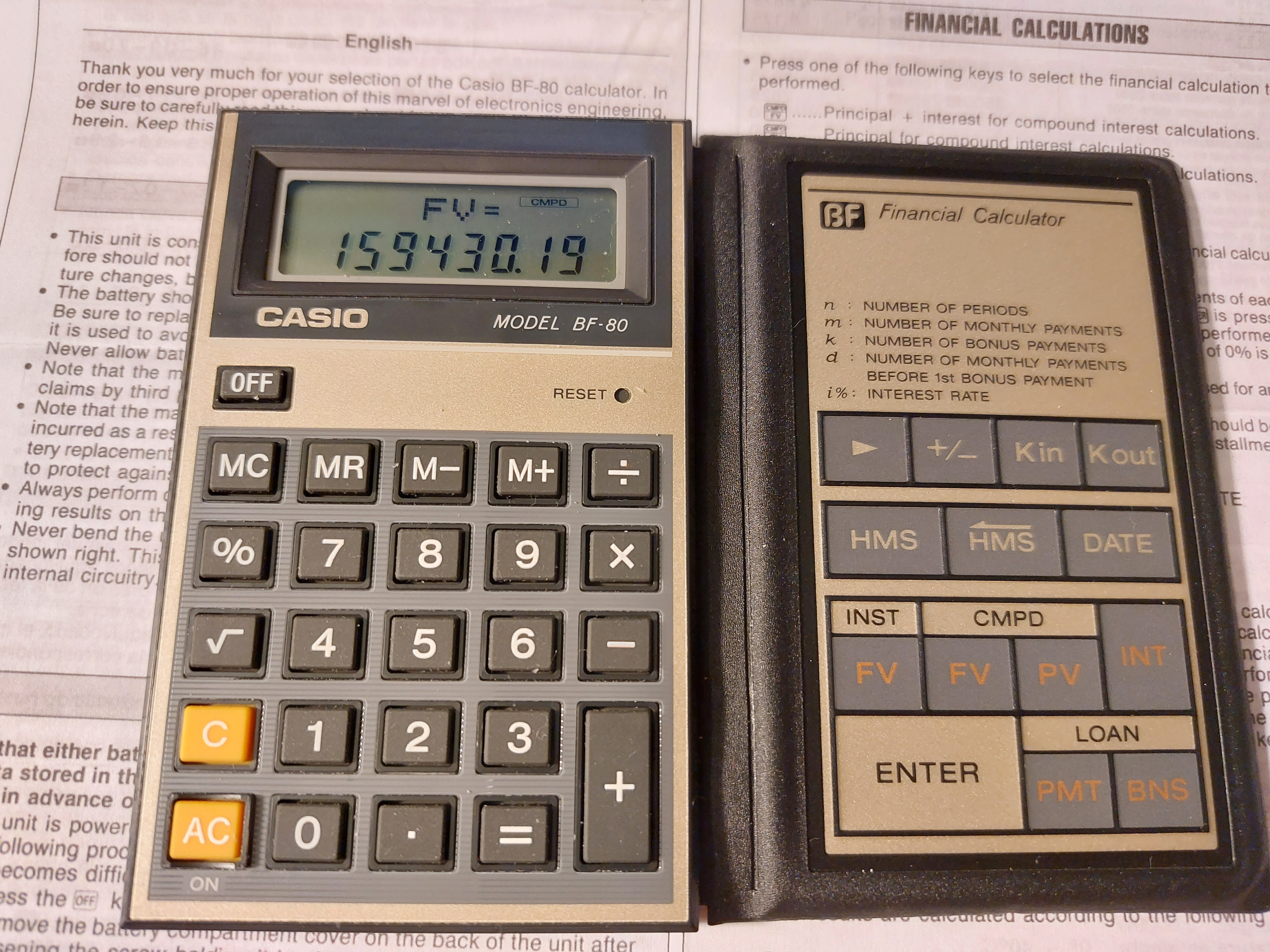
Retro Review: Casio BF-80

Retro Review:   Casio BF-80


A folding calculator with easy-to-calculate finance prompts.  


Quick Facts


Model:  BF-80  (Easy Banker Financial)

Company:  Casio

Years:  1985 (production run is probably the late 1980s)

Type:  Finance

Batteries: 1 x CR-2016

Operating Modes:  Chain

Number of Registers: 2 User registers:  M,  Kin/Kout 

Display:  2 lines


Features


The BF-80 is a dual-leaf calculator.  On the left side, you have a regular four-function calculator, including memory functions, percent, and the square root function.


On the right side is where all the financial functions the BF-80 are located:


[ Kin ]/[ Kout ]:  The BF-80's other user memory register.  Unlike register M, there is no register arithmetic.


[ HMS ]/[ <HMS ]:  Convert decimal to/from hours-minutes-seconds.  Use the [ HMS ] key to enter parts of time.  


Example:  Add 3.5 hours to 11:30:00

11 [ HMS ] 30 [ HMS ] [ + ] 3.5 [ = ] 

Result:  15°0°0 (15:00:00)


[ DATE ]:  The date key leads two of my favorite functions of all time:  days between dates and calculating a future date.   The format is yy - mm - dd  (no dashes for 21st century dates).  Years are entered as four digits, from 1901 to 2099.  


For most, if not all, calculators, the cash flow convention is not used.  


INST-FV:  Calculates the future value of an annuity.  Interest rate is entered as periodical rate. Note that deposits are made at the beginning of each period (annuity due).  The INST indicator turns on. 


Example:  I pay $500 a month in an account that pays 5% interest for 10 years.

[ INST FV ]   (INST indicator is on)

PMT?  500 [ ENTER ]

i%?  5 [ ÷ ] 12 [ = ] [ ENTER ] 

n?  10 [ ÷ ]  12 [ = ] [ ENTER ]

FV= 77964.641

Pressing [ INT ] gives the interest earned:  17964.641.


CMPD-FV:  Calculates the future value of a lump sum (present value).  The CMPD indicator turns on, and INT gives the accumulated interest.


CMPD-PV:  Calculates the present value of a future lump sum (future value).  The CMPD indicator turns on, and INT gives the accumulated interest.  


Both CMPD calculations use this equation:

FV = PV * (1 + i%)^n


LOAN-PMT:  Calculates the monthly payment of a loan due at the end of each month.  The loan is to paid without a balloon payment.  The LOAN indicator turns on.


PV?:  amount to be financed

i%?:  annual interest rate

m?:  number of monthly payments


Example:  What is the monthly payment of $8,293.00 loan with 6% interest over 6 years?

[ LOAN PMT ] (LOAN indicator is on)

PV? 8293 [ ENTER ]

i%?  6 [ ENTER ] (no dividing by 12 in LOAN mode)

m? 6 [ × ] 12 [ = ] [ ENTER ] (still enter the number of months)

PMT = 137.43896

Pressing [ INT ] gives the accumulated interest paid on the loan:  -1602.6051


LOAN-BNS:  Calculates the bonus payment of a separate (side) loan given the number of bonus payments and it's cycle.


k = number of bonus payments

d = number of months to the first bonus payment

PV = bonus loan amount

i% = annual interest rate of the bonus loan


Example:  What is the payment of a bonus loan of $4,412.00 with 3% interest.  The firs bonus cycle is every 3 months from the loan date, with 15 bonus payments.

[ LOAN BNS ]  (LOAN indicator is on)

PV?  4412 [ ENTER ]

i%?  3 [ ENTER ]  (annual rate, like LOAN-PMT)

k?  15 [ ENTER ] (number of bonus payments)

d?  3 [ ENTER ] (number of months prior to the first bonus payment)

BNS = 328.21123

Pressing [ INT ] gives the accumulated interest:  -511.16857


I guess that this is for loans where payments are due every few months instead of every month.  


The Percent Key


The percent key on the BF-80 works like most Casio calculators with a percent key.   


To add a percent:  n [ × ] p [ % ] [ + ]

To subtract a percent:  n [ × ] p [ % ] [ - ]

To find a percent ratio:  part [ ÷ ] whole [ % ]

Percent change:  new [ - ] old [ % ]


A Neat Calculator - An 1980s Version of a Smartphone App 


For it's time, the BF-80 offers calculator with quick, prompting calculations for the on-the-go business and finance student or profession.  Today, in the 2020s, the calculator of this time definitely would  be a smartphone app.  


Surprisingly buying a BF-80 was incredibly reasonable.   


Coming up:


July 11 - July 15, 2022:  TI-58 and TI-59 Week

Next Regular Blog:  July 10, 2022, then  July 23, 2022


Eddie


All original content copyright, © 2011-2022.  Edward Shore.   Unauthorized use and/or unauthorized distribution for commercial purposes without express and written permission from the author is strictly prohibited.  This blog entry may be distributed for noncommercial purposes, provided that full credit is given to the author. 


Symmetric Quartic Equation - Python

Symmetric Quartic Equation - Python Note: The code is programmed with a TI-84 Evo. No modules are used, so the scripts should be adopt...