Showing posts with label RGB. Show all posts

Sunday, June 12, 2022

TI-65 Programs

TI-65 Programs


Conversions:  Miles and Kilometers 


TI-65 Conversion:  

F1:  Miles to Kilometers

F2:  Kilometers to Miles


00  2nd 53.53     LBL F1

01  38     ×

02   6     6

03   3     3

04   3     3

05   6     6

06   0     0

07  39     =

08  3rd 25     in-cm

09  28     ÷

10   1     1

11  15     EE

12   5     5

13   39   =

14   -15   INV EE    // remove scientific notation

15   2nd 52    RTN


16   2nd 53.54     LBL F2

17   38     ×

18   1      1

19   15    EE

20   5      5

21   -3rd 25     INV in-cm

22   28     ÷

23   6      6

24   3      3

25   3      3

26   6      6

27   0      0

28   39   ×

29   -15      INV EE

30   2nd 52    RTN


4.9 mi to km:

4.9 [ F1 ]

Result:  7.8857856  km


150 km to mi: 

150 [ F2 ]

Result:  93.20567884 mi


Conversions:  RGB (Red/Green/Blue) Color Code and Hexadecimal Codes


TI-65 Conversions:

F1:  RGB to Hexadecimal

F2:  Hexadecimal to RGB


00   2nd 53.53      LBL F1

01    38     ×

02    1       1

03    6       6

04    18     y^x

05    4       4

06    39     =

07    12.0    STO 0

08    51    R/S

09    38    ×

10    2      2

11    5      5

12    6      6

13    39    =

14    12.59   STO+

15    0      0

16    51    R/S

17    12.59    STO+

18    0       0

19    13.0    RCL 0

20    3rd 13   HEX

21    2nd 52  RTN


22    2nd 53.54   LBL F2

23    12.0   STO 0

24    3rd 12    DEC

25    28      ÷

26    1        1

27    6        6

28    18      y^x

29    4        4

30    39      =

31    2nd 27   INTG

32    51     R/S

33    38     ×

34    1       1

35    6       6

36    18     y^x    

37    4       4

38    39     =

39    12.49  STO-

40    0      0

41    13.0    RCL 0

42    28    ÷

43    2      2

44    5      5

45    6      6

46    39    =

47   2nd 27   INTG

48   51     R/S

49   38     ×

50   2       2

51   5       5

52   6       6

53   39     =

54  12.49   STO-

55   0        0

56   13.0   RCL 0

57   2nd 52  RTN


RGB to HEX:   red  [ F1 ]  green [ R/S ] blue [ R/S ] 

Example:  Red:  108, Blue:  4, Green: 82

108 [ F1 ]  4 [ R/S ] 82 [ R/S ]

Result:  6C0452  (HEX mode)


HEX to RGB:   [ 3rd ] (HEX) hex code [ F2 ]  

Example:  Hex Code: 3401D2

[ 3rd ] (HEX) 3401D2 [ F2 ] 

Result:  52 (red) [ R/S ], 1 (green) [ R/S ], 210 (blue)


Electronics:  Primary Filter and Voltage Gain


F1:  Calculate frequency.  f = 1 ÷ ( 2 * π * R * C ).   

Syntax:  R [ F1 ] C [ R/S ]

R = resistance in ohms ( Ω )

C = capacitance in farads ( F )

f = frequency in Hertz (Hz)


F2:  Voltage Gain.  G = 20 * log( E_output ÷ E_input ).  

Syntax:  E_output [ F2 ] E_input [ R/S ]

E_output = output voltage ( V )

E_input = input voltage ( V )

G = voltage gain in decibels ( dB )


Source:  Casio fx-61f User's Manual


00  2nd 53.53  LBL F1

01  38    ×

02  51    R/S

03  38    ×

04  2      2

05  38    ×

06  2nd 17  π

07  39    =

08  34    1/x

09 2nd 52  RTN


10  2nd 53.54  10

11  28    ÷

12  51    R/S

13  39    =

14  2nd 32  LOG

15  38   ×

16  2     2

17  0     0

18  39   =

19  2nd 52  RTN


R = 8400 Ω, C = 0.05*10^-6 F

8400 [ F1 ] 0.05E-6 [ R/S ]

Result:  3.789403407E2 Hz


E_output = 54 V, E_input = 28 V

54 [ F2 ] 28 [ R/S ]

Result:  5.70471457 dB


Eddie


All original content copyright, © 2011-2022.  Edward Shore.   Unauthorized use and/or unauthorized distribution for commercial purposes without express and written permission from the author is strictly prohibited.  This blog entry may be distributed for noncommercial purposes, provided that full credit is given to the author. 


Sunday, May 29, 2022

HP 42S/DM42: Base Programs

 HP 42S/DM42:   Base Programs


Unsigned NOT


The program UNOT applies a NOT to a binary integer (flips zeros to ones and ones to zeros) using unsigned binary integers.  The number of bits (size) is prompted.


HP 42S/DM42 Program UNOT


00  {40-Byte Prgm}

01  LBL "UNOT"

02  BINM

03  "BIN?"

04  PROMPT

05  STO 01

06  EXITALL

07  "SIZE?"

08  PROMPT

09  STO 02

10  2

11  X<>Y

12  Y↑X

13  RCL- 01

14  STO 02

15  1

16  -  

17  BINM

18  END


Examples:


Unsigned NOT of 10100, size 5:  1011  (01011)


Unsigned NOT of 10100, size 8:  11101011


Shift Left


Makes a binary integer shift left: a zero is added to the right side of the integer and "drops" off the left most digit.  The number of bits (size) is prompted.  The binary number is assumed to be non-negative. 


HP 42S/DM42 Program SL16


00  {35-Byte Prgm}

01  LBL "SL16"

02  BINM

03  "BIN?"

04  PROMPT

05  EXITALL

06  2

07  ×

08  "SIZE?"

09  PROMPT

10  2

11  X<>Y

12  Y↑X

13  MOD

14  BINM

15  END


Examples:


Shift Left:  10100, size 5:  1000   (01000)


Shift Left:  10100, size 8:  101000  (00101000)


Shift Right (Logical)


Makes a binary integer shift right: a zero is added to the left side of the integer and "drops" off the left most digit.  The binary number is assumed to be non-negative. A logical shift right divides an integer by 2 and taking the integer result.


HP 42S/DM42 Program SR16


00  {24-Byte Prgm}

01  LBL "SR16"

02  BINM

03  "BIN?"

04  PROMPT

05  EXITALL

06  2

07  ÷

08  IP

09  BINM

10  END


Examples:


Shift Right:  10100:  1010


Shift Right:  1010:  101


The next two programs deals with RGB and HEX codes for computer colors.


HP 42S/DM42 Program CLR→:   RBG to Hexadecimal Code


00  {51-Byte Prgm}

01  LBL "CLR→"

02  DECM

03  "RED?"

04  PROMPT

05  65536

06  BASE×

07  "GREEN?"

08  PROMPT

09  256

10  BASE×

11  BASE+

12  "BLUE?"

13  PROMPT

14  BASE+

15  HEXM

16  END


Example:

Red: 221, Green: 80, Blue 109

Result:  HEX Code:  DD506D


HP 42S/DM42 Program  →CLR:   Hexadecimal to RGB Code


00  {63-Byte Prgm}

01  LBL "→CLR"

02  HEXM

03  "HEX CODE?"

04  PROMPT

05  STO 00

06  DECM

07  65536

08  BASE÷

09  STOP   // Red

10  65536

11  BASE×

12  RCL 00

13  X<>Y

14  BASE-

15  STO 00

16  256

17  BASE÷

18  STOP   // Green

19  256

20  BASE×

21  RCL 00

22  X<>Y

23  BASE-

24  END


Example:  

HEX Code:  103E22

Result:  Red:  16, Green:  62,  Blue:  34


Eddie


All original content copyright, © 2011-2022.  Edward Shore.   Unauthorized use and/or unauthorized distribution for commercial purposes without express and written permission from the author is strictly prohibited.  This blog entry may be distributed for noncommercial purposes, provided that full credit is given to the author. 


Monday, August 5, 2019

TI-84 Plus CE and HP Prime: Calculating Color Temperature

TI-84 Plus CE and HP Prime:  Calculating Color Temperature

Introduction

We can estimate a color temperature for a given color.  However, the estimate is most useful when the color is close to white or the black body curve.  The color temperature, known as the CCT, is just one particular aspect of a color and its light quality. 

For more detailed information, please check the article by Waveform Lighting, https://www.waveformlighting.com/tech/calculate-color-temperature-cct-from-cie-1931-xy-coordinates.  The article will be listed in the Sources section at the end of this blog entry.

Calculation

The program RGBTEMP will estimate CCT from a color given its RGB (red-green-blue) coordinates. 

The calculation involves several steps:

1.  Scaling RGB values from a scale of 0-255 to 0-1.  This is accomplished by dividing each of the parameters of the color's RGB value by 255.  Standard RGB values (sRGB) are used. 

2.  The scaled RGB values will be converted to CIE 1931 XYZ color space values.  In 19031, the International Commission on Illumination created the CIE 1931 color space, designed to describe how the distribution of color wavelengths affect how colors are perceived.  The conversion is done in two parts.

2a.  Adjust each of the scaled RGB values to account for the gamma correction:

Let I be the scaled parameter for R, G, and B.  Then:

If I ≤ 0.04045, Then:

I_adj = I/12.92

Else:

I_adj = ( (I + 0.055) / 1.055) ^ 2.4

2b.  Calculate the XYZ values.   This can be accomplished by matrix multiplication:

[ [ X ] [ Y ] [ Z ] ] =

[[ 0.4124, 0.3576, 0.1805 ] [ 0.2126, 0.7152, 0.0722 ] [ 0.0193, 0.1192, 0.9504 ]]
*  [ [ R ] [ G ] [ B ] ]

3.  With the XYZ coordinates, calculate CIE Yxy coordinates.  Y is already done, so only (small) x and (small) y are needed:

x = X / (X + Y + Z)

y = Y / (X + Y + Z)

4.  Calculate the CCT.  There are several methods: one of them is a cubic approximation from Calvin McCamy:

n = (x - 0.3320) / (0.1858 - y)

CCT = 437 * n^3 + 3601 * n^2 + 6861 * n + 5517

CCT is in Kelvins.

TI-84 Plus Program RGBTEMP

"2019-07-11 EWS"
Disp "COLOR TEMP FROM RGB"
Input "RED   :",R
Input "GREEN :",G
Input "BLUE  :",B

[[R/255][G/255][B/255]]→[I]

For(I,1,3)
If [I](I,1)≤0.04045
Then
[I](I,1)/12.92→[I](I,1)
Else
(([I](I,1)+.055)/1.055)^2.4→[I](I,1)
End
End

[[.4124,.3576,.1805][.2126,.7152,.0722][.0193,.1192,.9504]]*[I]→[J]

[J](1,1)/([J](1,1)+[J](2,1)+[J](3,1))→X
[J](2,1)/([J](1,1)+[J](2,1)+[J](3,1))→Y

(X-.332)/(.1858-Y)→N
437*N^3+3601*N^2+6861*N+5517→C
Disp "CCT (K):",C

HP Prime Program RGBTEMP

The HP Prime version returns CCT, the XYZ coordinates, and the x and y parameters in a four element list.

EXPORT RGBTEMP(R,G,B)
BEGIN
// 2019-07-11 EWS
// RGB to color temperature
LOCAL M0,M1,X,Y,N,C;
LOCAL I,U,V,N,CCT;

// initialize
M0:=[[R/255],[G/255],[B/255]];

// correction
FOR I FROM 1 TO 3 DO
IF M0(I,1)≤0.04045 THEN
M0(I,1):=M0(I,1)/12.92;
ELSE
M0(I,1):=((M0(I,1)+0.055)
/1.055)^2.4;
END;
END;

// RGB to CIE XYZ 1931
M1:=[[0.4124,0.3576,0.1805],
[0.2126,0.7152,0.0722],
[0.0193,0.1192,0.9504]]*M0;

// XYZ to Yxy
X:=M1(1,1)/(M1(1,1)+M1(2,1)+
M1(3,1));
Y:=M1(2,1)/(M1(1,1)+M1(2,1)+
M1(3,1));

// xy to CCT (Kelvins)
// McCamy approximation
N:=(X-0.3320)/(.1858-Y);
C:=437*N^3+3601*N^2+6861*N+5517;

RETURN {C,M1,X,Y};

END;

Examples
(CCT rounded to four decimal places)

Remember the closer to the Black Body Curve, the more accurate the answer. 

Red:  RGB (255, 0, 0)
CCT:  3034.8988 K

Green:  RGB (0, 255, 0)
CCT:  6068.7576 K

Orange:  RGB (255, 165, 0)
CCT:  2429.5395 K

Sky Blue:  RGB (136, 206, 235)
CCT:  13207.1056 K

White:  RGB (255, 255, 255)
CCT:  6506.6551 K

Sources

"Convert color data into different standards and color spaces" and "Color math and programming code examples"   EASYRGB.  IRO Group Limited.  2019. https://www.easyrgb.com/en/convert.php  and https://www.easyrgb.com/en/math.php    Retrieved July 11, 2019

"Calculate color temperature (CCT) from CIE 1931 xy coordinates"  Waveform Lighting. 2019.  https://www.waveformlighting.com/tech/calculate-color-temperature-cct-from-cie-1931-xy-coordinates   Retrieved July 6, 2019

"sRGB"  Wikipedia.  Last edited May 18, 2019.  https://en.wikipedia.org/wiki/SRGB
Retrieved June 16, 2019.

Eddie

All original content copyright, © 2011-2019.  Edward Shore.   Unauthorized use and/or unauthorized distribution for commercial purposes without express and written permission from the author is strictly prohibited.  This blog entry may be distributed for noncommercial purposes, provided that full credit is given to the author.

Thursday, May 10, 2018

HP Prime: Pentcolor Demonstration


HP Prime: Pentcolor Demonstration

Introduction

The HP Prime program PENTCOLOR allows the cycler to through colors with the touch of the following buttons:

Key [ 1 ]:  Red
Key [ 2 ]:  Green
Key [ 3 ]:  Blue

Each color setting cycles through the values of 0, 64, 128, 192, and 255.  Exit the program with the Escape key ( [ Esc ] ).  This program allows the user to cycle through different colors using RGB values.

 I use two subroutines in PENTCOLOR.  The first draws the text every time the key is selected, which allows for crisp text.   The second is for value calculation.  In subroutines on the HP Prime, all variables that are used must be local.  Global variables are passed through the subroutine arguments.  


HP Prime Program:  PENTCOLOR

SBR1(); // sub routine text
// allows for crisp text

SBR2(); // sub routine calc
// saves space in main program

// main program
EXPORT PENTCOLOR()
BEGIN
// EWS 2018-05-07

LOCAL K,R,G,B;
// R,G,B are set at 0
RECT();

TEXTOUT_P("Ready! 1. Red,
2. Green, 3. Blue",0,20,4);

REPEAT
K:=GETKEY;

// Key 1, red
IF K==42 THEN
RECT();
R:=SBR2(R);
SBR1(R,G,B);
END;

// Key 2, green
IF K==43 THEN
RECT();
G:=SBR2(G);
SBR1(R,G,B);
END;

// Key 3, blue
IF K==44 THEN
RECT();
B:=SBR2(B);
SBR1(R,G,B);
END;

UNTIL K==4; // ESC key

END;

// sub routines
// all subroutines have
// all local variables
SBR1(x,y,z)
BEGIN
TEXTOUT_P("[ 1 ]: Red: "+x,
0,20,4,#FF0000h);
TEXTOUT_P("[ 2 ]: Green: "+y,
0,40,4,#00FF00h);
TEXTOUT_P("[ 3 ]: Blue: "+z,
0,60,4,#0000FFh);
TEXTOUT_P("[Esc]: Exit",
0,120,4);
// draw box
FILLPOLY_P({(160,20),(310,20),
(310,170),(160,170)},RGB(x,y,z));
END;

SBR2(t)
BEGIN
t:=t+64;
IF t==256 THEN t:=255; END;
IF t==319 THEN t:=0; END;
RETURN t;
END;

Eddie

All original content copyright, © 2011-2018.  Edward Shore.   Unauthorized use and/or unauthorized distribution for commercial purposes without express and written permission from the author is strictly prohibited.  This blog entry may be distributed for noncommercial purposes, provided that full credit is given to the author.  Please contact the author if you have questions.

Thursday, January 18, 2018

App Review: SciPro Calculator (Apple iOS)

App Review:  SciPro Calculator (Apple iOS)

Title:  SciPro Calc
Author:  Jerry Montgomery, Digital Ambience, Inc
Platform:  iOS
Price: Free (as of 1/18/2018)
Version:  1.2.5  (2017)


Portrait Orientation:  Basic Calculator

In the portrait orientation, SciPro Calculator is a basic function calculator.  The screen is impressive.  The black display clearly shows the large blue numbers and function indicators.  There is only 1 memory, but you get M+, M-, MC, and MR all on separate keys, which is nice.  You can turn the AC key into an AC/backspace key in Basic mode throughout the options.

Scroll down will give you access to the calculator’s history, allowing to view and copy results, even share them by email. 

Landscape Orientation:  Scientific and Programmer Calculator

Scientific Calculator


The calculator follows a post-fix algebraic system (think of a Texas Instruments TI-30 Xa or a Casio fx-260 II as examples).  The SciPro Calculator app can handle        numbers as high as 10^9864, which is very impressive.  

Functions include:

* trigonometry and their inverses (sine, cosine, tangent)
* hyperbolic functions
* factorial, which handles all real numbers not just integers (nice!)
* logarithms and exponentials, base e, 2, and 10
* square root, cube root, power, root
* modulus (see note below)
* Two angle modes: degrees, radians

Modulus Function

The modulus function works well on positive numbers.  Comparing results using negative numbers to an HP Prime:

78 mod -11:

HP Prime:  -10
SciPro Calculator:  1


-78 mod 11:

HP Prime: 10
SciPro Calculator: -1

The scientific app does lack fractions and statistics.  Other than that, it’s a good standard scientific calculator.

Programmer Calculator


The programmer calculator is a Boolean math calculator with four integer representations:  Binary (64 bits), Octal, Decimal, and Hexadecimal.  Depending on whatever mode you are in, the numeric keyboard highlights only the appropriate keys, so there is no accidently typing A in Decimal mode or 9 in Octal mode.


The ENC key turns on a unique feature, binary numbers which will give you the ASCII character, Unicode character, and the color determined by the RGB color.  This is most useful when the calculator is Hexadecimal representation.  You can use the arithmetic and the other functions to work with colors.  Sweet!

Functions featured in the Programmer Calculator:

*  Byte and Word Flip
*  Bit count and shift
*  Random integer
*  Boolean operators:  AND, OR, NOR, XOR
*  Modulus
*  1’s and 2’s compliments (Yes, there is a difference)

The programmer calculator can handle integers as high as:  18,446,744,073,709,551,615.

Caution:  No Sign Bit

Be aware that there are no sign bits with this calculator, everything is positive integer representation.  Hence this why 0 – 1 returns 18,446,744,073,709,551,615 (64 1s in Binary) instead of -1. 

Impressions

I like the unique feature of the programmer calculator having the ability to look up ASCII, Unicode, and RGB codes.  It’s a fun feature.

You probably won’t have to worry if you have to work with large numbers (at least numbers 10^100 and beyond), the SciPro Calculator app can handle it.

The blue numbers against the black screen is really nice, big, and readable, regardless of orientation of your iPhone or iPod Touch.

This is a nice calculator to have, especially for quick calculations.


Eddie

This blog is property of Edward Shore, 2018

Sunday, June 8, 2014

A List of Colors

Here is a list of 42 colors.  After each color are two codes:

(1) A hexadecimal representation.

(2) An RGB (Red/Green/Blue) code.  Each code has a value from 0 to 255.

These codes can be used in computer art, Excel spreadsheet, even add color to calculators (mainly HP Prime). 

Source: Wikipedia

Eddie


Sunday, November 17, 2013

HP Prime Programming Tutorial #5: STARTAPP, STARTVIEW, RGB


Today's session is about starting other apps in a program and using colors.


Defining equations in the Program Editor and Home

The equation must be a string and be stored to the appropriate designated variable.

F# is for functions of X. (Function app).
R# is for polar functions of θ. (Polar app).
U# is for sequences of N, N-1, N-2. (Sequence app).
X# and Y# for parametric equations of T. (Parametric App)
V# for open statements and equations in the Advanced Graphing App, which The independent variables are X and Y.

# is a digit 0-9.

Defining equations this way leaves them uncheck. If you want them plotted or accessed in Num View, you will need to check them.

Example:
F1:="2*X^3" stores the function f(x) = 2*x^3 in Function 1.

R5:="A*SIN(θ)" stores the polar function r(θ) = A*sin(θ) in Polar Function 5, with A being what value stored in it.


STARTAPP

STARTAPP(application name in quotes);

Starts the named App. The calculator points the screen to the default view (Plot, Symb, Num).

Access: Cmds, 4. App Functions, 2. STARTAPP


CHECK and UNCHECK

Checks and unchecks specific equation or function (0-9) in the current app. For example, if you are in the Function app, CHECK(1) activates F. As you should expect, UNCHECK(1) turns F1 off.

What does CHECK and UNCHECK affect?
1. Whether a function is plotted in Plot view.
2. Whether a function is analyzed in Num view.

Access for CHECK: Cmds, 4. App Functions, 1. CHECK
Access for UNCHECK: Cmds, 4. App Functions, 4. UNCHECK


STARTVIEW

Instructs the HP Prime to go to a certain view. It has two arguments, the view number and a redraw number.

Common view numbers include (not all inclusive):
-2 = Modes screen
-1 = Home
0 = Symbolic (Symb)
1 = Plot
2 = Numeric (Num)
3 = Symbolic Setup
4 = Plot Setup
5 = Numeric Setup
6 = App Information
7 = The Views Key
8 = first special view
9 = second special view
Etc..

The redraw number is either 0 or non-zero. 0 does not redraw the screen, anything else does. I recommend the latter.

Syntax: STARTVIEW(view number, redraw number)

Access: Cmds, 4. App Functions, 3. STARTVIEW


RGB

Returns an integer code pertaining to a color's RGB code. This is super useful for drawing and text writing.

Syntax: RGB(red, green, blue, alpha)

Red: Intensity of Red, 0-255
Green: Intensity of Green, 0-255
Blue: Intensity of Blue, 0-255
Alpha: (optional) Opacity (up to 128).

RGB codes:
Blue: RGB(0,0,255)
Violet: RGB(143,255,0)
Dark Green: RGB(0,128,0)
Orange: RGB(255,127,0)
Yellow: RGB(0,255,255)
Red: RGB(255,0,0)
White: RGB(255,255,255)
Black: RGB(0,0,0)
Gray: RGB(129,128,128)
Brown: RGB(150,75,0)
Light Blue: RGB(173,216,330)

For other colors, RGB can be found on various sites on the Internet, including Wikipedia.

Access: Cmds, 2. Drawing, 5. RGB


Tip: Change a color of a graph

Use the syntax

F#(COLOR):=RGB(red,blue,green,[alpha]);

F stands for the designated function type (F for function, R for polar, etc)
# is the digit 0-9.

Example:
F8(COLOR):=RGB(0,0,255)
makes the function F8 plot in blue.


This is a lot, but this is doable. Let's see all these commands and tips in action and create some magic.

Conic Drawing for HP Prime

Draws the conic section for the general equation

Ax^2 + By^2 + Cxy + Dx + Ey + F = 0

You can choose the color how the conic section is plotted, from red, blue, orange, and green. (Game show enthusiasts take note of the order of the colors I listed... ;) ).

EXPORT CONIC()
BEGIN
LOCAL cr, cg, cb, I;
INPUT({A,B,C,D,E,F},
"Ax^2+By^2+Cxy+Dx+Ey+F", { }, { },
{0,0,0,0,0,0});

// Colors
CHOOSE(I, "Choose a Color",
"Red","Blue","Orange","Green");
cr:={255,0,255,0};
cg:={0,0,127,255};
cb:={0,255,0,0};

STARTAPP("Advanced Graphing");
V1:="A*X^2+B*Y^2+C*X*Y+D*X+E*Y+F=0";
V1(COLOR):=RGB(cr(I),cg(I),cb(I));
CHECK(1);
// Plot View
STARTVIEW(1,1);
END;


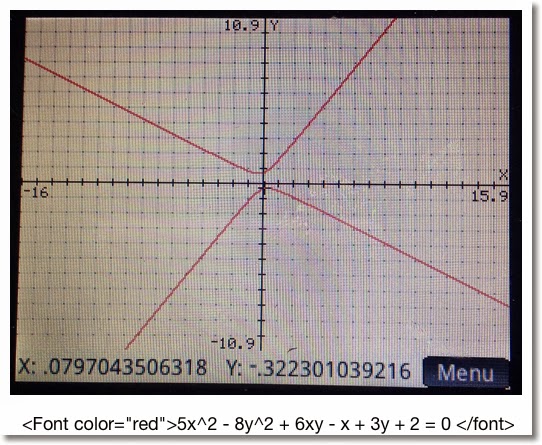
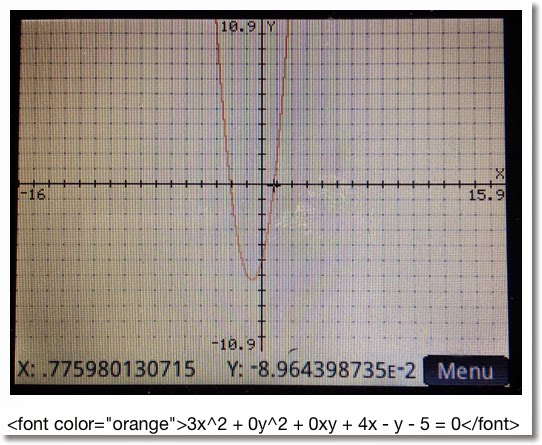
Below are some examples. Remember the form:

Ax^2 + By^2 + Cxy + Dx + Ey + F = 0

Projectile Motion for HP Prime

This program calculates range and height of a projectile, and plots its path. The program sets the mode into Degrees (HAngle=1) and the calculator to the Parametric app.

Equations:
x = V * cos θ * t
y = V * sin θ * t - .5 * g * t^2

Where
V = initial velocity
θ = initial degree of flight
g = Earth gravitation constant (9.80665 m/s^2, ≈32.17404 ft/s^2)

Air resistance is not factored, so we are dealing with ideal conditions. How much the projectile represents reality varies, where factors include the object being projected, the temperate and pressure of the air, and the weather.

EXPORT PROJ13()
BEGIN
LOCAL M, str;
// V, G, θ are global
// Degrees
HAngle:=1;

CHOOSE(M, "Units", "SI", "US");
IF M==1 THEN
str:="m";
G:=9.80665;
ELSE
str:="ft";
G:=32.17404;
END;

INPUT({V, θ}, "Data",
{"V:","θ:"},
{"Initial Velocity in "+str+"/s",
"Initial Angle in Degrees"});

X1:="V*COS(θ)*T";
Y1:="V*SIN(θ)*T-.5*G*T^2";

STARTAPP("Parametric");
CHECK(1);
// Adjust Window
Xmin:=0
// Range
Xmax:=V^2/G*SIN(2*θ);
Ymin:=0
// Height
Ymax:=(V^2*SIN(θ)^2)/(2*G);
MSGBOX("Range: "+Xmax+" "+str+", "
+", Height: "+Ymax+" "+str);
// Plot View
STARTVIEW(1,1);
END;


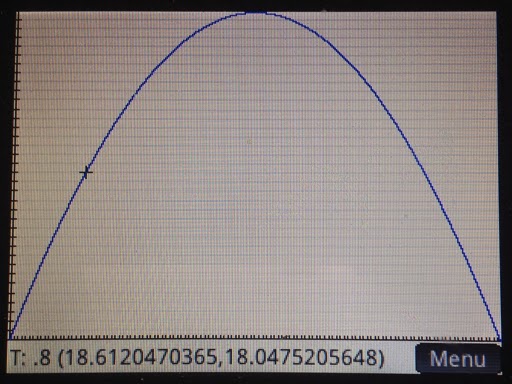
Below are screen shots from an example with V = 35.25 m/s and θ = 48.7°.


This concludes this session of the tutorials. Shortly I will have Part 6 up, which has to do routines.

I am catch-up mode, still. But then again I always feel like there is too much to do and too little time. LOL

See you soon!

Eddie


This blog is property of Edward Shore. 2013

Earth's Radius by Latitude

Earth's Radius by Latitude Introduction: Calculating the Earth’s Radius In quick, general calculations, we assume that the...