Showing posts with label keyboard. Show all posts

Monday, July 24, 2023

Review: Pen + Gear SS-6613 Scientific Calculator

Review:  Pen + Gear SS-6613 Scientific Calculator


For some of us, it's already near back-to-school season.  Need a scientific calculator and on a budget?  The Pen+Gear SS-6613, which I purchased from WalMart for five bucks, may be fit. (or really, at least one to hold you over)


Quick Facts


Model: SS-6613

Company: Pen + Gear 

Production Years:  2022 - present

Power:  Battery, 1.5V

Type:  Scientific

Operating System:  Algebraic

Memory Registers:  9:  A, B, C, D, E, F, X, Y, M 

Display:  Two lines.  10-digit numbers


The display has two lines.  The top line is for equations and expressions.  The bottom line is for results.  


Features


The feature set of the Pen + Gear calculator is similar to the Casio fx-991 MS series.  You get a lot a mileage for a five dollar calculator (that isn't an app).


Complex Mode:   complex mode arithmetic with polar/rectangular conversions


Statistics:  Single data (SD) and two-variable data statistics.  Normal distribution functions (lower tail area, mid area, and upper tail area), conversion to z (labeled t) functions are included.   The six regression models available are:  linear, logarithmic, exponential, power, inverse, and quadratic.  


Equation mode:  

Unknowns:  2 or 3:  2 x 2 or 3 x 3 linear systems

Degree: 2 or 3:  roots of quadratic or cubic polynomials


Matrices:  3 matrices up to 3 rows and 3 columns.   Functions include row reduction form, transpose, inverse (by the [ X~1 ] key), and determinant.


Vectors:  3 vectors, either 2D or 3D.  Cross product (by the [ × ] key), dot product, norm (via Abs, but it's hidden)


40 scientific constants and U.S.-SI conversions.   Constants and conversions are called up by number codes, so don't lose the paper manual that comes with the calculator.  


We also get multi-expression feature, which allows us to connect calculations with a colon (:).  However, on the Pen + Gear, this is a hidden feature as the colon is not printed on the calculator.  The colon is called up by pressing [ ALPHA ] [ SDX ].


The manual to the equivalent Casio fx-991MS is presented into two manuals:


Basic Operations, Complex Numbers, Statistics, Equations:

https://support.casio.com/pdf/004/fx115MS_991MS_E.pdf


Matrices, Vectors, Integration, Derivative, Constants, Conversions:

https://support.casio.com/pdf/004/fx570MS_991MS_E.pdf


Batteries


A major difference is the battery used.   Instead of a AA battery, a coin battery (I'm thinking AR44 or LR44) but the manual states the battery is 1.5 volts.   The battery is attached to the calculator's motherboard which will need careful removal.  I am thinking that company expects the user to buy a new calculator when the battery runs out.  I would prefer a better battery compartment.  


Keyboard


Wow, the keyboard.   First, all the text is in white.  No differentiation between the shifted functions, regular functions, and alpha letters.  Also the manufacture used plain text, which does not include advance math characters and Greek characters. 


Here are the all the keyboard quirks I could find:


[ SHIFT ] (Pai):   π  

[ SHIFT ] (sqrt3):  ³√

[ X~1 ]:  x⁻¹

[ SDX ]:  ∫ dx

[ YX ]:  ^ 

[ SHIFT ] (sqrtX):  √

[ SHIFT ] (10x): 10^x

[ SHIFT ] (ex):  e^x

[ SHIFT ] (R<Q):  r∠θ

[ SHIFT ] (<):  ∠


The strangest is the Pai for pi (π).  Theta, θ, could have been substituted with ang (for angle).   I could understand the rest of it.   


Hidden:


[ ALPHA ] [ SDX ]:  colon  ( : )

[ ALPHA ] [ ) ]:  abs  (absolute value, available only in complex and vector modes)


The keyboard is the weakest point of this calculator.  


Final Thoughts


The Pen + Gear SS-6613 Scientific Calculator has a lot of features for a low-cost calculator.  Unfortunately, the lack of keyboard color and math characters are what hold me back from giving this calculator a full recommendation.  Experienced users only. 


Eddie


All original content copyright, © 2011-2023.  Edward Shore.   Unauthorized use and/or unauthorized distribution for commercial purposes without express and written permission from the author is strictly prohibited.  This blog entry may be distributed for noncommercial purposes, provided that full credit is given to the author. 


Wednesday, April 12, 2023

Review: Casio fx-991CW (and the lack of multi-statements)

Review:  Casio fx-991CW (and the lack of multi-statements)


Quick Facts


Model:  fx-991CW

Company:  Casio

Years:  Internationally: 2022 - present, United States: April 2023 - present

Type:  Scientific

Power:  Solar with 1 LR44 backup battery

Display:  Multiline, 4-color gray display

Original Price:  $21.00 - $22.99 U.S. Dollars, varies on the specific version

Number of Variables:  9

Operating System: Algebraic


Update on the Classwiz


The fx-991CW is an update in Casio's Classwiz series, specifically on the 2015 fx-991EX Classwiz.  


Check out my review on the fx-991EX Classwiz from November 2015 here:

http://edspi31415.blogspot.com/2015/11/casio-fx-991ex-classwiz-review.html


The modes on the Classwiz are:


Calculate:  the main app for mathematical calculations


Statistics:  1 to 2 variable statistics.  Regressions include:

Linear:  y=a+bx

Quadratic: y=a+bx+cx^2

Logarithmic:  y=a+b*ln(x)

Exponential:  y=a*e^(bx)

Power I:  y=a*b^x

Power II: y=a*x^b

Inverse:  y=a+b/x


Distribution:  Calculations involving the binomial, normal, and Poisson.  The Inverse Normal deal with the lower tail (left) probability only.  


Spreadsheet:  Like the fx-991EX and Casio's current graphing calculators, the fx-991CW has a spreadsheet which has a 5 x 45 cell capacity.  The total memory is increased to 2,380 bytes (from 1,700 bytes on the fx-991EX).  Basic spreadsheet features included are:  labeling cells, sum, mean, minimum, maximum, absolute cell references ($), copy, cut, and paste.  


Table:   Generate a table of one function or two functions.   The functions are defined as f(x) and g(x).  With a QR code, you can generate a graph of these functions.


Equation:   Solve linear systems, up to 4 x 4 equations.  Solve polynomials, up to 4th order.  Real coefficients only but complex roots are calculated.   The general equation solver is moved to this mode.   


Inequality:  Solve inequalities up for polynomials of orders 2, 3, and 4.


Complex Number:  Complex number arithmetic with polar/rectangular conversion, integer powers, real/imaginary parts, conjugate


Base N:  Integer arithmetic with Boolean logic.  Instead of keys, the [FORMAT] key cycles through the four modes: Decimal, Hexadecimal, Binary, Octal.   Binary integers are up to 31 bytes with 1 sign bit.  We can not store or recall varaible values in this mode.


Matrix:  Works with four matrices up to 4 rows and 4 columns.  Functions include transpose, inverse, and determinant.


Vector:  Works with 4 vectors with either 2 or 3 elements.  Functions include dot product, norm, and cross product.


Ratio:  Solves common ratio problems.


Math Box:  This is the a new feature to the Classwiz.   For the United States, the Math Box has two simulations:  Dice Rolls and Coin Toss.   Depending on the country, the CW may include additional features.  


Emulator and Classpad.net


Purchasing a fx-991CW came with a emulator license with ClassPad.net.   The license number can be obtained using the Get Started option from the Settings menu.   Use the QR code.  For my calculator, the license for using ClassPad.net is seven years at no cost.  However, using an emulator without first purchasing an eligible calculator will require an additional cost.  


You can find details about Classpad.net here:  https://classpad.net/intl/features/


Keyboard, What is Added, and What is Subtracted


The keyboard of the fx-991CW is quite different from the previous Casio calculators.   The keys are now round with a lot less labels.   Most of functions are now stored in the catalog and tools.  Let's go over some of these keys:


[ house icon ]: [HOME].   This is where we switch the modes of the fx-991CW.   There are no numerical shortcuts, so we have to arrow and scroll to select the mode we want.  


[ three lines ]: [SETTINGS].  The settings key replaces the SETUP key sequence.   

Also note that the sub menus are selected by either pressing [ → ] or [ EXE ].  If there are radio buttons, select the option desired.  


[ curved arrow ]: [EXIT/EDIT].  This key, on the 2nd row, 2nd key from the left, will be used to exit menus and re-edit expressions.   


[ double up arrow ]/[ double down arrow ]:  This key, top right of the calculator, is used to quickly scroll through menus or lists.  Think of this key as the Page Up/Page Down key.


[ < >x] ]/[VARIABLE]:  This is the variable key.


Here is where we will store and edit values that are stored in each of the nine variables.   This key replaces the STORE key.     If we are operate in a mode that does not allow for editing or store values, there will be a lock icon with the selected variable.  


To store a result:

1.  Execute operation or recalling a calculated stat variable.

2.  Press [VARIABLE].

3.  Select variable, press [ OK ].

4.  Select Store, press [ OK ].


To edit a variable's value:

1.  Press [VARIABLE].

2.  Select variable, press [ OK ].

3.  Select Edit, press [ OK ].

4.  Enter the new value, press [ OK ].


To recall a variable in a calculation:

1.  Press [ SHIFT ].

2.  Press any of the following keys to get the variable:

[ 4 ]:  A

[ 5 ]:  B

[ 6 ]:  C

[ 1 ]:  D

[ 2 ]:  E

[ 3 ]:  F

[ 0 ]:  x

[ . ]:  y

[ x10^ ]:  z


There is no ALPHA key as it was in past Casio calculators.  


[ f(x) ]/[FUNCTION]:  


Here is where we can store and use up to two functions: f(x) and g(x).  The great news is that f(x) and g(x) are no longer limited to the Table, they can be used in other modes such as Calculate.   The equations f(x) and g(x) are retained while switching modes but not retained when the calculator either is turned off or the Input/Output setting is changed.  A missed opportunity for the latter.


A plus is that either f(x) or g(x) can be a composite function.  That is f(x) can contain g(x) or g(x) can contain f(x).  


There are two ways to access the x variable:  its own key [ x ] or the key sequence [ SHIFT ] [ 0 ].  


[book]/[CATALOG]:  This is where all the functions and commands can be accessed.  The menu order of the catalog changes depending on the mode used.  Some submenus include:


Function Analysis:  The calculus functions, that used to be on the keyboard, are now stored in the Function Analysis menu:  derivative, integral, summation, logarithm*, log*, ln* (* also on the keyboard)


Probability:   % (divides the number by 100), factorial, permutation, combination, random number, random integer


Numeric:  Absolute Value, Round Off (round the number to the Fix settings internally)


Angle/Coord/Sexa...:  angle units (degrees, radians, grads, degrees minutes seconds*), polar/rectangular conversions (* also on the keyboard)


Sci Constants:  47 scientific Constants


Unit Conversions


[ three circles ]/[ TOOLS ]:  The TOOLS menu changes dynamically based on the mode.   For example, the Calculate mode will have an Undo function.


[ FORMAT ]:  Instead of the [S<=>D] key, we have the [FORMAT] key, which asks how to change the value:  Standard, Decimal, Improper Fraction, Mixed Fraction,  ENG (Engineering) Notation, Sexagesimal (degrees-minutes-seconds).


In Base mode, the [ FORMAT ] key toggles between the four bases (decimal, hexadecimal, binary, octal).


I did three comparison speed tests between the fx-991CW and fx-991EX  here:  https://www.youtube.com/watch?v=cj0Odnv0Mwk


As I understand, the fx-991CW has a faster processor than the previous fx-991EX.


Now let's talk about what is subtracted in this update.  You read this correctly, several features did not make it from the fx-991EX to the fx-991CW:


The  CALC feature where we could type in a formula, press [ CALC ] and have formula evaluation.  I was not able to find the CALC feature on the fx-991CW.


There is no longer the independent memory M, nor the storage arithmetic functions M+ and M-.  I miss this feature the most.  I really wish scientific and graphing calculators in general embrace store arithmetic like Hewlett Packard and Swiss Micros.


There is no longer the ability to use multi-statement expressions, with each expression separated with a colon.  Even when it was available, (1) storing results immediately terminated the expression (forcing the use of Ans and when available, PreAns to make using results in the next part possible), and (2) when replayed, the statement was broken up into separate parts.  


Addendum 


Note (4/12/2023):  I am wrong when I said that storing results in multi-statements on the fx-991EX (not the fx-991CW) is impossible.  We use the equals key ([ALPHA] ( = )), as in this example:


A = 9 : B = 8 * A


Csaba Tizedes uses the multi-statement and CALC feature on the fx-991EX to create an IF-THEN-ELSE structure.  In this video Tizedes uses this structure to solve equations using the Bisection method.  The IF-THEN-ELSE structure tests whether a number is positive or negative.  Please take a look his video:


https://www.youtube.com/watch?v=umxScZL1V6A


Gratitude to Csaba Tizedes, this video is shared with his permission.  


Final Thoughts


Overall, the fx-991CW is pretty solid calculator with a readable screen and a lot of features.  My favorite part of the updated is the ability to use the functions f(x) and g(x) outside of the table function.  I also like the catalog key and the page up/page down key.


I get that Casio is going for a simpler, non-busy keyboard.  However, I prefer a separate ALPHA key, along with a STORE key: it's the most efficient way to store variables.   A consequence of a non-busy keyboard is that a lot of the commands can only be accessed through menus.  The ALPHA key could have freed nine keys for more common shifted keys such as x!, polar/rectangular conversions, etc.   I would have liked to see a couple of customizable keys where we can store commands, which could be the shift of the multiplication and division keys.  The financial calculator FC-200V has two slots to store commands.


The faster processor and the better screen are pluses.  You will still get a lot for the money spent on the fx-991CW. 


Caveat:   However, if you want, need, or require subtracted features described above (CALC feature, independent memory, multi-statement expressions), you are better off buying the former fx-991EX or a fx-115ES Plus 2nd Edition.  


Unfortunately, removing the multi-statement, Casio sapped it's algorithmic power with the fx-991CW, and it needs to come back.  Furthermore, please put integer part, fraction part, and sign functions.   


Eddie


All original content copyright, © 2011-2023.  Edward Shore.   Unauthorized use and/or unauthorized distribution for commercial purposes without express and written permission from the author is strictly prohibited.  This blog entry may be distributed for noncommercial purposes, provided that full credit is given to the author. 


Monday, August 29, 2022

Retro Review: HP 40gs

Retro Review:  HP 40gs


Quick Facts


Model:  HP 40gs

Company:  Hewlett Packard

Years:  2006-2010s

Type:  Graphing

Batteries: 4 x AAA plus backup batter CR2032

Operating Mode:  Algebraic

Memory Registers: 27 real variables (A - Z, Θ); and 10 of Lists (L#), Statistics (C#), Complex Numbers (Z#), Matrices (M#), Graphic Objects (G#)

Original Price:  about $100.00 

Memory:  256 KB RAM and 2 MB Flash


Other Features


*  Numerical calculus:  integral and derivative

*  Floor, ceiling, fraction, integer, mantissa, exponent parts

*  Complex numbers

*  Polynomial calculations and roots 

*  Matrices and lists

*  Conversions and library of scientific constants


A great feature is the HELPWITH command, as called with the keystrokes [ SHIFT ] [ 2 ] (SYNTAX).  


Keyboard


The keys are pretty responsive.  The keyboard is a beautiful dark gray with light gray and black keys.  The knocks:  first, the alpha characters are in gold, which the font does not contrast well the background.   Another thing I do not like is the alpha characters are placed below keys.  For example:  [ VARS ] has the character A, [ SIN ] has the character E.  


Another challenge is that the double quotes and single quotes are not available directly from the keyboard, and must be accessed through the CHARS menu.   In regular calculation, this may not make much of a difference, but in programming, it makes a big difference when it comes to messages and prompts.   The alpha-lock is regulated to a soft key.  


Equation Writer and CAS 


The HP 40gs has two ways to operate computer algebra system commands:


*  From Home, use of the symbolic variables which takes the form of S# (S1, S2, S3, etc).


*  Equation writer, which is selected by the (CAS) soft key.   In the equation writer, you can build and simplify equations.   The equation writer can use any variable, and is similar to the HP 48S and 48G family (including the HP 50g).   


Aplets 


Aplets are the HP 40gs' applications which includes:


*  Finance:  Time Value of Money and Amortization Table

*  Function:  Plot up to ten functions, F#(X)  where # 0-9

*  Inference:  Hypothesis tests

*  Linear Solver:  Solve 2 x 2 or 3 x 3 linear systems

*  Parametric:  Plot up to ten parametric pairs, X#(T), Y#(T)

*  Polar:  Plot up to ten polar equations, R#(Θ)

*  Quad Explorer: Dynamic graphing, y = a*(x+h)^2 + v

*  Sequences: Plot up to ten sequences, U#(N), with one or two initial conditions

*  Solve:  Store up to ten equations, solve for any one at a time

*  Statistics:  Statistics for 1 or 2 variables.  In 2 variable statistics, 8 regressions plus a user-defined 

*  StreamSmart:  Data streamer device which collects data, stream it, and analyze data 

*  Triangle Solve:  Solves for right triangles and regular triangles

*  Trig Explorer: Dynamic graphing:  f = sin(x ± n*π) and f = cos(x ± n*π)


Aplets can be modified and copied.  


Programming


The program language of the HP 40gs is the same as the HP 38G/39G series.  Each line, except for the last line, must end with a colon (:).   Arguments are separated with a semicolon (;).  


The learning curve of the programming language is little complex, especially when it comes to setting views and customizing aplets.   Thankfully the user guide is thorough, so make sure you have the book or the pdf download, which you can access here:


http://h10032.www1.hp.com/ctg/Manual/c00748685.pdf


Two Sample Programs


HP 40gs Program RANDLIST


Generate a list of random numbers of length N.


INPUT N; "LIST LENGTH"; "N:"; ""; 5:

MAKELIST(RANDOM,X,1,N,1)▶L0:

ΣLIST(L0)▶S:

S/N▶A:

-10 ▶Xmin:

10 ▶Xmax:

-10 ▶Ymin:

10 ▶Ymax:

ERASE:

DISPXY -6; 4; 2; "Σ:":

DISPXY 0; 4; 2; S:

DISPXY -6; 1; 2; "μ:":

DISPXY 0; 1; 2; A:

DISPXY -6; -2; 2; "n:":

DISPXY 0; -2; 2; N:

FREEZE:


HP 40gs Program PLOTPX


Asks for A, B, and C in a quadratic equation and stores it to the Function F0(X)


DISP 1; "2022-08-15 EWS":

DISP 2; "y=Ax^2+Bx+C":

FREEZE:

SELECT Function:

INPUT A; ""; "A"; ""; 1:

INPUT B; ""; "B"; ""; 1:

INPUT C; ""; "C"; ""; 1:

'A*X^2+B*X+C' ▶ F1(X)

CHECK 1:

MSGBOX "PRESS PLOT"


Note:  This language is similar to the later HP Prime, which most line ending with a semicolon.  


A Predecessor to the HP Prime?  Final Thoughts 


A lot of the features and structure of the HP 40gs would be present in the HP Prime:  among other things, a solver, program that can select aplets (apps) and set custom views but most of all, a separate CAS mode.  


The HP 40gs is a nice calculator with a ton of features.  I think the HP 40gs was rarely available in the United States because of the CAS mode, because like the HP 39gs, the 40gs is aimed towards the education market.  The key contrast could be better and adding the quotes to the keyboard would be nice.


Eddie


All original content copyright, © 2011-2022.  Edward Shore.   Unauthorized use and/or unauthorized distribution for commercial purposes without express and written permission from the author is strictly prohibited.  This blog entry may be distributed for noncommercial purposes, provided that full credit is given to the author. 


Monday, August 8, 2022

Texas Instruments: TI-36X Pro and TI-30X Pro Mathprint

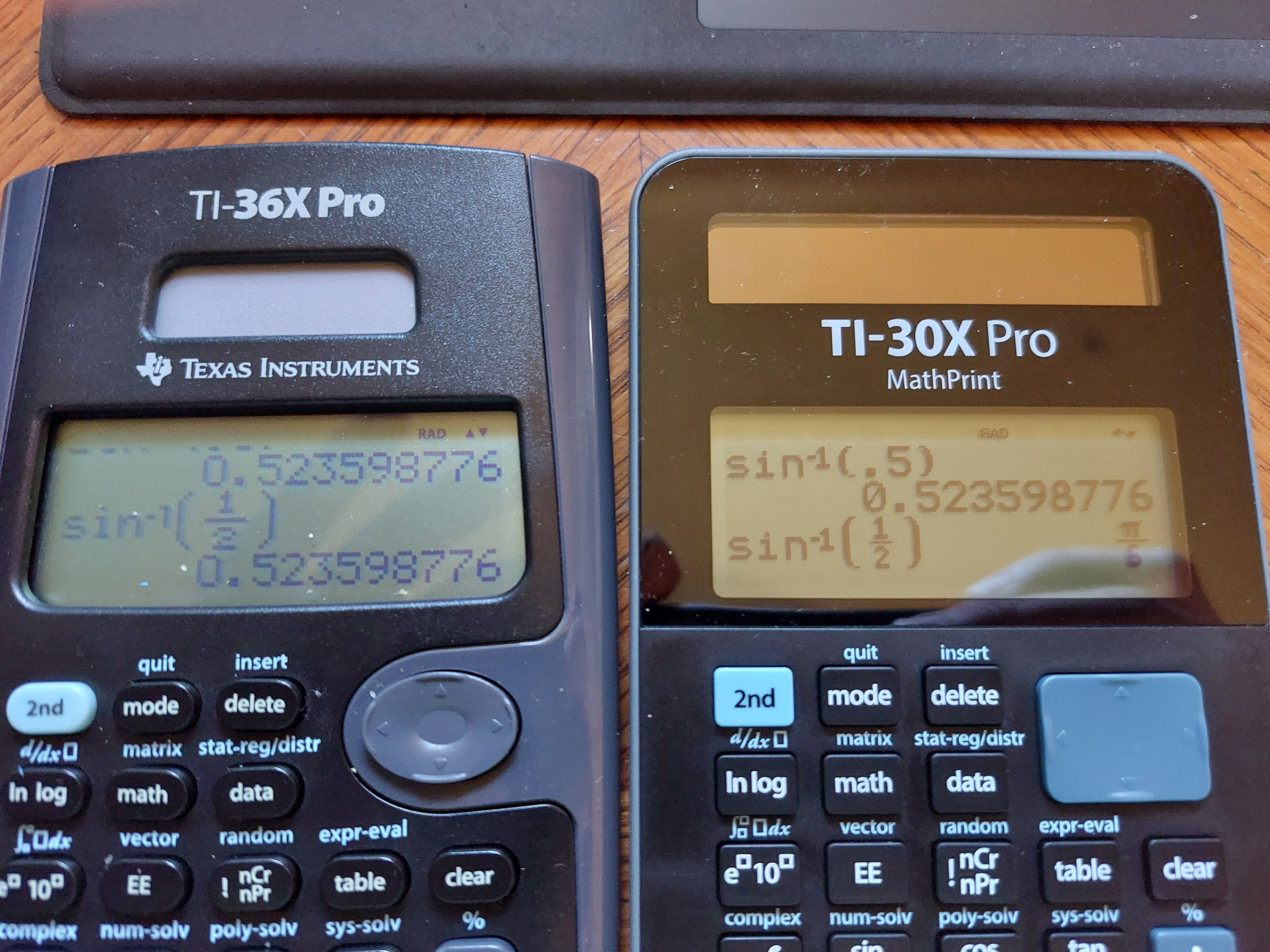
 Essentially, the Texas Instruments TI-36X Pro and the TI-30X MathPrint are functionally equivalent.  What makes the two calculators different?


*  The TI-36X Pro is sold in the United States and in lot of the world, with the TI-30X MathPrint is sold primarily from Europe.  I ordered my TI-30X Pro MathPrint from the United Kingdom.  


Product pages from Texas Instruments:


TI-36X Pro (United States and Canada)

https://education.ti.com/en/products/calculators/scientific-calculators/ti-36x-pro


TI-30X MathPrint (Denmark, in Danish):

https://education.ti.com/da/products/calculators/scientific-calculators/ti-30x-pro-mp#specifications


Australia has a TI-30XPlus MathPrint, which is styled like the TI-30X Pro MathPrint, but without calculus functions.

https://education.ti.com/en-au/products/calculators/scientific-calculators/ti-30x-plus-mp?category=overview


*  Thanks to the body of the calculator being curved, the TI-36X Pro is slightly bigger than the TI-30X Pro MathPrint. 


*  The screen on the TI-36X Pro is a curved trapezoid, while the screen of the TI-30X Pro MathPrint has is rectangular.  


*  The TI-36X Pro has a circular arrow keypad while the TI-30X Pro MathPrint has a rectangular arrow keypad.  


* The TI-30X Pro Math print has black characters, while the TI-36X Pro has blue characters.


* The font on the keys of the TI-30X Pro Math are larger than than the font on the TI-36X Pro's keys.


Here are some pictures.


Either calculator is worth buying.  You  can see my review of the TI-36X Pro from 2011 here:

P.S. I still wish the TI-36X Pro/TI-30X Pro MathPrint had an alpha key instead of one key to press multiple times to get different variables.  That is my biggest gripe. 

Eddie


All original content copyright, © 2011-2022.  Edward Shore.   Unauthorized use and/or unauthorized distribution for commercial purposes without express and written permission from the author is strictly prohibited.  This blog entry may be distributed for noncommercial purposes, provided that full credit is given to the author. 


Sunday, August 8, 2021

TI-36X Pro's Keyboard Gets an Uplift

TI-36X Pro's Keyboard Gets an Uplift


The TI-36X Pro from Texas Instruments gets a keyboard uplift: the arithmetic, enter, arrow pad, and fraction/decimal keys are no longer metallic with hard to read symbols. Instead they are dark gray with white symbols, which are much easier to read and better to push. No other software changes or additions detected (yet). The price is still the same. This is probably closest the United States is going to get to the keyboard of the European TI-30X Pro Mathprint. The new 36X Pros are manufactured in the Philippines, while they used to be manufactured in China.


Packaging

New Keyboard
Old Keyboard


Back cases (Old on the left: China with an extra Reset button, New on the right: Philippines without that button)

Note: The same text with these pictures appear on my Instagram page. (Account edpicsgram).


Eddie

All original content copyright, © 2011-2021.  Edward Shore.   Unauthorized use and/or unauthorized distribution for commercial purposes without express and written permission from the author is strictly prohibited.  This blog entry may be distributed for noncommercial purposes, provided that full credit is given to the author. 

Saturday, February 27, 2021

Review: Victor 940

 Review:  Victor 940


Just the Facts


Company:  Victor

Type:  Scientific - Algebraic

Display:  10 digits with 2 digit exponents

Power:  Solar with battery back up LR43 battery

Memory Registers: 8:  A, B, C, D, E, F, X, Y, M

Cost:  about $8 to $10

Website:  https://www.victortech.com/product/940


Features


*  Trigonometry, Exponential, Logarithms

*  Factorial, Combinations, Permutations

*  Algebraic Expression Evaluation with fractions

*  Memory Arithmetic with M+ and M-

*  Statistics

*  Regressions:  Linear, Logarithm, Exponential, Power, Inverse, Quadratic

*  Two Line Display:  the top line is for typing mathematical expressions, the bottom line is for displaying results.


Essentially, the Victor 940 is a clone of the Casio fx-300MS/fx-85WA.  Many calculators are OEM clones, two other examples include the Bazic 300 and Hewlett Packard HP 10s+.  


You can find more information about the Casio fx-300MS/fx-85WA here:  

http://edspi31415.blogspot.com/2019/01/retro-review-casio-fx-85wa.html


Keyboard


The Victor 940 has a white keyboard with sky blue and orange font.   What differs the Victor 940 are:


*  The display is nice and large compared to the rest.  


*  I like the colors on the keyboard and the contrast on the font.  It could be just personal preference.  


*  The placement of the [ ON ], [ MODE ], [ALPHA], and [SHIFT] keys are different:  with the [ ON ] and [ MODE ] keys on the left of the arrow keys and [ALPHA] and [SHIFT] keys on the right of the arrow keys.  


I am not a fan of the plastic cover case.  Removing the case the first time was difficult and will require force.  The case does not cover the entire calculator, leaving the top of the calculator is left uncovered.  The case does cover the screen, keys, and solar panels are covered.


Verdict


I like the big screen on the Victor 940.  Other than that, it is like the Casio fx-300MS: plenty of functions for a low price.  


Eddie


All original content copyright, © 2011-2021.  Edward Shore.   Unauthorized use and/or unauthorized distribution for commercial purposes without express and written permission from the author is strictly prohibited.  This blog entry may be distributed for noncommercial purposes, provided that full credit is given to the author. 


Thursday, May 9, 2019

Review: Casio fx-300MS 2nd Edition

Review:  Casio fx-300MS 2nd Edition


General Information

Company:  Casio
Type:  Scientific - Algebra (Perfect Algebra Method)
Display: 10 digits with 2 digit exponents
Power:  Solar with battery backup (LR-44)
Memory Registers:  8: A, B, C, D, E, F, X, Y, M
Years In Production: 2019 - present
Cost:  $10 - $20 (CVS sells this for $21, the only place in Southern California that carries the fx-300MS 2nd Edition - for now (as of 4/26/2019))
Documentation:  Manual, can be found online

Also known as:  fx-85MS 2nd Edition

Quick Overview of the Features

*  Trigonometry, Exponential, Logarithms
*  Factorial (of positive integers up to 69), Combinations, Permutations
*  Evaluating Algebraic Expressions up to 79 Characters
*  Memory Arithmetic with M  (M+ and M-)
*  Multi-statement analysis (connected by a colon  ( : ))
*  Statistics including six regressions:  Linear, Logarithm, Exponential, Power, Inverse, Quadratic
*  Fractions: Simplification, conversion between mixed and improper
* Contrast setting
* Two line display: the top line is for the expression and the bottom line is displays the answer

Function wise, the fx-300MS 2nd Edition is the same as the original edition of the fx-300MS and fx-85WA.  For my review on the Casio fx-85WA, click here:     http://edspi31415.blogspot.com/2019/01/retro-review-casio-fx-85wa.html

What is Different of the Second Edition?

Left:  fx-300MS,  Right:  fx-300MS 2nd Edition 


Last year, Casio introduced its revamped MS series with the goal of redesigning the calculator series. 

The MS loses its curvy shape in favor of a rounded box design, which is made to feel more comfortable when operating in the calculator in the hand. I favor this design as the 2nd Edition feels more comfortable in the hand. 

Close up of the numeric keys:  Left:  fx-300MS Plus, Right:  fx-300MS Plus 2nd Edition

The fonts on the keys are larger and the keys have better font-background ratio, which results in the keys being more readable.  The number keys are bigger hand have a charcoal black background instead of a gray background. 

The arrow keyboard is replaced with four separate arrow keys.  Instead of four rounded keys for [SHIFT], [ALPHA],[MODE], and [CLEAR], the keys are circular.  The exponent key [ EXP ] has been replaced with [ x10^x ], a trend with Casio scientific and graphing calculators.

I like the feel of the keys on the 2nd Edition a lot better than the previous edition, the keys feel more firm and steady to the touch. 

The display is similar to the previous edition, except that it is more sensitive to the touch.  Just be careful when you are handling the calculator near the display. 

Slide Case for the fx-300MS 2nd Edition

I don't know if this is first, but the MS series slide case is designed to attach and detach in two ways, so no matter where the top of the calculator is pointed, the case will fit on.  This is a really neat feature which I assume that Casio is going to continue when producing future scientific calculators. 

Verdict

I like the keyboards of the 2nd Edition MS series, the calculators look more high-tech, the keyboard is firmer,  and I love the large font on the keys.  I am now looking to get the fx-991 MS 2nd Edition.  That said, if you have the original edition, there really isn't a need to trade it or be rid of it, the original edition is still adequate for use. 

I guess it boils down to a matter of preference.  If you want the 2nd Edition and can find one (especially in the United States, I may have to go online for the fx-991 MS 2nd Edition), go for it. 

Happy calculating,

Eddie

All original content copyright, © 2011-2019.  Edward Shore.   Unauthorized use and/or unauthorized distribution for commercial purposes without express and written permission from the author is strictly prohibited.  This blog entry may be distributed for noncommercial purposes, provided that full credit is given to the author.


Thursday, June 16, 2016

Casio Classpad’s (fx-CP400) Hidden Shift Functions

fx-CP400 Keyboard


Hidden Shift Functions

When I was giving a quick review of the Classpad’s fx-CP400 last March (http://edspi31415.blogspot.com/2016/03/a-quick-look-at-casio-classpad-fx-cp400.html), I mentioned that I would have liked the basic scientific functions assigned and listed on the keyboard.  It turns out that most of the keys have shifted functions.  The reason why they are not listed is because the shifted functions can be customized.  Here are the default shift settings:

COPY
CUT
PASTE
UNDO
√[ ]  
[ ] / [ ]
=
x
y
z
^
÷
T


(
7
8
9
*
θ
e^[ ]
ln(
log[ ]

)
4
5
6
-
|  with
sin(
cos(
tan(

,
1
2
3
+
=> store
π
i
∞
ans
(-)
0
.
EXP
EXE

To assign (or clear) keyboard assignments: 
1.  Press Menu
2.  Select System (2nd page)
3.  On the top row of icons, select the (Shift) icon.  (first set, farthest right)
4.  Select a key.  To assign a function, select the box next to [ Set ].  Call up the keyboard if needed.  When are you ready, press [ Set ].
5.  You can clear a key by pressing [ Clear ].
6. To return to default settings, press [ Default ].
7.  When you are done with the keyboard settings, press [ OK ]. 
8.  Test your settings by going to the Main screen.

This is also shown on pg. 247 of the Casio Classpad II manual.

Here is my customized keyboard.  I made a keyboard on an index card and keep it with the Classpad.  It is great because we can easily call up commonly used functions without having to hunt through the soft keyboard.  For mine, I just kept the defaults and added some other basics to the missing keys (they are in green for reference):

COPY
CUT
PASTE
UNDO
√[ ]  
[ ] / [ ]
=
x
y
z
^
÷
t
sinˉ¹(
cosˉ¹(
tanˉ¹(
{ }
(
7
8
9
*
θ
e^[ ]
ln(
log[ ]
abs(
)
4
5
6
-
|  with
sin(
cos(
tan(
arg(
,
1
2
3
+
=> store
π
i
∞
ans
(-)
0
.
EXP
EXE


This blog is property of Edward Shore, 2016.

Symmetric Quartic Equation - Python

Symmetric Quartic Equation - Python Note: The code is programmed with a TI-84 Evo. No modules are used, so the scripts should be adopt...