HP 39gii Programming Tutorial - Part 8: Functions as Arguments
Apologies for the delay.
In part 8, I will show you several was you can use functions as arguments in programs. First, some pointers to help make the programming experience less daunting:
1. The HP 39gii is not a CAS machine. Everything must be evaluated to a number.
2. Functions are entered either as strings (expressions surrounded by quotation marks) or by the use of the QUOTE command. The QUOTE command can be found by pressing [Math], [ 1 ], [ 2 ]. It may help to store the required equation/function in E#/F# first before running the program, which is the case with PARTDER.
3. When using HP mathematical commands, you may have to store pass-through variables into global variables first. I am not sure why this is true for some commands but not for others.
4. The use of expressions and functions don't always work in programming. Use caution. I have particular trouble with SOLVE and FNROOT in this situation.
--------
Note: Recall there are two ways to store objects, one the store arrow ( →) and the assign operator ( := ). I usually code the latter, but for most applications, either way is acceptable. I use both methods in today's programming examples. And yes, we can use both methods in one program.
Hint: I often test commands and their usage at the Home screen to get a better understanding on how mathematical commands work. I also note their syntax by both using the command and accessing the help menu ([SHIFT] [Views]).
------
The Program PARTDER
PARTDER takes the partial derivatives of the function f(X,Y) at the point (x, y) and returns a list of the values {df/dx, df/dy}.
PARTDER takes two pass-through arguments:
x = value of x
y = value of y
Define f(X,Y) as a string into E0 outside the program.
EXPORT PARTDER(a,b)
BEGIN
a → A; b →Y; ∂(E0, X=A) → C;
b → B; a → X; ∂(E0, Y=B) → D;
RETURN {C, D};
END;
Examples:
"SIN(X*Y)+Y^2"→E0
PARTDER(π, 1) returns { -1, -1.14159265359 }
QUOTE(X^(2*Y+1))→E0
PARTDER(4,1) returns {48, 177.445678223}
Eddie
This blog is property of Edward Shore. 2013
Tuesday, April 23, 2013
HP 39gii Programming Tutorial - Part 8: Functions in Programs

Thursday, April 18, 2013
HP 39gii Programming Tutorial Update
There will be a Part 8 of the HP 39gii calculator tutorial series. I plan to have it posted by next week.
Part 8 will involve programs that use functions and equations as parameters.
Hope everything is well. It is a crazy world out there!
Eddie
This blog is property of Edward Shore. 2013
Saturday, April 13, 2013
The Weekend's Here: A preview of what's coming next.


Hi everyone! I am at a local Starbucks. Love the coffee shop atmosphere - and coffee.
Way I doing today and over the next few weeks is taking some programs from the classic Hewlett Packard manuals, particularly the 1970s (25, 45, 67, 33E, etc) and programming them on today's calculators (35S, 39gii, 15c LE, 50g). I expect that I will end up using resources from Texas Instruments and Casio as well. I aim to post some programs on my blog starting in May.
Have a great and fun weekend! Thank you for your continual support and comments!
Eddie
This blog is property of Edward Shore. 2013
Monday, April 8, 2013
Using Color Calculators to Plot Patterns (TI-84+CSE, Casio Prizm)
We are in the age of color graphing calculators (and mobile apps). While the Casio Prizm and TI nSpire CX (with and without CAS) got the age started, it could be the next crop of color calculators, such as the TI-84+ Color Silver Edition that puts color into the mainstream.
These patterns are generated by using four colors and a function f(x,y) where
f(x,y) = remainder( int(Φ(x,y)) / 4)
with Φ(x,y) is a positive function. The value of f(x,y) determines on of four colors. I used the DRAWPATTERN (page 269 of the HP 39gii manual, 1st edition) as a template.
With the TI-84+ Color Silver Edition it takes about 40-45 minutes to complete. The real surprise (to me at least), was I did one with the Casio Prizm, which it took about six hours to complete; I was surprised there was any battery left. This is where the advantage of rechargeable battery of the TI-84+ CSE comes in. I am happy then to report that the battery of the TI-84+ CSE held up well.
Without any further ado, here are the graphics created! Nice way to spend a Sunday afternoon, I think.
With each picture I will list Φ(x,y). The window, except noted, is Xmin=-10, Xmax=10, Ymin=-10, Ymax=10.
Recall: f(x,y) = remainder( int(Φ(x,y)) / 4)


Until next time,
Eddie
This blog is property of Edward Shore. 2013
Friday, April 5, 2013
HP 39gii Programming Part 7: Using App Specific Commands
I hope you are all enjoying the day/night so far. The subject of Part 7 of the HP 39gii will be App-Specific commands.
We will work with app and global variables, as well as switching applications and doing App specific commands to our advantage. The two primary commands we will work with are STARTAPP and STARTVIEW.
STARTAPP and STARTVIEW
STARTAPP does what it advertises: starts the specific application called. The required application is stated as a string. For example, STARTAPP("Function") starts the Function graphing app. Running this command is key if you want the user to access specific screens, such as the Symbolic, Plot, and Numeric screens.
Keyboard sequence for STARTAPP is: [Shift] [Math] [ F1 ] [ 1 ] [ 2 ].
Applications include:
"Function" - Function Graphing
"Parametric" - Parametric Graphing
"Polar" - Polar Graphing
"Sequence" - Recurring Sequence Graphing
"Solve" - Solver Interface
"Triangle Solver" - Application for solving sides and angles of triangles
"Finance" - Time Value of Money Application
"Statistics 1Var" - 1 Variable Statistics
"Statistics 2Var" - 2 Variable Statistics
"Inference" - Hypothetical Testing and Confidence Intervals
"Linear Explorer" - Teaching application regarding linear equations
"Quadratic Explorer" - Teaching application regarding quadratic equations
"Trig Explorer" - Teaching application regarding trigonometric functions
"Data Streamer" - Application that works with Hewlett Packard's StreamSmart devices (data collection from various apparatus)
STARTVIEW leaves the user at a specific view, such as the Home screen, Plot screen, etc. Each screen has a specific view code, with syntax STARTVIEW(code). Some view codes are:
0: Symbolic Screen
1: Plot Screen
2: Numeric Screen
3: Symbolic Setup Screen
4: Plot Setup
5: Numeric Setup
6: App Information (accessed by [Shift] [Apps])
7: Views Key (same as if you pressed the [Views])
-1: Home Screen
-2: Mode Setup Screen
Keyboard sequence for STARTVIEW is: [Shift] [Math] [ F1 ] [ 1 ] [ 3 ].
App Variables
App variables are global. Some are specific to one app while others are applicable to several apps. I usually type of the variables, but you can find the app variables by pressing [Vars] [ F2 ]. The order of the apps shift, with the current app on top. I will present some app variables. This is not the extensive list by any means, so please check out the HP 39gii manual for a complete list.
App Variables Specific to One App
Function Symbolic - There are ten functions that are named F#, with # representing a digit 0 through 9. F1 is at top of the Symbolic view, F0 is at the bottom.
Parametric Symbolic - Similar to Function; names are X1 - X9, X0 and Y1 - Y9, Y0.
Polar Symbolic - Similar to Function; names are R1 - R9, R0
Sequential Symbolic - Similar to Function; names are U1 - U9, U0
Solve Symbolic - you can store ten equations in the solve variables E1 - E9, E0
You can store graphing expressions and equations to the appropriate variable by using a string around your expression/equation. You can use both methods of storing (store arrow and the equals-colon assignment syntax) Examples:
"SIN(X^2)" → F1 (store to Function F1)
E3 := "A^2 + B^2 = C^2" (store to Equation E3)
Statistics - 1 Variable:
Data: D1 - D9, D0 (lists)
Analysis: H1 - H5
Set the sample by the command SetSample(H#, D#);
Statistics - 2 Variable:
Data: C1 - C9, C0 (lists)
Analysis: S1 - S5
Set the data to be analyzed by the commands:
SetIndep(S#, C#);
SetDepend(S#, C#);
App Variables used by Several Apps
The Plot window: Xmin, Xmax, Ymin, Ymax, Xscl, Yscl, Tmin, Tmax, Tstep, θmin, θmax, θstep
Three ways to access θ:
1. Be in Polar mode and press [X,T,θ,N].
2. Echo θ from the Characters Menu: [Shift] [Vars] [ F2 ] [ 7 ] (Greek and Coptic) [ F4 ] (Page Down) [ left ] [ left ] [ up ] [ up ] [ F6 ] (OK)
3. char(952) returns "θ" while expr(char(952)) returns θ.
CHECK and UNCHECK
CHECK turns a certain equation/expression on. UNCHECK, as you probably guessed, turns named function off.
Syntax:
CHECK(n)
UNCHECK(n)
Just the number is accepted: n refers to the equation/expression listed in the current app. Despite what the manual says, CHECK (F1) produces an error, n must be numerical.
With that long intro done, let's get to the programming!
The Program SSAT (Simple Statistics)
SSAT takes a list, turns on the Statistics 1-Variable app, and returns:
* The number of elements in the list
* The mean
* The standard deviation
After the results are displayed, you are returned to the home screen.
Note: The commands SetSample and Do1VStats are found in then Command-App-Statistics 1 Variable menu. ([Shift] [Math] [ F2 ])
Program:
EXPORT SSTAT(D)
BEGIN
D1:=D;
STARTAPP("Statistics 1Var");
SetSample(H1,D1);
Do1VStats(H1);
PRINT();
PRINT("n="+Nbltem);
PRINT("Mean="+MeanX);
PRINT("SDev="+sX);
STARTVIEW(-1);
END;
Example:
SSTAT({3,4.5,4.4,4.6,4,3.9,3.8,3,3.2}) returns
n=9
Mean=3.822222222
SDev=.630035272381
The Program PLOTF
The program PLOTF takes three arguments.
PLOTF(function of X as a string, left limit, right limit)
The function F0 is turned on while the other functions F1 - F9 are turned off. The Function app is tuned on the program terminates at the plot screen.
Program:
EXPORT PLOTF(f,a,b)
BEGIN
LOCAL c,d,K;
STARTAPP("Function");
Xmin:=a;
Xmax:=b;
c:=0;
d:=0;
f → F0(X);
CHECK(0);
FOR K FROM 1 TO 9 DO
UNCHECK(K);
END;
FOR K FROM a TO b STEP (b-a)/256 DO
IF F0(K) < c THEN
c:=F0(K); END;
IF F0(K) > d THEN
d:=F0(K); END;
END;
Ymin:=c-1;
Ymax:=d+1;
Xtick:=10^(ROUND(LOG(b-a),0));
Ytick:=10^(ROUND(LOG(d-c),0));
STARTVIEW(1);
END;
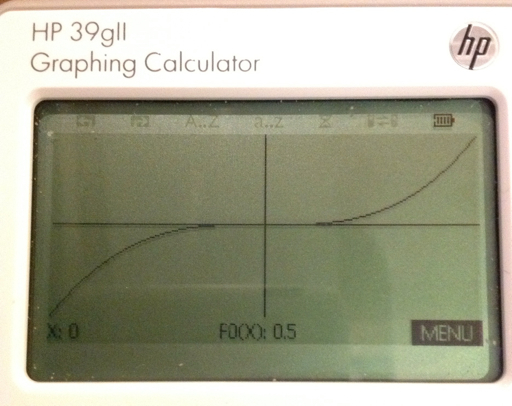
Example: Plot y = 2x^3 - x + 0.5 from -5 ≤ x ≤ 5
PLOTF("2X^3-X+0.5",-5,5) gets this:
The Program PROJECTILE
PROJECTILE does the following:
1. Switch the 39gii to the Parametric app and Degrees mode
2. Determines the projectile's range and height. No air resistance is assumed. You determined whether you are working in: SI (meters) or US (feet).
3. The path of the projectile is graphed.
Input: PROJECTILE(initial height, initial velocity, initial angle in degrees)
The program will ask you to select the value of the gravitational constant:
g = 9.80665 m/s^2
Or
g = 32.17405 ft/s^2
Program:
EXPORT PROJECTILE(y0, v0, a0)
BEGIN
LOCAL K;
STARTAPP("Parametric");
CHOOSE(K,"g=","9.80665 m/s²","32.17405 ft/s²");
IF K==0 THEN KILL; END;
IF K==1 THEN G:=9.80665; END;
IF K==2 THEN G:=32.17405; END;
HAngle:=1;
I:=y0;
V:=v0;
A:=a0;
"V*COS(A)*T" → X0(T);
"I+V*SIN(A)*T-0.5*G*T²"→Y0(T);
CHECK(0);
FOR K FROM 1 TO 9 DO
UNCHECK(K); END;
W:=FNROOT(Y0(T)=0,T,10);
R:=X0(W);
S:=FNROOT(X0(T)=R,T,10);
H:=(V²*(SIN(A))²)/(2G);
Xmin:=0;
Xmax:=R+2;
Ymin:=-1;
Ymax:=H+2+I;
Tmin:=0;
Tmax:=S;
Tstep:=S/240;
MSGBOX("Range: "+R);
MSGBOX("Height: "+H);
STARTVIEW(1);
END;
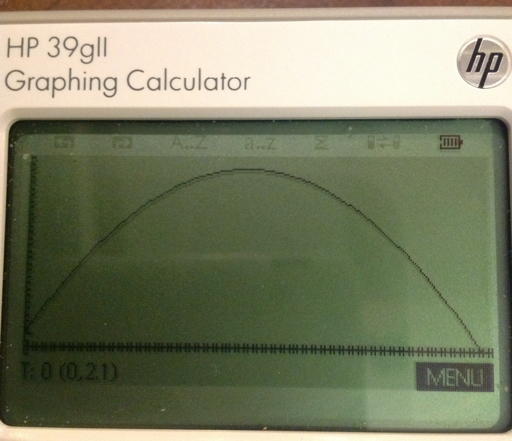
Example:
Initial height=2.1 ft
Initial velocity=56.5 ft/s
Initial angle=46.76°
PROJECTILE(2.1,56.5,46.7), select g=32.17405 ft/s^2
Results: (in feet)
Range: 100.984422673
Height: 26.2756069802
This concludes Part 7 of the HP 39gii programming tutorial. Until next time,
Eddie
Have a great day! Much happiness!
This blog is property of Edward Shore. 2013
Monday, April 1, 2013
HP 39gii Programming Tutorial Part 6: Making programs interactive with GETKEY
Welcome to Part 6 of the HP 39gii programming tutorial. In today's session, it is all about GETKEY. The GETKEY command allows programs to be interactive during execution.
GETKEY and Key Codes
Keystroke sequence for GETKEY:
[SHIFT] [Math] [ F1 ] [ 5 ] [ 5 ]
GETKEY returns the key number of the last key pressed. If there has not been a key pressed, GETKEY returns -1.
GETKEY assigns a key code to each of the keys, starting with 1 on the upper left corner of the keyboard, the [ F1 ], going right then down, to the lower right corner of the keyboard, [ENTER], which has code 50.
The key codes for the arrow keys are as follows:
[ up ] : 9
[ right ] : 10
[ left ] : 14
[ right ] : 15
Below is the map of key codes. (Source: HP 39gii User's Guide, Edition 1)

How to use GETKEY
In today's tutorial, we will demonstrate two uses of GETKEY:
1. Execute commands until any key is pressed.
General structure:
WHILE GETKEY==-1 DO
(Commands)
END;
2. Assign certain actions to certain keys.
Let E be the code for the exit key. Press the key that has the corresponding code E, and the loop ends.
REPEAT
...
GETKEY:=K;
....
IF K==(number) (and/or other conditions) THEN
(do this); END;
...
UNTIL K==E;
Let's demonstrate this in a couple of programs.
The Program SPIN1
Spinning Game #1: Use GETKEY to repeat an action until a key (any key is pressed)
Three spinners spin between 0 and 4. Press any key at any time and try to get the highest score possible.
EXPORT SPIN1()
BEGIN
RANDSEED();
RECT();
TEXTOUT_P("Ready!",1,1);
WAIT(0.5);
WHILE GETKEY==-1 DO
RECT();
INT(RANDOM(0,5))→A;
INT(RANDOM(0,5))→B;
INT(RANDOM(0,5))→C;
TEXTOUT_P(string(A),60,53);
TEXTOUT_P(string(B),145,53);
TEXTOUT_P(string(C),230,53);
WAIT(0.25);
END;
A+B+C→S;
TEXTOUT_P("Your score is "+string(S)+".",1,73);
WAIT(0);
END;


The MOVEM Program
The program MOVEM uses GETKEY to make an interactive program. Use the arrow keys to move the "M" character around. Exit the program with by pressing the [ F6 ] key.
The characters of the large font has a size of 10 x 12 pixels.
To erase a character at a position, use
TEXTOUT_P(character, x, y, font size, 3)
The last 3 tells the 39gii to type the character in white. This is necessary to give the "M" movement in MOVEM.
EXPORT MOVEM()
BEGIN
RECT();
A:=100;
B:=60;
REPEAT
TEXTOUT_P("M",A,B,2);
K:=GETKEY;
IF K≠1 THEN
TEXTOUT_P("M",A,B,2,3);
END;
IF K==14 AND A>0 THEN
A:=A-10; END;
IF K==10 AND A<240 THEN
A:=A+10; END;
IF K==15 AND B<108 THEN
B:=B+12; END;
IF K==9 AND B>0 THEN
B:=B-12; END;
UNTIL K==5;
END;
The screen shot below shows MOVEM in action. The can be a base for a simple game.

Next time, in Part 7, we'll show you how to use App commands in a program.
This blog is property of Edward Shore. 2013
Friday, March 29, 2013
HP 39gii Programming Tutorial - Part 5: Pixels and Graphics
Welcome everyone to Part 5 of my HP 39gii programming tutorial.
We are going to work with some graphic commands with the HP 39gii.
The Screen
When it comes to graphics, the HP 39gii has two systems: points and pixels.
Points refers to Cartesian points. Points work just as you would expect: x increases as you go right, y increases as you go up. The boundary of the screen are controlled by the value of Xmin, Xmax, Ymin, and Ymax.
Pixels refer to the LCD terminal screen. Unless you are working with the Plot screen, you are most likely going to work with the LCD terminal screen. In the pixel system, each coordinate is fixed. The 39gii screen is 255 pixels by 126 pixels. In the pixel system, the upper left hand coordinate is (0,0), and the bottom right hand corner is (254,125). The x coordinate increases as you go to the right, but the y coordinate increases as you go down. A row of (about) 14 pixels is reserved for the soft key menus (F1 - F6). In practice you would deal a screen of size 255 × 111.


We will work with the Pixel system in this part of the tutorial.
Common Drawing Commands
In a program, you will want to erase the drawing screen, and at the end, you will need a "hold" command.
Erasing the screen is pretty simple. Whenever you want to erase the LCD screen, type RECT();.
The "hold" command freezes the screen together to show you the picture. Without the "hold" command the calculator just returns to the Home screen. Two "hold" commands are WAIT(0) and FREEZE. I prefer WAIT(0) because the program continues with the press of any key and it works as expected.
Some of the common drawing commands are:
Erase the drawing screen:
RECT();
Key Sequence:
[SHIFT] [Math] [ F1 ] [ 4 ] [ ) ]
To put text anywhere on the screen, starting from pixel (x,y):
TEXTOUT_P(string,x,y);
Key Sequence:
[SHIFT] [Math] [ F1 ] [ 4 ] [ up ] [ENTER]
To draw a line segment from pixel (x1, y1) to (x2, y2):
LINE_P(x1,y1,x2,y2);
Key Sequence:
[SHIFT] [Math] [ F1 ] [ 4 ] [ LN ]
To draw a white box with black border, given opposite corner pixels (x1, y1) and (x2, y2):
RECT_P(x1,y1,x2,y2,0,3);
Key Sequence:
[SHIFT] [Math] [ F1 ] [ 4 ] [ ÷ ]
To draw a circle with center pixel (x,y) and radius of r pixels:
ARC_P(x,y,r);
Key Sequence:
[SHIFT] [Math] [ F1 ] [ 4 ] [ 2 ]
To draw an arc between angle A and B:
ARC_P(x,y,r,A,B);
Key Sequence:
[SHIFT] [Math] [ F1 ] [ 4 ] [ 2 ]
To turn the pixel (x,y) on:
PIXON_P(x,y);
Key Sequence:
[SHIFT] [Math] [ F1 ] [ 4 ] [ ( ]
To turn the pixel (x,y) off:
PIXOFF_P(x,y);
Key Sequence:
[SHIFT] [Math] [ F1 ] [ 4 ] [ x² ]
Colors (Really Grayscale) on the 39gii
The 39gii has four grayscale shades. Each have the following values:
0 = black
1 = dark gray
2 = light gray
3 = white
You can use color in the following commands. The color arguments are always optional.
RECT_P(x1,y1,x2,y2,edge color,fill color);
LINE_P(x1,y1,x2,y2,color);
PIXON_P(x,y,color);
ARC_P(x,y,r,A,B,color);
Fonts with the 39gii
The HP 39gii has two fonts: large and small. They have the following values:
0 (or left out) = default, whatever the system setting is
1 = force small font
2 = force large font
The syntax of TEXTOUT_P with font size is:
TEXTOUT_P(string,x,y,font size);
Let's use these commands in some programs.
The Program RTEXT
RTEXT(desired string, number of places)
RTEXT places a desired string all over the screen at random.
EXPORT RTEXT(str1,times)
LOCAL X,Y,K;
RECT();
RANDSEED(RANDOM);
FOR K FROM 1 TO times DO
X:=INT(RANDOM(1,254));
Y:=INT(RANDOM(1,111));
TEXTOUT_P(str1,X,Y);
END;
WAIT(0);
END;
Example: Sprinkle "39gii" in 75 random places. From the Home screen type RTEXT("39gii",75). You get something like this:

The Program BOXLH
The program BOXLH draws a box of length L and height H. The box grows from the center pixel (127, 56). Input: BOXLH(L,H)
EXPORT BOXLH(L,H)
BEGIN
RECT();
RECT_P(127-L/2,56-H/2,127+L/2,56+H/2,0,3);
WAIT(0);
END;
Example:
Draw a box with length of 60 pixels and height of 56 pixels. From the home screen type BOX(60,56).

The Program BOX3D
BOX3D takes the box drawing program one step further, by adding some depth to make the box look three-dimensional.
Input: BOX3D(L,H,D,A)
L = length of the box in pixels
H = height of the box in pixels
D = depth of the box in pixels
A = tilt angle in degrees
BOX3D sets the angle mode to Degrees. (HAngle = 0).
EXPORT BOX3D(L,H,D,A)
BEGIN
LOCAL X,Y,Z,T,C,S;
HAngle:=1;
RECT();
X:=127-L/2;
Y:=127+L/2;
Z:=56-H/2;
T:=56+H/2;
RECT_P(X,Z,Y,T,0,3);
C:=D*SIN(A);
S:=D*COS(A);
RECT_P(X+C,Z-S,Y+C,T-S,0,3);
LINE_P(X,Z,X+C,Z-S);
LINE_P(Y,Z,X+C,Z-S);
LINE_P(X,T,X+C,T-S);
LINE_P(Y,T,Y+C,T-S);
WAIT(0);
END;
Note: The order of the drawing commands is important, especially when it comes to the RECT and RECT_P commands.
Example: Length of 45 pixels, height of 27 pixels, depth of 33 pixels, at an angle of 45°
Enter BOX3D(45,27,33,45)

A Short Animation: The Program GROWTH
GROWTH is a program of an arc that grows by π/6 (30°) every second until a circle is completed. Radians angle mode (HAngle=1) is set in this program.
EXPORT GROWTH()
BEGIN
RECT();
HAngle:=0;
FOR K FROM 0 TO 2π STEP π/6 DO
ARC_P(127,56,30,0,K);
WAIT(1);
END;
TEXTOUT_P("Done",0,0);
WAIT(0);
END;

CDEMO: Colors and Fonts
CDEMO shows the three colors and the small font. You can cut down on the lines needed by using a clever mathematical equation and a well set up FOR loop.
EXPORT CDEMO()
BEGIN
LOCAL K;
RECT();
FOR K FROM 1 TO 3 DO
RECT_P(100,30*K,200,30*K+25,0,K);
END;
TEXTOUT_P("Dark Gray",1,35,1);
TEXTOUT_P("Light Gray",1,65,1);
TEXTOUT_P("White",1,95,1);
TEXTOUT_P("39gII Colors",50,1,2);
WAIT(0);
END;

Well, I hope these five programs demonstrate what you can do with the graphing commands with the 39gii. As always, I hope encourages you to program and to try things out!
In Part 6, we are going interactive!
Until next time,
Eddie
This blog is property of Edward Shore. 2013
Saturday, March 23, 2013
Spring has Sprung: Pocket Ref, TI-30XA, Old HP Manuals, Review and more HP 39gii is coming

Hi everyone! Greetings from the Starbucks in Azusa, CA. Today's blog entry is a hodgepodge. Part 5 of the HP 39gii Programming tutorial - I am planning to have that ready by next week; totally apologize for the long delay.
I am very thankful my family is doing fine and my dad and uncle are both home from the hospital.
Pocket Ref: A Book of Everything?
While at Harbor Freight I found this book: "Pocket Ref 4th Edition" compiled by Thomas J. Glover; picked it up for $10. This reference edition has practically everything technical: physics, computer, mechanics, construction, automotive equations, electrical engineering equations, table of elements and chemical molecules, weights, densities, and perpetual calendars; just to name a few topics. This book has become a permanent part of things I take everywhere. Hopefully this reference will be used for future blog entries.

The TI-30XA: Then and Now
I finally broke down and got a new version of the TI-30XA by Texas Instruments. I have been resisting it for so long since I preferred the solar version over the battery version. What got me to finally purchase it is the article I saw on www.datamath.org, which details the logarithm bug.
Basically, the calculation goes haywire for:
(1) ln(1+x) when x is really small, and
(2) (1+1/n)^n for really large n.
I tested both calculations for the calculators. I also used the built in calculator in the google.com search engine. If you type in a mathematical calculation in google, it will get you the answer! Google also handles conversions and graphing functions.
Both the TI-30XAs (solar and battery) returned the same answers, so nothing has changed in the algorithm.
(1) ln(1 + x)
x=10^-2
TI-30XA: 0.009950331
Google: 0.00995033085
x=10^-8
TI-30XA: 0.000000001
Google: about 9.9 x 10^-9
(2) (1+1/n)^n
n = 10^2
TI-30XA: 2.70481383
Google: 2.70481382942
n = 10^8
TI-30XA: 2.7183727
Google: 2.7182817935
Out of curiosity, the TI-84+ agrees with Google. So this is a cautionary tale with the TI-30XA: be careful with arguments involving 1+x, where x is real small (like powers of 10^-6 or smaller) in any calculations involving logarithms and powers.
On the plus side, the battery TI-30XA retains memory when the ON button is pressed and the numbers are larger and in bold.

Review of the TI-84+ Color Silver Edition Coming Soon
Speaking of Texas Instruments calculators, my TI-84+ C Silver Edition is going to arrive at my doorstep in the coming week. That was my birthday present to myself. By clicking in this sentence, you can read how I initially felt about the TI-84+ CSE. I did read good reviews about it (This sentence is a link to one review, done by Christopher Mitchell (Cemetech). )and will give an impression when I actually have a TI-84+ CSE in my hands.
Old Hewlett Packard Manuals: They have a calculation manual for everything!
Back in the 1970s and 1980s, when pocket calculators were in their beginning stages, Hewlett Packard released detailed calculator manuals for not only their products (HP 35, HP 45, HP 67, etc), they had manuals covering almost every topic conceivable. To name a few: engineering, finance, games, biology, and one even covered astrology. Every now and then I like to study some of these manuals and try to see if I can do it (mostly with today's calculators). It is a really fun way to pass the time.
Several years ago, I ordered the DVD that contains a collection of manuals from The Museum of HP Calculators. You can order the DVD by clicking on this link.. The link will contain another link of the manuals the DVDs contain. I hope to refer to these manuals in future blog entries.

So, more HP 39gii Programming Tutorial, a review of the TI-84+ CSE, and more is coming. Thank you as always and take care,
Eddie
This blog is property of Edward Shore. 2013
Monday, March 18, 2013
HP 39gii Programming Part 4: REPEAT and WHILE
Welcome to Part 4 of the HP 39gii Programming Tutorial. Here is what is on the menu tonight:
Table of Contents:
1. REPEAT structure
2. WHILE structure
3. Some Notes
4. The Program EUCLID
5. The Program RSUM1
6. The Program SQFACTOR
This lesson covers the REPEAT and WHILE loops. Each loop repeats a set of instructions indefinitely until a condition is met.
1. The REPEAT Structure
REPEAT
these instructions;
UNTIL this condition is true;
The REPEAT loop executes the set of commands then it tests the condition. Hence in a REPEAT loop, the commands are always executed at least once.
Keystrokes to find the template: In the program editor press [ F6 ] (TMPLT) [ 4 ] [ 4 ]
2. The WHILE Structure
WHILE this condition is true DO
these instructions;
END;
The WHILE loop tests the condition before executing the set of commands. It is possible that the commands in a WHILE loop are never executed.
Keystrokes to find the template: In the program editor press [ F6 ] (TMPLT) [ 4 ] [ 3 ]
3. Some Notes
Loops (FOR, WHILE, REPEAT) can be nested That is, loops can contain other loops. The is demonstrated in the SQFACTOR program, and will be demonstrated in future programs.
PRINT does not need the string command - expressions will evaluate automatically. This will allow to combine strings and mathematical expressions quickly with just the use of the plus sign (+) and the quotation marks (" "). MSGBOX makes everything in its argument a string, so it is best to use the string command. The program listed below demonstrates the difference.
EXPORT TEST814()
BEGIN
MSGBOX("TEST" + 300 + 16);
PRINT(15*20+4² + " IS THE DATE");
END;

4. The Program EUCLID
The goal of EUCLID is to use the Euclidean algorithm to find the greatest common divisor of two integers. The integers can be entered in any order. EUCLID takes the two integers as pass-through arguments.
The program EUCLID
EXPORT EUCLID(X,Y)
BEGIN
LOCAL M,N,R,A;
PRINT();
N:=MAX(X,Y);
M:=MIN(X,Y);
REPEAT
A:=INT(N/M);
R:=N - A*M;
PRINT(A + "*" + M + "+" + R);
WAIT(1);
N:=M;
M:=R;
UNTIL R==0;
RETURN N;
END;
The integer is split into its integer of the quotient, A, and remainder, R, as such:
N = A * M + R
The program repeats until R=0.
Examples:
EUCLID(145,54) → 1
EUCLID(136,72) → 8 (we have a picture of this example)

5. The Program RSUM1
The program RSUM1 builds a sum of random numbers between 0 and 1 while the total sum is less than 1. RSUM1 takes no arguments.
The Program RSUM1
EXPORT RSUM1()
BEGIN
LOCAL S;
S:=0;
WHILE S<1 DO
S:=S+RANDOM;
END;
RETURN S;
END;
You can find the RANDOM command in the Math-Probability menu ([Math] [Math] [ 4 ]). To generate random numbers between 0 and 1, either RANDOM or RANDOM() is acceptable.
Example sums you may get with RSUM1 are 1.29441419992, 1.28901948188, and 1.57880668903.
6. The program SQFACTOR
The program SQFACTOR simplifies √N where N is an integer (i.e. √180 = 6 √5, √364 = 2 √91). It has one pass-through argument, N.
I am going to use the store arrow (STO>) accessed by the [ F1 ] key in the program editor. The store arrow is a thick dark arrow pointing to the right (▸). You can use the := assignment if you wish.
SQFACTOR(N)
EXPORT SQFACTOR(N)
BEGIN
LOCAL C,K;
1 ▸ C;
2 ▸ K;
WHILE K² < N DO
WHILE FRAC(N/K²) == 0 DO
N/K² ▸ N;
C*K ▸ C;
END;
K+1 ▸ K;
END;
RETURN string(C)+"√"+string(N);
END;
Examples:
SQFACTOR(180) returns "6 √ 5"
SQFACTOR(77) returns "1 √ 77"
SQFACTOR(400) returns "4 √ 25"
OK The last one should be 20. However 4 √25 = 4 × 5 = 20. So this isn't perfect.
Challenge: can this be improved? I will leave this for the readers.

That is it for Part 4. Next time, we will cover basic graphics commands. Take care and have fun!
Eddie
This blog is property of Edward Shore. 2013
Saturday, March 16, 2013
Decimal/Binary Conversions for the HP 39gii
Decimal and Binary Conversions
Programs created 2/20/2013
Decimal to Binary (number → string)
D2B(number) - execute from Home!
EXPORT D2B(N)
BEGIN
LOCAL str1;
D:=INT(N);
L:=INT(LN(D)/LN(2));
str1:="1";
D:=D-2^L;
FOR K FROM 1 TO L DO
IF 2^(L-K)≤D THEN
str1:=str1+"1";
D:=D-2^(L-K);
ELSE
str1:=str1+"0";
END;
END;
RETURN str1;
END;
Examples:
D2B(52) returns "110100"
D2B(131) returns "10000011"
Binary to Decimal (string → number)
Run this from Home! B2D(string of 1s and 0s). Attempting to run B2D from the program catalog will cause an error.
EXPORT B2D(str1)
BEGIN
D:=dim(str1);
N:=0;
FOR K FROM 0 TO D-1 DO
N:=N+2^K*expr(mid(str1,D-K,1));
END;
RETURN N;
END;
Examples:
B2D("11011") returns 27.
B2D("1010110000") returns 688.
Eddie
This blog is property of Edward Shore. 2013
HP 39gii Programming Part 3: FOR Loops

This blog entry: I am posting this from the Last Drop Cafè on Claremont, CA - in the college town near the Claremont Colleges. Quite a nice, cozy place. Good coffee too!
-------
Welcome to Part 3!
Table of Contents
1. FOR Loops
2. Other Commands Used in this Lesson
3. The program CROOTS
4. The program POLYSYN
5. The program TIMER
1. FOR Loops
The FOR loop is good construct when you want to repeat a set of commands an amount of times. The commands may (or may not) involve a calculation involving a counter variable. For each pass, the value of counter is incremented (or decremented) until counter matches a target number.
An example is:
FOR K FROM 1 TO 4 DO
A:=A+K;
END;
The counter variable in this example is K. For the first pass, K=1. After 1 is added to A, then the loop ends. K increases by 1. For the second pass, K=2. On so on until the fourth pass where K=4. At that point, K is at its target value and the loop ends.
The increment can be any value you want. If you want the increment to be something other than 1, you can specify that by the STEP instruction. For example,
FOR K FROM 1 TO 4 STEP 0.5 DO
A:=A+K;
END;
Here we have specified the step size to be 0.5, which means that with each pass, K increases by 0.5 (from 1 to 1.5 to 2 to 2.5 and so on until K=4).
The FOR loop for the HP 39gii has four general formats.
Basic FOR loop: Increase counter by an increment of 1:
FOR counter FROM start_value TO end_value DO
insert commands here
END;
Keystrokes for this template (in the program editor): [ F6 ] (TMPLT) [ 4 ] [ 1 ]
FOR loop: Increase counter by an increment other than 1:
FOR counter FROM start_value TO end_value STEP increment DO
insert commands here
END;
Keystrokes for this template (in the program editor): [ F6 ] (TMPLT) [ 4 ] [ 2 ]
For loops with where the value of counter decreases, use the following two formats. Please note at the time of this posting, DOWNTO is an undocumented feature.
FOR loop: Decrease counter by a decrement of 1:
FOR counter FROM start_value DOWNTO end_value DO
insert commands here
END;
FOR loop: Decrease counter by a decrement other than 1:
FOR counter FROM start_value DOWNTO end_value STEP decrement DO
insert commands here
END;
I prefer just typing out the FOR-FROM-DOWNTO/TO-STEP-END structure manually.
2. Other Commands Used in this Lesson
The global variable HAngle. This is the master angle setting. Assigning the following values will result as:
0: Radians Mode
1: Degrees Mode
2: Current Mode
How to find HAngle, if you don't want to type it: [Vars] [ F1 ] [ 4 ] [ 2 ]
CONCAT This command puts two lists together as one.
CONCAT(left list, right list)
Example: CONCAT({1,2,3},{5,6,8}) returns {1,2,3,5,6,8}.
Keystrokes: [Math] [ F1 ] [ 7 ] [ 1 ]
EDITLIST
Syntax: EDITLIST(L#);
This puts the calculator in list editing mode. The command edits the list L# where # is a digit 0-9. You can use a localized list name if you wish instead of the global variable L#.
WAIT
Syntax: WAIT(n);
If n=0, the calculator waits indefinitely. Press any key to have the calculator continue. This is great for freezing the screen to display certain results.
If n>0, the calculator waits n seconds before executing the next step. Useful in loops and displaying multiple bits of information. n does not have to be an integer.
Keystrokes: [SHIFT] [Math] [ F1 ] [ 5 ] [Vars]
The three programs CROOTS (Complex Roots), POLYSYN (Synthetic Division), and TIMER will demonstrate these commands.
3. The Program CROOTS
The first program to demonstrate the power of the FOR loop is the program CROOTS. This program finds all the complex roots of a given number. CROOTS finds all the Nth roots of Z and returns the answer in a list.
Input: CROOTS(Z,N)
The program CROOTS:
EXPORT CROOTS(Z,N)
BEGIN
LOCAL L3,K;
HAngle:=0;
L3:={};
FOR K FROM 0 TO N-1 DO
L3:=CONCAT(L3, {N NTHROOT (ABS(Z)) * e^( i * ( ARG(Z) + 2 * K * π )/N)});
END;
RETURN L3;
END;
Examples (answers are rounded to 5 decimal places)
CROOTS(4,2) returns [2, -2 - 2.5335E-12 * i]. In essence, [2, -2]
CROOTS(-1, 3) returns [0.5 + 0.86603*i, -1*, 0.5 - 0.86603*i].
* -1 - 1.26676E-12*i
4. The Program POLYSYN
Description of POLYSYN:
POLYSYN is a program that divides the polynomial
p(x) / (x-R)
by the use of synthetic division. POLYSYN has no pass-through arguments. The program prompts L1, which is a list of coefficients of descending power to the constants. Please include zeroes whenever necessary. The value of R is also prompted.
The result is a list of coefficients, with the last term the remainder
EXPORT POLYSYN()
BEGIN
LOCAL K,S,T;
EDITLIST(L1);
INPUT(R,"P(X)/(X-R)");
L2:=L1;
S:=SIZE(L1);
T:=S-1;
FOR K FROM 1 TO T DO
L2(K+1):=R * L2(K) + L1(K+1);
END;
MSGBOX("LAST TERM=REMAINDER");
RETURN L2;
END;
L1, R, and L2 are permanently updated.
Example 1: (21x^2 + 42x + 144)/(x - 12) = 21x + 294 + 3672/(x-12)
Inputs:
L1 = {21, 42, 144}
R = 12
Output:
L2 = {21, 294, 3672}
Example 2: (x^3 - 5x + 1)/(x + 5) = x^2 - 5x + 20 - 99/(x + 5)
Input:
L1 = {1, 0, -5, 1}
R = -5
Output:
L2 = {1, -5, 20, -99}

5. The program TIMER
TIMER demonstrates a FOR loop with DOWNTO. The program takes one pass-through argument: the number of seconds.
The program TIMER:
EXPORT TIMER(N)
BEGIN
LOCAL K;
FOR K FROM N DOWNTO 1 DO
PRINT(K);
WAIT(1);
END;
END;

In Part 4 of the HP 39gii Series, we will deal with REPEAT And UNTIL.
As always, thank you - I am grateful for your comments and following this blog. Have a great day!
Eddie
This blog is property of Edward Shore. 2013

Saturday, March 9, 2013
HP 39gii Programming Part 2: IF/THEN/ELSE/END, MSGBOX, CHOOSE
Table of Contents - Part 2
1. Comparative Operators
2. Storing and assignments
3. IF-THEN-ELSE-END
4. MSGBOX
5. CHOOSE
1. Comparative Operators
The six comparative operators are:
== Equals (Two equal signs)
≠ Not Equals
> Greater Than
≥ Greater or Equal Than
< Less Than
≤ Less or Equal Than
The result of each comparison is either 1 (the comparison is true) or 0 (the comparison is false).
Keystrokes: [Math] [X,T,θ,N],
[ 1 ] for <
[ 3 ] for ==
[ 4 ] for >
[ 9 ] for ≠
[Vars] for ≤
[Math] for ≥
2. Storing and Assignment
There are two ways to store objects:
One is by the STO> command, which usually lives in [ F1 ].
Example: 11>A
The other is by the construct := (colon then equals sign). Keystrokes [ALPHA] [ . ] [SHIFT] [ . ]
Example: A:=11
I am not sure there is any difference between the two storing methods. In this tutorial I will use the latter. (colon followed by an equals sign)
3. IF-THEN-ELSE-END
The structure of IF-THEN-ELSE-END:
IF comparison
THEN commands if the comparison is true;
ELSE commands if the comparison is false;
END;
The ELSE part is optional.
Let's use the IF-THEN-ELSE-END structure in an example. The program ISEVEN, which uses a pass-through argument, tests whether the given number is odd or even.
I usually type the IF-THEN-ELSE-END structure. In the programming edit mode, you can also insert the template with the following keystrokes: [ F6 ] (TEMPLT) [ 2 ] [ 2 ].
The program ISEVEN
EXPORT ISEVEN(N)
BEGIN
N:=INT(N);
IF FRAC(N/2)==0
THEN PRINT(string(N) + " is even.");
ELSE PRINT(string(N) + " is odd.);
END;
Testing:
ISEVEN(25) prints "25 is odd."
ISEVEN(66) prints "66 is even."
4. MSGBOX
MSGBOX is a nice way to display messages in pop-up dialog boxes.
Syntax:
MSGBOX(string of text);
Either type the command or use the following keystroke sequence: [SHIFT] [Math] [ F1 ] [ 5 ] [ 8 ]
Let's demonstrate the use of MSGBOX in the program KEPLER3. KEPLER3 demonstrates Kepler's Third Law. This program in particular tells you how many days an object orbits the Sun of our Solar System. Using U.S. units (I will list SI units too, but the program I demonstrate will use U.S. units)
The mass of the sun is approximately 4.38521 x 10^30 lbs. (1.9891 x 10^30 kg)
The Universal Gravitational constant is about 1.069104 x 10^-9 ft^3/(lb s^2).
(6.67428 x 10^-11 m^3/(kg s^2))
There are 86,400 seconds in a day.
KEPLER3 will also demonstrate the use of local variables. I recommend typing the command LOCAL. This program uses a pass-through argument, average radius.
The Program KEPLER3
EXPORT KEPLER3(R)
BEGIN
LOCAL G,M,T;
G:=1.069104E-9;
M:=4.38521E30;
T:=√((4*π^2*R^3)/(G*M))/86400;
MSGBOX("Time in Days:" + string(T));
END;
Access the "E" in numbers (stands for 10^) by pressing [SHIFT] [X,T,θ,N] (EEX).
Test: If the Earth orbits the Sun in a (near) circular motion maintaining a radius of approximately 490,806,662,402 feet, then approximately how many days does it take the Earth to orbit the sun?
KEPLER3(490806662402) returns in a pop-up box, "Time in Days:365.19645656".
Reasonable estimate don't you think?

5. CHOOSE
The syntax of the CHOOSE command is:
CHOOSE(var, "Title string", "Choice1", "Choice2", ...);
The choice number is stored in var.
CHOOSE can be typed or called using the keystroke sequence [SHIFT] [Math] [ F1 ] [ 5 ] [ 1 ].
If the user cancels out of the choose box, then var will have the value of 0. var can either be a global real variable (A-Z, θ) or a local variable.
The program AREAS will offer the use a choice to calculate the area of three objects: a circle, a ring, or an ellipse. The area of the circle is attached to choice 1, the area of a ring is attached to choice 2, and the area of the ellipse is attached to choice 3.

Caution: Do NOT use CASE. Despite the fact that the command exists in the calculator, the programming language does not support this command. I honestly have no idea whether the next update will correct this.
The program AREAS
EXPORT AREAS()
BEGIN
CHOOSE(C,"Shape","Circle","Ring","Ellipse");
IF C==1 THEN
INPUT(R,"Radius");
MSGBOX("Area="+string(π*R²));
END;
IF C==2 THEN
INPUT(A,"Radius-Large");
INPUT(B,"Radius-Small");
R:=π*(B^2-A^2);
MSGBOX("Area="+string(R));
END;
IF C==3 THEN
INPUT(A,"Semi-Axis 1");
INPUT(B,"Semi-Axis 2");
MSGBOX("Area="+string(π*A*B));
END;
END;
Test data:
Run AREAS thrice:
A circle with radius of 7.26 should return an area of 156.585808948.
A ring with the large radius of 2.07 and small radius of 1.83 will net you an area of 2.94053072376.
An ellipse with semi-axis measurements of 2.3 and 2.6 has an area of 18.7867240685.

In Part 3, the FOR loop will be addressed.
Until next time, Eddie
This blog is property of Edward Shore. 2013
HP 39gii Programming Part 1: INPUT, PRINT, string

Welcome to our HP 39gii Programming Boot Camp!
This is a six part tutorial series in order to get you started programming with the Hewlett Packard HP 39gii calculator. The language may be quirky and imperfect, but rest assured you can still accomplish many things with this programming language.
You can download the emulator here: http://www.hp.com/sbso/product/calculators-emulators/graphic-calculator-emulators.html. It works with Windows, it should work with the Mac (please don't quote me on this).
Contents
1. Creating a Program
2. Structure of a Program
3. The Program AREACIR
4. Running Programs
5. Running AREACIR
6. PRINT, INPUT, and string
Let's get started with our first program, AREACIR. If you guessed that this calculated the area of a circle, you are correct. Gold star for you!
1. Creating a Program
1. Press [SHIFT] [ 1 ] (PRGM).
2. Press [ F2 ] (NEW).
3. Enter the name of your new program. Use [ALPHA] for a single letter, [ALPHA] [ALPHA] to force alphabetical lock, and [SHIFT] to type lower case letters.
4. Press either [ENTER] or [ F6 ] (OK). You are off and running!
2. Structure of a Program
The general structure of a program is:
EXPORT NAME(pass-through arguments)
BEGIN
Commands;
END;
A semicolon (;) follows the end of MOST program lines, all storing commands, and mathematical calculations.
Any arguments that are passed through the program name are designated local variables. Local variables are variables that are used in the program and deleted when done. Global variables are variables that can be accessed inside and outside programming. The HP 39gii restricts the types of global variables.
Type of global variables:
Real: A through Z, θ
Matrices: M0 through M9
Lists: L0 through L9
Complex Numbers: Z0 through Z9
Almost everything else, including strings, must be local variables. To declare any variable, including global variable types, type:
LOCAL var, var, var, ...;
Include as many variables as you want. When you select LOCAL from the Cmds menu, it will give you a set parenthesis. Erase them, LOCAL does not work with parenthesis.
Let's get to our first program, AREACIR. AREACIR will have one pass-through argument, the radius.
3. The Program AREACIR
EXPORT AREACIR(R)
BEGIN
π*R²;
END;
This program returns the area of a circle to the home screen.

4. Running Programs
You can run programs from two places: the Home Screen or thought the Program Catalog. I recommend the former (Home Screen) if you have pass-through arguments.
From the Home Screen:
1. Press [Home]
2. Press [SHIFT] [Math] (Cmds)
3. Press [ F3 ] (USER)
4. Find the program you want to run, pressing [ENTER] or [ F6 ], twice.
5. If any pass-through arguments are required, include the parenthesis and arguments. Otherwise, just press [ENTER].
You may also type out the program's with any required arguments.
5. Running AREACIR
Find the area of the circle with radius 17.5 units.
Using the Cmds menu from Home:
1. Press [Home]
2. Press [SHIFT] [Math] (Cmds)
3. Press [ F3 ] (USER)
4. Find the program you want to run, pressing [ENTER] or [ F6 ], twice.
5. Press [ ( ] 17.5 [ ) ] [ENTER]
Alternatively, you can type AREACIR(17.5) [ENTER]
The area is approximately 962.112750162.
6. PRINT, INPUT, and string
Our next program will do the same as AREACIR, except instead of using pass-through arguments, we will use prompting and displaying answers on an output terminal.
INPUT
Keystrokes: [SHIFT] [Math] [ F1 ] [ 5 ] [ 6 ]
Command can be typed
Basic Syntax: INPUT(global variable, "title string");
INPUT can have more arguments, check the HP 39gii manual. INPUT only works with one variable at a time and works only variables that can be global. INPUT does not work when promoting for strings.
In practice, I recommend that you use pass-through arguments instead of INPUT.
PRINT
Keystrokes: [SHIFT] [Math] [ F1 ] [ 5 ] [ 9 ]
Command can be typed
Basic Syntax: PRINT(string of text);
Note that strings of text are connected with the + operator.
string
This commands evaluates a mathematical expression and makes the result a string. This is useful for displaying text with mathematical calculations.
Keystrokes: [SHIFT] [Math] [ F1 ] [ 8 ] [Vars]
Command can be typed, but the command must be typed in lowercase!
Basic Syntax: string(mathematical expression or result);
Let's use INPUT, PRINT, and string in a program:
The Program AREA1:
EXPORT AREA1()
BEGIN
INPUT(R, "Radius");
PRINT("THE AREA IS " + string(π*R²) + ".");
END;
Running AREA1: Type or call AREA1 at the Home Screen. Since there are no pass-through arguments, you won't need parenthesis.
You will be prompted for R. If I enter 17.5 at the prompt, I will get a screen that contains the message:
THE AREA IS 962.112750162.
When you press ENTER, that string will be returned to the Home screen.
Part 2: IF-THEN-ELSE, MSGBOX, and CHOOSE.
Have a great day!
Eddie
This blog is property of Edward Shore. 2013
Saturday, February 16, 2013
a_(n+1) = a_n + n + C (from Stories Cafè in Echo Park in Los Angeles)
Good afternoon all! This is a Saturday Afternoon/Night blog post. On the menu: much needed delicious food from Stories Cafè in Los Angeles and some work with recurrence relations.
But first, an announcement! I am working on a short series of programming tutorials of the Hewlett Packard HP 39gii Calculator. Think of it as a short boot camp to get HP 39gii owners up and running.
An emulator for the HP 39gii can be found here: http://www.hp.com/sbso/product/calculators-emulators/graphic-calculator-emulators.html. The emulators are for Widows and probably Mac - not sure if they run on other operating systems. As of today, I am not aware if there are any iOS and/or Android apps for this. I aim to post this series in March 2013.

Now on to the math...
a_(n+1) = a_n + n + C
The goal is to find a general formula for
(I) a_(n+1) = a_n + n + C with the initial condition a_0 = A_0.
The type of recursion formula presented is polynomial recurring relation. A general polynomial recursion formula takes the form a_(n+1) = a_n + p(n).
The general formula for a_(n+1) = a_n + n + C takes the form:
(II) a_n = c_2 * n^2 + c_1 * n + c_0
Mainly, with recursion formula of polynomial type will require a formula of order n+1. There are n+2 constants to solve for.
Working with equation (II) above, we will need to solve for c_0, c_1, and c_2. It would be very difficult to work with only one equation. Luckily, we can turn this problem in to a system of three linear equations.
Starting with the initial condition a_0 = A_1, we can use the recursion formula for n=1 and n=2 to find a_1 and a_2. Then we get the system:
(III)
a_0 = c_0 (where n=0)
a_1 = c_0 + c_1 + c_2 (where n=1)
a_2 = c_0 + 2 * c_1 + 4 * c_2 (where n=2)
Putting (III) in matrix form we get:
(IV)
[ [1, 0, 0], [1, 1, 1], [1, 2, 4] ] * [ [c_0], [c_1], [c_2] ] = [ [a_0], [a_1], [a_2] ]
For the Hewlett Packard HP 50g calculator owners (others may have this function/program), you can get the matrix on the left hand side of equation (IV) by using the VANDERMONDE matrix function on the vector [0, 1, 2]. This function comes in handy for these types of problems.
Continuing with the ever handy HP 50g, solving for c_0, c_1, and c_2:
(V)
[ [c_0],[c_1],[c_2] ] = [ [1, 0, 0],[-3/2, 1, -1/2],[1/2, -1, 1/2] ] * [ [a_0], [a_1], [a_2] ]
And we finish with:
(VI)
c_0 = a_0
c_1 = -3/2 * a_0 + 2 * a_1 - 1/2 * a_2
c_2 = 1/2 * a_0 - a_1 + 1/2 * a_2
So in summary:
The general formula for the recursion formula
a_(n+1) = a_n + n + C is:
c_0 = a_0
c_1 = -3/2 * a_0 + 2 * a_1 - 1/2 * a_2
c_2 = 1/2 * a_0 - a_1 + 1/2 * a_2
A numerical example:
a_(n+1) = a_n + n - 2 with a_0=3
Prepare by finding a_0, a_1, and a_2:
a_0 = 3 (given)
a_1 = 3 + 1 - 2 = 2 (use n=1)
a_2 = 2 + 2 - 2 = 2 (use n=2)
Then:
c_0 = 3
c_1 = -3/2 * 2 + 2 * 2 - 1/2 * 2 = -3/2
c_2 = 1/2 * 2 - 2 + 1/2 * 2 = 1/2
Our general formula is:
a_n = 1/2 * n^2 - 3/2 * n + 3
Let's test it out.
With n=1:
a_1 = 1/2 - 3/2 + 3 = 2 (checks out)
With n=3
a_3 = 1/2 * 3^2 - 3/2 * 3 + 3 = 3
Observe from the recursion formula a_3 = 2 + 3 - 2 = 3. (Checks out)
With n=4
a_4 = 1/2 * 4^2 - 3/2 * 4 + 3 = 5
Warning: The above technique only works when the coefficient of a_n is 1. (See (I).)
I tried this technique with a_(n+1) = -3*a_n + 7*n - 1 with a_0 =1.
With a_1 = 5 and a_2 = 0 from the recursion formula, I came up with a_n = -9/2 * n^2 + 17/2 * n + 1. Using this formula I came up with a_3 = -14, when in reality a_3 = 22. Just a heads up.
I hope this weekend and all your future days are good to you.
Eddie
This blog is property of Edward Shore. 2013
Saturday, February 9, 2013
a_(n+1) = S * a_n + T
Hi everyone!
First a correction. In my Numerical CAS section, posted December 2012, I typed an extra quotation mark in the POLYBINE program for the Casio Prizm - that has been corrected. Much thanks to Ryan Maziarz who pointed that out to me.
Here is a link to the corrected post:
http://edspi31415.blogspot.com/2012/12/numeric-cas-part-2-binomial-expansion.html?m=1
Today we are finding the general formula for this recursion formula:
a_(n+1) = S * a_n + T
with the initial condition a_0 = A.
I could try using a characteristic polynomial, but with some observation we may be able to detected a pattern which leads us to a general formula.
Observe that:
a_0 = A
a_1 = S * a_0 + T
a_1 = S * A + T
a_2 = S * a_1 + T
a_2 = S * (S * A + T) + T
a_2 = S^2 * A + S * T + T
a_2 = S^2 * A + T * (S + 1)
a_3 = S * a_2 + T
a_3 = S * (S^2 * A + T * (S + 1)) + T
a_3 = S * A^3 + T * (S^2 + S + 1)
a_4 = S * a_3 + T
a_4 = S^4 * A + T * (S^3 + S^2 + S + 1)
From the pattern, observe that:
a_n = S^n * A + T * Σ(S^k, k=0, n-1)
With Σ(t^k, k=0, n-1) = (t^n - 1)/(t - 1) :
a_n = S^n * A + T * (S^n - S)/(S - 1)
An Example:
S = 3, T = 1, A = -2
Using the HP 39gii to generate the sequence (the 39gii uses a_1 as its initial term):


The general formula is:
a_n = (3^n) * (-2) + 1 * (3^n - 1)/(3 - 1)
a_n = (-2) * 3^n + (3^n - 1)/2
with a_0 = -2. (The 39gii has u_1 = a_0)
Example:
a_2 = u_3 = (3^2) * (-2) + (9 - 1)/2 = -14
That is all for now, see you next time!
Eddie
This blog is property of Edward Shore. 2013
5 blog entries away from the 200th blog entry.
Wednesday, December 5, 2012
Numeric CAS - Part 11: Eigenvalues of 3 x 3 Matrices
Eigenvalues of 3 x 3 Matrices
Many graphing calculators that do not have CAS (computer algebraic systems) do not have eigenvalues and eigenvector functions.
The programs for the Casio Prizm and TI-84+ gives eigenvalues of 3 x 3 matrices.
For the HP 39gii has the functions EIGENVAL for eigenvalues.
Example:
A = [[2, -2, 3][-1, 0, 1][6, -3, 3]]
Eigenvalues:
≈ 0.2465, -1.8447, 6.5982
Casio Prizm:
EIGEN3
Eigenvalues of a 3 × 3 Matrix
Circa 2011 - 244 bytes
a+bi
"3 × 3 Matrix"? → Mat A
Mat A[1,1] + Mat A[2,2] + Mat A[3,3] → T
(Mat A)² → Mat B
Mat B[1,1] + Mat B[2,2] + Mat B[3,3] → U
Solve(-X^3 + X^2 × T + X × 1/2 × (U-T^2) + Det Mat A,0)→ R ◢
-R^2 + R × T - T^2 ÷ 2 + U ÷ 2 → A
-R + T → B
1/2 × (B - √(4A + B^2)) → E ◢
1/2 × (B + √(4A + B^2)) → F ◢
"STORED IN R, E, F"
TI-84+:
EIGEN3
Eigenvalues of a 3 × 3 matrix - 193 bytes
12/3/12
a+bi
Input "3 X 3 MATRIX:", [A]
[A](1,1) + [A](2,2) + [A](3,3) → T
[A]² → [B]
[B](1,1) + [B](2,2) + [B](3,3) → U
solve(-X³ + X² T + .5X(U-T²) + det([A]), X, 0) → R
Pause R
-R² + RT - T²/2 + U/2 → A
-R + T → B
.5(B - √(4A+B²)) → E
.5(B + √(4A+B²)) → F
Pause E
Pause F
This blog is property of Edward Shore. 2012
Numeric CAS Part 10 - Eigenvalues of 2 x 2 Matrices
Eigenvalues of 2 x 2 Matrices
Many graphing calculators that do not have CAS (computer algebraic systems) do not have eigenvalues and eigenvector functions.
The program for the Casio Prizm gives eigenvalues. The TI-84+ program gives both eigenvalues and eigenvectors.
For the HP 39gii has the functions EIGENVAL and EIGENVV for eigenvalues and eigenvectors, respectively.
Example:
A = [[2, 7][-3, 9]]
Eigenvalues: ≈ 5.5 ± 2.9580i
Casio Prizm:
Eigenvalues of a 2 × 2 Matrix
EIGEN2 - 136 Bytes
a+bi
"2 × 2 MATRIX:"? → Mat A
Mat A[1,1] + Mat A[2,2] → T
Det Mat A→ D
(T+√(T^2-4D))÷2 → R ◢
(T-√(T^2-4D))÷2 → S ◢
"λS STORED IN R,S"
TI-84+:
EIGEN2
Eigenvalues of 2 × 2 matrices - Approximately 280 bytes
Bonus! A pair of eigenvectors are given
5/15/2011
a+bi
Input "2 X 2 MATRIX:", [J]
[J](1,1) + [J](2,2) → T
det([J]) → D
(T + √(T^2 - 4D))/2 → U
(T - √(T^2 - 4D))/2 → V
Disp "EIGENVAL. U"
Pause U
(U - [J](1,1)) / [J](1,2) → A
√(1 + A^2)⁻¹ * [[1][A]] → [H]
Disp "EIGENVEC. [H]"
Pause [H]
(V - [J](1,1)) / [J](1,2) → B
√(1 + B^2)⁻¹ * [[1][B]] → [I]
Disp "EIGENVAL. V"
Pause V
Disp "EIGENVECT. [I]"
Pause [I]
This blog is property of Edward Shore. 2012
Numeric CAS - Part 9: Indefinite Integrals of Polynomial
Indefinite Integral of a Polynomial
Goal: Determine the coefficients of the indefinite integral of the polynomial p(X) where
p(X) = a_n * x^n + a_(n-1) * x^(n-1) + ... + a1 * x + a0
and
∫ p(X) dX = a_n * x^(n+1) ÷ (n+1) + a_(n-1) * x^n ÷ n + ... + a0 * x + c
Where c is a constant. This constant is determined by the initial condition (x_0, p_0). The programs assume that c = 0, which is common in computer algebraic systems.
Where a_n, a_(n-1), ... , a1, a0 are stored in lists. The coefficients are listed in order of descending powers of x. Use zeros as placeholders.
Example:
∫ -2x^2 + 4x - 6 dx = -2/3 * x^3 + 2x^2 - 6x
Input List: {-2, 4, -6}
Output List: {-2/3, 2, -6, 0} or
{-0.666666667, 2, -6, 0}
∫ x^4 + 3x^2 - x dx = 1/5 * x^5 + x^3 - 1/2 * x^2
Input List: {1, 0, 3, -1, 0}
Output List: {1/5, 0, 1, -1/2, 0, 0} or
{0.2, 0, 1, -0.5, 0, 0}
For all three programs, the input is List 1, the output is List 2.
Casio Prizm:
POLYINT
Indefinite Polynomial Integral - 140 bytes
"∫ (P(X)) dX"
"{AnX^n,...,A0}"
"LIST="?→List 1
List 1 → List 2
For 1→K To Dim List 1
List 2[K] ÷ (Dim List 2 + 1 - K) → List 2[K]
Next
Augment(List 2,{0}) → List 2
List 2
TI-84+:
POLYINT
Polynomial Indefinite Integral - 117 bytes
: Disp "fnInt(P(X)) DX", "{AnX^n,...,A0}"
: Input "LIST:", L1
: L1 → L2
: For(K,1,dim(L2))
: L2(K)/(dim(L2)-K+1) → L2(K)
: End
: augment(L2,{0}) → L2
: Pause L2
HP 39gii:
Polynomial Integral
POLYINT()
Same input as above
EXPORT POLYINT()
BEGIN
LOCAL K,S;
EDITLIST(L1);
SIZE(L1)→S;
{ } → L2;
FOR K FROM 1 TO S DO
CONCAT(L2, {(S-K+1)⁻¹ * L1(K)}) → L2;
END;
CONCAT(L2,{0})→ L2;
RETURN L2;
END;
This blog is property of Edward Shore. 2012
Numeric CAS - Part 8: Polynomial Derivative
Derivative of a Polynomial
Goal: Determine the coefficients of the derivative of the polynomial p(X) where
p(X) = a_n * x^n + a_(n-1) * x^(n-1) + ... + a1 * x + a0
and
d/dX p(X) = a_n * n * x^(n-1) + a_(n-1) * (n-1) * x^(n-2) + ... + a1
Where a_n, a_(n-1), ... , a1, a0 are stored in lists. The coefficients are listed in order of descending powers of x. Use zeros as placeholders.
Example:
d/dx -2x^2 + 4x - 6 = -4x + 4
Input List: {-2, 4, -6}
Output List: {-4, 4}
d/dx x^4 + 3x^2 - x = 4x^3 + 6x - 1
Input List: {1, 0, 3, -1, 0}
Output List: {4, 0, 6, -1}
For all three programs, the input is List 1, the output is List 2.
Casio Prizm:
POLYDX
Polynomial Derivative - 132 bytes
"d/dX P(X)"
"{AnX^n,...,A0}"
"LIST:"? → List 1
Dim List 1-1 → Dim List 2
For 1→K To Dim List 2
(Dim List 1-K) × List 1[K] → List 2[K]
Next
List 2
TI-84+:
POLYDX
Polynomial Derivative - 118 bytes
: Disp "D/DX P(X)", "{AnX^n,...,A0}"
: Input "LIST:",L1
: L1->L2
: dim(L2)-1->dim(L2)
: For(K,1,dim(L2))
: (dim(L2)-(K-1))*L2(K)->L2(K)
: End
: Pause L2
HP 39gii:
Polynomial Derivative
11/23/2012 - edited 12/2/2012
POLYDX()
EXPORT POLYDX()
BEGIN
LOCAL K,S;
EDITLIST(L1);
SIZE(L1)→S;
{ } → L2;
FOR K FROM 1 TO S-1 DO
CONCAT(L2, {(S-K)*L1(K)}) → L2;
END;
RETURN L2;
END;
This blog is property of Edward Shore. 2012
Monday, December 3, 2012
Numeric CAS - Part 7: Quadratic Equation
Quadratic Formula
Ax² + Bx + C = 0
Where x = (-B ± √(B² - 4AC)) / (2A)
This is just the popular quadratic formula, except this set of programs allow for complex A, B, and C. (Unlike the Solver applications).
Example:
A = 2 - i
B = -6
C = 14i
x1 ≈ -0.9873 + 1.551i
x2 ≈ 3.3873 - 0.3509i
Casio Prizm:
QUADSLV
Quadratic Equation - Complex Coefficients Allowed
11/23/2012 - 124 bytes
a+bi
"AX²+BX+C=0"
"A"? → A
"B?"→ B
"C?"→ C
√(B²-4AC) → X
(-B - X) ÷ (2A)→ R
(-B + X) ÷ (2A) → S
"X=R Or X=S"
R ◢
S
TI-84+:
QUADSLV
Quadratic Formula - Allows for Complex Coefficients
Ax^2 + Bx + C = 0
a+bi
Disp "AX²+BX+C"
Prompt A,B,C
√(B²-4AC) → X
(-B - X)/(2A) → R
(-B + X)/(2A) → S
Disp "X=R or X=S"
Pause R
Pause S
HP 39gii:
Use the POLYROOT command. POLYROOT([A,B,C])
The vector can represent any polynomial.
This blog is property of Edward Shore. 2012