Showing posts with label TI-30X Pro MathPrint. Show all posts

Saturday, August 26, 2023

Scientific Calculators: Maxima and Minima

Scientific Calculators: Maxima and Minima


Introduction


This blog entry covers four calculators:


Casio fx-991CW

Casio fx-991EX Classwiz

Texas Instruments TI-36X Pro

Texas Instruments TI-30X Pro Math Print


Here is how to find extremum of any general function f(x) and g(x).   This method will tell you where the extremum is located, but not whether the extremum is a minimum or a maximum.  


The extremum of a function can be found by finding the root of the function's derivative:


d/dx f(x) = 0


The steps required are:


1.  Solve d/dx f(x) = 0 to get x.  

2.  Calculate y.  This is easier if we can store the function in f(x) or g(x).


Two methods to find the x point of extremum:


1.  Extremum using f(x) (or g(x))

2.  Extremum using direct entry method


The example used is to find the extremum of e^(sin x) with an initial guess x=1.  We'll be focusing on the x point only.  


Casio fx-991CW 


Either method can be used.   In the Solver Mode, the function button ( [f(x)] ) is available to define f(x) (or g(x)).   Since we are finding a root, we don't have to include the "=0" at the end.


The equation to be used in the solver is:


d/dx( f(x) ) | x = x      (MathIO input)


f(x) can be referenced or typed directly, like:


d/dx( e^(sin(x)) ) | x = x


Casio fx-991EX Classwiz


The direct entry method must be used.  The accuracy may vary for the last digits.  Not as accurate as the fx-991CW. 


Note:  Extremum for quadratic and cubic equations (fx-991CW only) are automatically calculated through the Solver-Polynomial feature of both the fx-991CW and fx-991EX.  


Texas Instruments TI-36X Pro and TI-30X Pro MathPrint


Either method can be used.   f(x) (and g(x) for the TI-30X Pro MathPrint), is edited through the [table] key.   When the function is edited, press [ 2nd ] [ mode ] (quit) to exit the table.    To enter Numeric Solver Mode, press [ 2nd ] [ sin sin^-1 ] (num-solv).  


The solver has the format:

[ ] = [ ]


In this case, we will need to include the 0 on either side of the template.  


Finding extremum is fairly simple.


For the example, the extremum e^(sin x) around x = 1 is x = π/2 (≈ 1.570796327).  


Eddie


All original content copyright, © 2011-2023.  Edward Shore.   Unauthorized use and/or unauthorized distribution for commercial purposes without express and written permission from the author is strictly prohibited.  This blog entry may be distributed for noncommercial purposes, provided that full credit is given to the author. 


Saturday, August 19, 2023

Casio fx-991CW and TI-30X Pro MathPrint: Arc Length of f(x)

Casio fx-991CW and TI-30X Pro MathPrint:  Arc Length of f(x)


Here is a tip for calculus class.  


Calculating The Arc Length of f(x)


The arc length of f(x) is defined as:


∫( √( 1 + (f'(x))^2 ) dx, x = a to x = b)


With the two function memory, f(x) and g(x), on the Casio fx-991CW and TI-30X Pro MathPrint, we can calculate arc length with the expression:  


∫( √( 1 + (g(x))^2 ) dx, x = a to x = b)


where g(x) = d/dx f(x)


Setup Instructions


Casio fx-991CW


To set up f(x) and g(x):


1.  Press [ f(x) ], select Define f(x) to define the function.  Press [ EXE ] to register it. 

2.  Press [ f(x) ], select Define g(x) to define the derivative.  Press [ EXE ] to register it.  

3.  Recall f(x) and g(x) by pressing [ f(x) ] and selecting the function.


Derivative: 


g(x)  =  ( (f(x + h) - f(x) )/h     [h is sufficiently small, like 0.001]


The integral function on the fx-991CW does not allow to have the derivative command in the integrand.  Therefore, the definition of the derivative must be used.  


TI-30X Pro MathPrint


To set up f(x) and g(x):


1.  Press [ table ].   Select Add/Edict Func.

2.  Edit f(x), then press [ enter ].

3.  Edit g(x), enter the derivative.  Press [ enter ].

4.  Press [ 2nd ] (quit) to exit Table mode. 

5.  Recall f(x) and g(x) by pressing [ table ] and selecting the function.


Derivative: 


g(x)  =  ( (f(x + h) - f(x) )/h     [h is sufficiently small, like 0.001]


 or


g(x) = d/dx( f(x) )|x=x


Note:  The TI-30X Pro MathPrint is a European version of the TI-36X Pro.   The TI-36X Pro has only one function memory slot.  


In any calculus problem, set the angle mode to Radians. 


Examples


1.  f(x) = x^3 + 1 from x = 0 to x = 3.  


For this first example, screens are from the Casio fx-991CW.


Arc length ≈ 27.65808204


2.  f(x) = sin x from x = 0 to x = π


Arc length ≈ 3.820197739


3.  f(x) = 4x^2 + 1 from x = 0 to x = 1


Arc length ≈ 1.478942858


Eddie


All original content copyright, © 2011-2023.  Edward Shore.   Unauthorized use and/or unauthorized distribution for commercial purposes without express and written permission from the author is strictly prohibited.  This blog entry may be distributed for noncommercial purposes, provided that full credit is given to the author. 


Sunday, August 13, 2023

Solving Integral Equations

Solving Integral Equations


Solving integral equations (for the variable A) of any of the following forms:


∫( f(x) dx, x = constant to x = A) = area


∫( f(x) dx, x = A to x = constant) = area


∫( f(x) dx, x = constant to x = constant) = A


is fairly easy with the solve feature on non-graphing scientific calculators such as:


Casio fx-115ES Plus 

Casio fx-991EX

Casio fx-991CW

TI-30X Pro Math Print

TI-36X Pro


The screen shots below show an example, from the Casio fx-991CW (Equation - Solver):


The function must have the variable x as the independent variable. We can designated any other variable to be limit to be solved for; I used the variable a.  


Here, we don't have to worry about the value of x when solving the equation because x is considered a dummy variable in the integral.  


Examples


Solve for A.


Example 1:


∫( e^(-x^2) dx, x = 0 to x = A) = 0.7


Casio fx-991EX:  

A = 0.8861430055,  L-R = 0


TI-30X Pro MathPrint:  

A = 0.8861430055201,  L-R = 0  (this solve took a little time)


Example 2:


∫( e^(-x^2) dx, x = A to x = 2) = 0.13


Casio fx-991EX:  

A = 1.014499933,  L-R = 0


TI-30X Pro MathPrint:  

A = 1.014499933366,  L-R = 0  


Example 3:


∫( A*x + 1 dx, x = 1 to x = 5 ) = 10


Casio fx-991EX:  

A = 0.4,  L-R = 0


TI-30X Pro MathPrint:  

A = 0.4,  L-R = 0  


Eddie 


All original content copyright, © 2011-2023.  Edward Shore.   Unauthorized use and/or unauthorized distribution for commercial purposes without express and written permission from the author is strictly prohibited.  This blog entry may be distributed for noncommercial purposes, provided that full credit is given to the author. 


Monday, August 8, 2022

Texas Instruments: TI-36X Pro and TI-30X Pro Mathprint

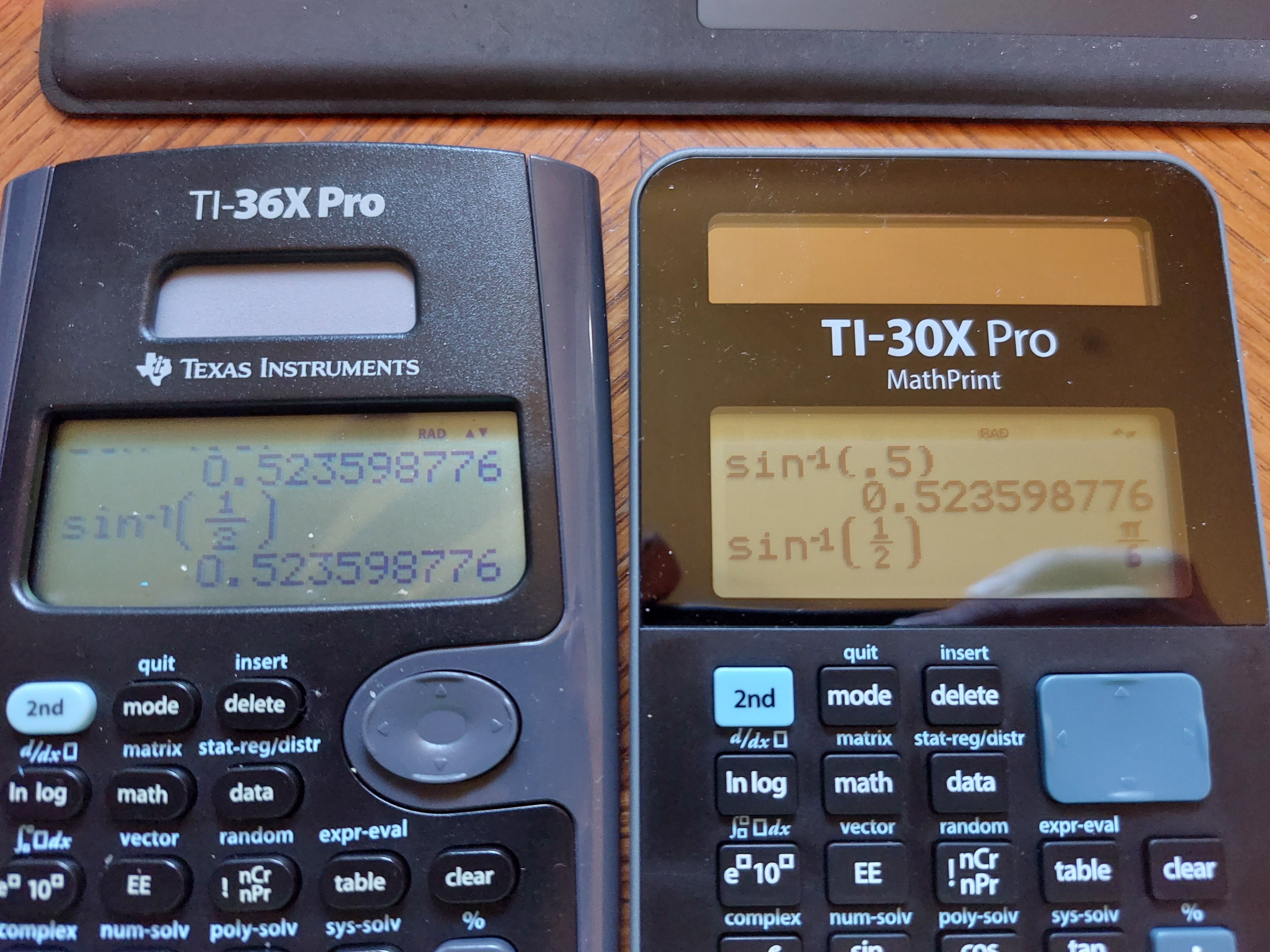
 Essentially, the Texas Instruments TI-36X Pro and the TI-30X MathPrint are functionally equivalent.  What makes the two calculators different?


*  The TI-36X Pro is sold in the United States and in lot of the world, with the TI-30X MathPrint is sold primarily from Europe.  I ordered my TI-30X Pro MathPrint from the United Kingdom.  


Product pages from Texas Instruments:


TI-36X Pro (United States and Canada)

https://education.ti.com/en/products/calculators/scientific-calculators/ti-36x-pro


TI-30X MathPrint (Denmark, in Danish):

https://education.ti.com/da/products/calculators/scientific-calculators/ti-30x-pro-mp#specifications


Australia has a TI-30XPlus MathPrint, which is styled like the TI-30X Pro MathPrint, but without calculus functions.

https://education.ti.com/en-au/products/calculators/scientific-calculators/ti-30x-plus-mp?category=overview


*  Thanks to the body of the calculator being curved, the TI-36X Pro is slightly bigger than the TI-30X Pro MathPrint. 


*  The screen on the TI-36X Pro is a curved trapezoid, while the screen of the TI-30X Pro MathPrint has is rectangular.  


*  The TI-36X Pro has a circular arrow keypad while the TI-30X Pro MathPrint has a rectangular arrow keypad.  


* The TI-30X Pro Math print has black characters, while the TI-36X Pro has blue characters.


* The font on the keys of the TI-30X Pro Math are larger than than the font on the TI-36X Pro's keys.


Here are some pictures.


Either calculator is worth buying.  You  can see my review of the TI-36X Pro from 2011 here:

P.S. I still wish the TI-36X Pro/TI-30X Pro MathPrint had an alpha key instead of one key to press multiple times to get different variables.  That is my biggest gripe. 

Eddie


All original content copyright, © 2011-2022.  Edward Shore.   Unauthorized use and/or unauthorized distribution for commercial purposes without express and written permission from the author is strictly prohibited.  This blog entry may be distributed for noncommercial purposes, provided that full credit is given to the author. 


DM42 and HP 42S: Quadratic Equation, Characteristic Polynomial, and Eigenvalues

DM42 and HP 42S: Quadratic Equation, Characteristic Polynomial, and Eigenvalues The programs are listed for the Swiss Micros DM42 an...