Showing posts with label calculator. Show all posts

Monday, November 18, 2024

Spotlight: Akron Brass FireCalc Pocket Computer

Spotlight: Akron Brass FireCalc Pocket Computer


Welcome to a special Monday Edition of Eddie’s Math and Calculator blog.


This is an instance of a small gamble and the gamble paid off because the calculator works! I found a one of a kind calculator at the Redlands Thrift Store in Redlands, CA: the Akron Brass FireCalc Pocket Computer. The specialty is mathematical calculations in fire fighting. I paid $4.95, and it probably would cost, I guess $40-$50 or higher retail because this is a specialty calculator.

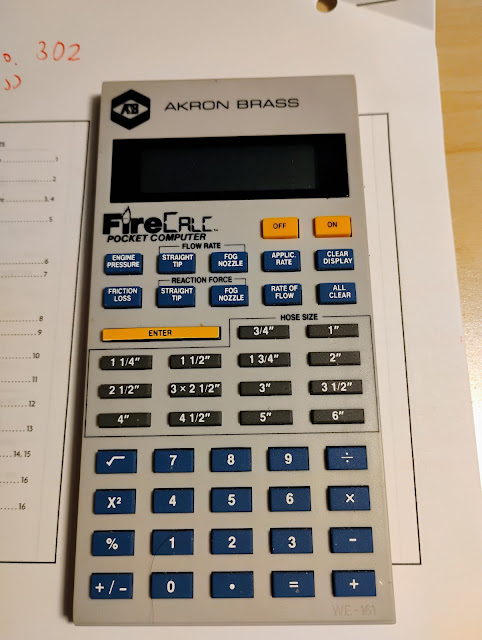
Akron Brass FireCalc Pocket Computer


Akron Brass FireCalc Pocket Computer


Akron Brass FireCalc Pocket Computer


Quick Facts


Model: FireCalc Pocket Computer

Company: Akron Brass

Timeline: ????

Type: Fire Science Solver, 4 Function Calculator

Memory: No conventional memory registers, but input in the solvers are stored in memory

Power: 2 x LR44 batteries


The four function calculator has a square key, [ x^2 ], along with a square root key [ √ ]. There are two clearing keys:

[ CLEAR DISPLAY ]: acts like as clear entry key, which makes the display show 0.

[ ALL CLEAR ]: clears all the registers, and the display shows AKRON.


The display holds room for 8 digits. The display also shows alphabetic characters being built from segments.

Disclaimer: I am not a fire fighter or an expert in fire fighting mathematics. This is another topic to explore. I am going to do the best I can in describing the functions of the calculator.


A Solver for Fire Fighters


The FireCalc Pocket Computer features eight solvers. I’m going to be give a summary of how each solver as described as in the manual (see the manual section below). The solvers are the top two rows of blue keys. U.S. units are used.


There are four rows of gray keys with measurements marked ¾” all the way to 6”. Those are quick entry keys. For example, pressing [ 1 ¾” ] enters 1.75 in one keystroke.


The solvers are:


[ ENGINE PRESSURE ]: calculates the engine pressure in psi (pounds per square inch) of the water hose (I think) given the pressure, flow (gallons per minute), and length of the hose. There is also a prompt for the number of Siamese lines used (defaults to 1).

[ FRICTION LOSS ]: calculates the friction loss of a hose lay given the hose size and length. The loss is shown in psi.

(FLOW RATE) [ STRAIGHT TIP ] or [ FOG NOZZLE ]: Find the flow rate of water through the hose when it is a straight bore tip or fog nozzle in GPM (gallons per minute), respectively. For the fog nozzle, the rated nozzle pressure is skipped (the manual has it prompted).

(REACTION FORCE) [ STRAIGHT TIP ] or [ FOG NOZZLE ]: Find the reaction force in Lbs (pounds fource) of water through the hose when it is a straight bore tip or fog nozzle, respectively.

[ APPLIC. RATE ]: Find the minimum rate of water, in GPM, that is required to extinguish a fire given the rooms’ length, width, and height in feet.

[ RATE OF FLOW ]: I did not see this calculation the manual, but given from the prompts, this calculates the rate of flow of water given the following parameters: nozzle pressure, English pressure, hose size, number of Siamese lines used, number of floors, and hose length.


Because the number of solvers don’t match the manual exactly, I think this model either predates or succeeds the model described in the manual. On the back of the project it states “Cygnus of South Florida Electric Calculator. Project No. 302”. Does that mean anything?


Manual


Manual to the FireCalc from Akron Brass Company, written in 2008. It’s not the exact module that I have, but it’s pretty close: https://smhttp-ssl-61500.nexcesscdn.net/media/pdf/9900_FireCalcInstructions.pdf


Until next time, be safe and wishing you happiness (and safety from fires),


Eddie


All original content copyright, © 2011-2024. Edward Shore. Unauthorized use and/or unauthorized distribution for commercial purposes without express and written permission from the author is strictly prohibited. This blog entry may be distributed for noncommercial purposes, provided that full credit is given to the author.

Saturday, July 27, 2024

Spotlight: Texas Instruments TI-30 ECO RS: The Solar TI-30Xa

Spotlight: Texas Instruments TI-30 ECO RS: The Solar TI-30Xa


Quick Facts


Model: TI-30 ECO RS

Company: Texas Instruments

Timeline: 2015 – present (Europe

Type: Scientific calculator

Power: Solar

Display: One line, 10 digits, 2 digit exponents


Introduction


The TI-30 ECO RS is a European all-solar powered version of the battery-powered, specifically the LR44 battery, powered TI-30Xa.


Why did I get the TI-30 ECO RS? Truth be told, I am partial to solar-powered scientific calculators. I still dream of the day a solar powered (even if it is hybrid with battery) graphing calculator, that’s yet to happen. Blue is my favorite color.


Per Texas Instruments, the TI-30 ECO RS was awarded the Blue Angel award, which is a certification for the product being environmental friendly. Along with the calculator being completely solar powered, the TI-30 ECO RS is made from recycled plastic.


Features


The TI-30 ECO RS is a standard and simple scientific calculator that follows the classic TI-30 line:


* One line display, up to 10 digits. Display modes include floating pint, fixed decimal, scientific notation, and engineering notation.

* Arithmetic, powers, roots, exponential and logarithm functions

* Trigonometric functions and inverses

* Hyperbolic functions and inverses

* Fraction calculations, including fraction/decimal conversions. The maximum denominator is 999.

* One-variable statistics including mean, standard deviation, sums

* Combinations, permutations, and factorial of positive integers (up to 69)

* Polar/Rectangular and Decimal/Decimal-Minute-Second conversions

* Three memory registers (M1, M2, M3)


The TI-30 ECO RS follows the algebraic operating system and the standard order of operations is followed with a maximum of four pending operations. There is no implied multiplication.


The calculator uses postfix notation, where some one-number operations are entered after the number. For example, to calculate the sine of 30 degrees, press 30 [ SIN ] (in degrees mode). For the anti-log of 2.6, press 2.6 [ 2nd ] [ LOG ] <10^x>.


TI-30 ECO RS vs. TI-30Xa


Even though the feature set of the TI-30 ECO RS and the TI-30Xa are the same, there are some minor differences.


* The TI-30 ECO RS is solar powered and will never require a separate battery. This is not the first time Texas Instruments implemented the solar only design, as previous models include the TI-108, TI-31, TI-30 SLR+, the classic one-line TI-36X Solar, the classic TI-36 Solar, and the BA-Solar from 1987 are some examples. In the 1980s and 1990s, Texas Instruments used technology named Anylite Technology (TM).

* Pressing the [ON/AC] button clears everything including the memory and statistics registers and resets the calculator to Degrees mode. This is consistent with classic one-line TI solar powered calculators. If you intend to store constants long-term, you may want to consider the battery-powered TI-30Xa instead.

* Calculations on the solar powered TI-30 ECO RS are slightly slower than the TI-30Xa. I am guessing that it is due to the power source.

* Since 2015, both the TI-30 ECO RS and the TI-30Xa are free the logarithm bug (Datamath).

* The TI-30 ECO RS is sold in Europe. Outside of Europe, we have to buy a TI-30 ECO RS online. I was fortunately enough to buy one from an e-bay seller in Virginia.


Source


Woerner, Joerg. “Texas Instruments TI-30 ECO RS (2015)” Datamath Calculator Museum.

Updated May 17, 2016. Accessed June 6, 2024. http://www.datamath.org/Sci/Modern/TI-30ecRS_2015.htm


“Scientific calculator TI-30 ECO RS” Texas Instruments Calculators. 1995-2024. Accessed June 7, 2024. The page is in German. https://education.ti.com/de/produkte/taschenrechner/wissenschaftliche-rechner/ti-30-eco-rs


Eddie


All original content copyright, © 2011-2024. Edward Shore. Unauthorized use and/or unauthorized distribution for commercial purposes without express and written permission from the author is strictly prohibited. This blog entry may be distributed for noncommercial purposes, provided that full credit is given to the author.

Saturday, May 11, 2024

Spotlight: Sharp EL-T100A

 Spotlight: Sharp EL-T100A


Quick Facts


Model: EL-T100A

Company: Sharp

Timeline: Late 2010s? (guess)

Type: Desktop, Quiz (Trainer)

Power: Solar, Battery back up CR2032


I purchased this EL-T100 at an estate sale in Glendora, California, for a dollar (along with paper). The EL-100T (and the later EL-100TA) is a “Brain Exerciser”, which is designed to test speed and accuracy on arithmetic math problems.


There are three modes for the EL-100A:


Regular desktop calculator. The display has 10 digits and has the arithmetic operator indicators. We can set and store the sales tax to use in future calculations. The keys are fast and responsive.


Quiz mode: Pressing the [ Quiz ] button to choose from a set of 25 problems, 50 problems, or 100 problems. We are given two results: the accuracy and the time it took to complete the quiz.


Age mode: Pressing the [ Age ] button will test you on 25 problems. In addition to accuracy time, your brain level is measured. After two attempts, which I took recently (March 24, 2024), I scored 98% correct in 1 minute, 26 seconds, with the age score of 42. The second time, I got 96% but in 1 minute, 17 seconds, with the age score of 40. I just turned 47 last March.


Key Summary


[ +TAX ] : Adds sales tax

Set tax rate: [ C CE ] [ C CE ] tax rate [ +TAX ]


[ -TAX ]: Subtracts sales tax

Verify tax rate: [ C CE ] [ C CE ] [ -TAX ]


[ R CM ]

Once: recalls the value in the memory register

Twice: clears the memory register (sets it as 0)


[ % ] {COR. %}

Math Mode: Perform a percentage calculation

Quiz/Age Mode: Verify the stored correct ratio of answers


[ × ] {DEL.}

Math Mode: multiplication

Quiz/Age Mode: erase stored, accumulated correct answers and percentage ratio


[ + ] {RES↑}

Math Mode: addition

Quiz/Age Mode: Display the completed duration values, oldest to newest problem


[ = ] {ENTER}

Math Mode: equals

Quiz/Age mode: start a drill or obtain an answer


[ - ] {RES↓}

Math Mode: subtraction

Quiz/Age Mode: Display the completed duration values, newest to oldest problem


[ ÷ ] {RANK}

Math Mode: division

Quiz/Age Mode: display the three fasted completed duration values of the quiz


[ CA ]

Clear all calculator memory except for tax rates. Terminates Quiz and Age mode.


[ M+ ]

Add the displayed value to the memory registers


Now I’m going to work on my fast arithmetic skills.


Source


“Sharp EL-T100AB” https://www.sharpusa.com/ForBusiness/SmallElectronics/CalculatorsNew/Models/ELT100AB.aspx Retrieved 29, 2024.


The Calculator Review “Review: Sharp EL-100AB “The Brian Exerciser”” February 27, 2019. https://www.calaquin.com/2019/02/review-sharp-el-t100ab-brain-exerciser.html Retrieved March 30, 2024.


Note: Both sources talk about an updated EL-T100AB, but it is said to share the same functionality of the EL-T100A.


Eddie


All original content copyright, © 2011-2024. Edward Shore. Unauthorized use and/or unauthorized distribution for commercial purposes without express and written permission from the author is strictly prohibited. This blog entry may be distributed for noncommercial purposes, provided that full credit is given to the author.

Sunday, April 14, 2024

Spotlight: Sharp EL-5200

 Spotlight: Sharp EL-5200


As we come on the 13th (April 16) anniversary of this blog, I want to thank you. Blogging about mathematics and calculators is a joy in my life and I’m grateful for your support.


Today’s spotlight is about an early graphing calculator, which is a rare collector’s item today: the Sharp EL-5200, also known as the Sharp EL-9000.


Quick Facts


Model: EL-5200/EL-9000

Company: Sharp

Timeline: 1986 – late 1980s

Type: Graphing, Programmable

Memory: 5,120 bytes

Power: 2 x CR2032 batteries


Keyboard


There are excellent reviews and articles on the Sharp EL-5200/EL-9000, please check out the Sources section below.

The EL-5200 is a folding calculator which is housed in a wallet. On the left side, we have the scientific keys, the arrow keys, memory keys, and the numeric keypad. The keys are the normal calculator keys.

On the right side, there are the alphabetic keys and the utility keys. I think the key style on the right side is a membrane keyboard, but I am not sure.


The Four Main Modes


The four main modes of the Sharp EL-5200 are, which are listed in switch order:

STAT mode

COMP mode

AER II mode

AER I mode


AER II and AER I modes are programming mode, which is called the Algebraic Expression Reserve mode. The AER I mode is the classic AER mode while AER II is the newer version of programming mode.


The manual to the EL-9000 can be downloaded here: http://basic.hopto.org/basic/manual/Sharp%20EL-9000%20EN.pdf


STAT Mode

This is the calculator's statistics mode. Upon switching to this mode, we have the option of storing data points. Data points are stored in array S while basic statistics are stored in array Z. The basic statistics stored in array Z are:


Z[1] = n

Z[2] = Σx

Z[3] = Σx^2

Z[4] = Σxy

Z[5] = Σy

Z[6] = Σy^2


Be aware when you decide to store data, it takes up programming memory.

Three keys are remapped as follows:

[ RM ]: CD. Clear data. Erases a data point.

[ ⇒M ] (x, y): Adds a comma between the x point and y point.

[ M+ ] DATA: Adds a data point.


The statistic variables are access through the second function ([2ndF]) of the numeric keypad and arithmetic keys.


Linear regression is offered in the form of y = a + bx. The variable a is the y-intercept while the variable b is the slope.


Adding × n before pressing [ M+ ] {DATA} adds the frequency to the data point.


Graphs of statistical data are available, including histograms, linear regression lines, and scatter plots.


Fairly simple.


COMP MODE


This is our calculation mode. In addition to our regular scientific calculator, which operates in algebraic mode, there are other sub-modes included in COMP Mode.


Graphing


We can graph up to two functions at one time. The [ RANGE ] key allows to set the range parameters, while the [ AUTO ] key sets the zoom level automatically. The [DRAW] key draws the graph.


For example, to draw y(x) = x^2 + 5 using automatic zoom, key in [ GRAPH ] [ X ] [ x^2 ] [ + ] 5 [ AUTO ] [ DRAW ].


The screen takes up the entire left hand of the screen. The screen shows one coordinate at a time, X or Y. Switch between the two with the key sequence [ 2ndF ] [ ↑ ] {X<>Y}.


Matrices


The EL-5200 can store up to 26 matrices A-Z. Operations include determinant, inverse, transpose, and matrix arithmetic. We can get to the arrays at any time by pressing [ 2ndF] [↓].

In fact, the [ 2ndF ] [ ↓ ] toggles between the text (calculator), graphics, and data/array screen.

The [ 2ndF ] [ A ] {DIM} sequence can set the dimensions of a matrix.

In the data screen, we see two elements at one time.


Base Conversions


Integers can be converted between four bases: hexadecimal, binary, decimal, and octal. (bases 16, 2, 10, and 8, respectively) Not much more than arithmetic is offered.


Running Programs

Finally, COMP mode is where we run AER programs. Scroll through the programs with the [ PRO ] button. Start programs and enter data at the prompts by using the [ COMP ] key.


AER I MODE


AER I mode is the classic programming mode for Sharp programming calculators. This mode is meant for simple calculations. The [ f()=/? ] key puts the input form     f( )=. Enter the variables in between the parenthesis, and the variables will automatically be prompted. For example f(AB)= prompts for the variable A, then B. Only global variables (A – Z) are used. Implied multiplication is allowed. This mode is similar to the AER mode of EL-5100 from 1979.


Example: Circular Radius and Circumference

Title:

CIR.1

Code:

M: f( R ) = Ï€ × R^2 ⇒ A, 2 × Ï€ × R ⇒ C

(spaces are added for readability)


AER II MODE


AER II is the full programming mode. In this mode, we can use both global and local variables, with local variables being the default. Local variables include lower case letters and subscript numbers. Subscript numbers are entered by the sequence [ 2ndF ] [ number key ]. In this mode, the [ f()=/? ] key adds a question mark to the variable and creates a prompt. Unlike AER I, implied multiplication is not allowed.


Example: Graphing a Sine Wave

Title:

Graph A×sin(Bx+C). Set radians mode.

Code:

M: A = ? B = ? C = ? GRAPH A × SIN (B × X + C) AUTO DRAW

(spaces are added for readability)


There is no Radians mode command, so the user has to set Radians mode during program execution.


Common to Both Program Modes


M: This is the main loop.

, (comma): Displays the result of a calculation and pauses the execution. Press [ COMP ] to continue.

␣ (open space) : Finishes a calculation without stopping.

◣ (right triangle): Ends the current program or subroutine.

↳ ↰ : Loop markers

(comparison) -Y→[(do if true)] -N→[(do if false)]: If Then Else Structure.

[ 2ndF ] {SUB}: Creates a new subroutine. Switch between subroutines and the main loop by pressing [ 2ndF ] [ ↑ ] or [ 2ndF ] [ ↓ ].


To create a new program, go to either AER I or AER II mode, press [ COMP ], enter the title. The title is not limited to eight characters. Since we do not have string or string functions, include descriptive information and reminders in the title (see the example in AEI II Mode above).


I find the symbols taking a bit getting used to because we have symbols instead of the regular If-Then-Else-End structure, For-Next loop, Lbl-Goto structure, etc. AER can store complex formulas and best are for simple number crunching.


Overall Thoughts


I like the separate alphabetic keys, but the membrane keyboard calls for extra care when using those keys. The number of features of the EL-5200 are very invented and advanced for 1986. I wish the AER programs had line returns instead everything smashed together in wrap around lines, but it is more for readability. The calculator has a nice, compact form and is fun to work with.


In the future I will be posting AER programs for the EL-5200. It’s rarity makes the EL-5200/EL-9000 collectible.


Sources


Calculator Culture. “Sharp EL-9000 Graphing Calculator from 1986” November 27, 2023.

https://www.youtube.com/watch?v=cw7Gp2Qrmtk


Gelhaus, Matthew & Taia Gelahus. “Sharp EL-5200” gelahus.net. Last Updated December 21, 2023. http://www.gelhaus.net/cgi-bin/page.py?loc:8bit/+content:EL-5200.html Retrieved March 1, 2024.


Magyarra, Váltás “History and Programming of AER Calculators”. Milestone in the History of Calculators. Virtual Museum of Calculators. 2016. Retrieved March 25, 2024. http://www.arithmomuseum.com/szamologep.php?id=25&lang=en


Sharp Corporation. Sharp Scientific Calculator Super Scientific Model EL-9000 Operation Manual. 1986 http://basic.hopto.org/basic/manual/Sharp%20EL-9000%20EN.pdf

(website hosted by hopto.org) (this the same manual for the EL-5200)


Eddie


All original content copyright, © 2011-2024. Edward Shore. Unauthorized use and/or unauthorized distribution for commercial purposes without express and written permission from the author is strictly prohibited. This blog entry may be distributed for noncommercial purposes, provided that full credit is given to the author.

Saturday, January 20, 2024

Retro Review: Panasonic CompuVoice JF-721U

Retro Review:  Panasonic CompuVoice JF-721U


My partner, Chris, gave me this calculator as a Christmas present.  Thank you and love you, Chris!


Quick Facts


Model:  JF-721U

Company:  Panasonic

Timeline:  early to mid 1980s

Type:   Four Function Calculator, Stopwatch, Timer, Clock, with Voice

Number of Digits:  8

Power:  3 AA batteries


An All-In One Calculator


This is like a dream machine:  a calculator, a clock, stopwatch, timer, and it talks, and it came with a beautiful brown leather power that shows the clock and a button labeled [ TIME ], when pressed the calculator reads the time.   [ TIME ] is located on the upper left hand corner of the calculator next to its speaker.  


Chris definitely did well!


The voice is a male machine voice, loud and clear. 


The Three Modes:  LOCK, COMP-TIME-STOP WATCH, and SET


The switch on the JF-721U selects the calculator's three modes:  LOCK, COMP-TIME-STOP WATCH, and SET.   Let's go through these modes one by one.   


LOCK Mode


LOCK mode is basically the calculator's sleep mode.  The display shows the clock and the only key that operates is the [ TIME ] button.  


COMP-TIME-STOP WATCH Mode


On this mode, we can run the calculator, timer, and the stopwatch.   


Timer:  The timer can be set in hours (h) and minutes (m) only.  To set the timer, press the [ SET ] button, enter the time desired in hh-mm format, and press [ S/S ].   The [ S/S ] acts as the start/stop button.


Stopwatch:  The stopwatch is actived by pressing the [ SET ] and [ S/S ] keys in sequence to start the stopwatch.  The stop the stopwatch again, press the [ S/S ] key and record the time.   If the voice is turned on, the final time will be read.   We can start and stop the stopwach as many times as we want.  


To cancel the stopwatch without seeing the result, press the clear [ C ] button.


Calculator:  The JE-721U is a four-function calculator.   The calculator is activated by the clear [ C ] button.   There are three standard memory keys:  memory plus [ M+ ],  memory minus [ M- ], and memory recall-clear [ MRC ].  The number in the memory register is retained as long as there is battery power.


One curious thing with the percent key, [ % ], is that the key only works with multiplication and division problems.  


To add a percent: 

Enter the number, press [ × ], enter the percent, press [ % ], press [ + ]


To subtract a percent: 

Enter the number, press [ × ], enter the percent, press [ % ], press [ - ]


The calculator's change sign key is labeled [ (-) ]. 


In this mode, the calculator's voice is toggled on and off by the [ VOICE ] key.


The hour [ HOUR ] key is also available.  If the hour key is on, then the calculator will announce the hour.


SET Mode


We can set the clock and the alarm in SET mode.   In this mode we can set the clock and an alarm.


To set the clock:  press [ SET ], enter the hour and minute, and then the [ TM ] key.  


To set the alarm:  press [ SET ], enter the hour and minute, and then the [ ALM ] key. 


In this mode, the decimal key, [ . ], switches between AM/PM.   


If this calculator can handle military time (00:00 to 23:59), I don't know how to set it.  Also, the calculator is a clock only, so for daylight savings time, the time must be manually set. 


Final Thoughts


I like this calculator.  The voice is loud and clear and the time functions are really nice additions.   I imagined the CompuVoice calculators set on the desks of professionals and were companions of travelers back in the 1980s.     


Eddie


All original content copyright, © 2011-2024.  Edward Shore.   Unauthorized use and/or unauthorized distribution for commercial purposes without express and written permission from the author is strictly prohibited.  This blog entry may be distributed for noncommercial purposes, provided that full credit is given to the author. 


Sunday, November 5, 2023

Retro Review: Sharp PC-1248

Retro Review:  Sharp PC-1248


Quick Facts


Model:  PC-1248

Company:  Sharp

Years:  circa 1986, years of production unknown

Type:  Scientific, Pocket Computer

Power:  2 x CR-2032 batteries

Display:  1 line, 16 characters

Programming Language:  BASIC

Memory:  7,422 bytes


Program and Run


The Sharp PC-1248 is a credit card sized BASIC pocket computer, which is stored in a slip on hard case.  The screen is one line, containing up to 16 characters.  


There is one program space, allowing for line numbers from 1 to 999.   The range of commands are adequate for general mathematical applications.  


There are several peripherals available for PC-1248, including a printer and a cassette tape recorder to save and load programs.


Sharp also produced the PC-1246S pocket computer around the same time, only with memory capacity of 1,278 bytes.  


PC-1248 vs EL-5500 III


The PC-1248 operates similarly to the Sharp EL-5500 III pocket calculator; though it lacks the statistics mode and matrix operations.    I reviewed the EL-5500 III in 2017:  https://edspi31415.blogspot.com/2017/01/retro-review-sharp-scientific-computer.html


Keyboard:  It Could Have Been Better


To be honest, the keys are pretty hard to press.   I used a q-tip to press the keys at first when a soft-like stylus did not work.  However, the keys does have button under the keyboard.  This is the biggest complaint I have with the PC-1248.


Final Thoughts


I like the form factor of the PC-1248, and the command set is good for quick calculations on the run.   The computer is to the point, basic programming.   As I mentioned, the keys could have been better.   


Sample Programs for the PC-1248


Math Statement Builder: RUN 40


40 PAUSE "MATH STMT BUILD"

42 A = RND 21-1

44 B = RND 21-1

46 C = RND 21-1

48 D = A*B+C

50 PRINT A; "*"; B; "+''; C; "="; D:  END


Examples:  (results will vary)


4. * 3. + 7. = 19.


13. * 16. + 2. = 210.


2. * 8. + 3. = 19.


Net Present Value: RUN 60


60 PAUSE "NET PRESENT VALUE": CLEAR

62 INPUT "CF0:"; N, "RATE:"; I

64 J=1

66 INPUT "FLOW:"; F, "FREQ:"; K

68 FOR L=1 TO K: N=N+F/(1+I/100)^J: J=J+1

70 NEXT L

72 INPUT "MORE=1"; L

74 IF L=1 THEN 66

76 PRINT USING "########.##"; "NPV:"; N

78 END


Examples:


CF0:  -5000

CF1:   3000, frequency 1

CF2:  6000, frequency 1

Rate: 3%


Result:  NPV = 3568.20


CF0: -5000

CF1: 500, frequency 12

CF2:  0, frequency 6

CF3:  1000, frequency 6

Rate:  2.95%


Result:  NPV = 3207.18 


Future Value:  Continuing Compound Interest:  RUN 110


110 PAUSE "FV - CONT. CMPD. INT.": CLEAR

112 INPUT "PV? "; P

114 INPUT "RATE? "; R:  R=R/100

116 INPUT "YEARS? "; T

118 F=P*EXP(R*T)

120 PRINT USING "########.##"; "FV = "; F

122 END


Examples:


P = 5000, R = 5, T = 5.   Result:  F = 6420.12


P = 1000, R = 6, T = 20.  Result:  F = 3320.11


Source


"The Sharp PC-1246 computer":  http://pocket.free.fr/html/sharp/pc-1246s_e.html

"The Sharp PC-1248 computer": http://pocket.free.fr/html/sharp/pc-1248_e.html

The pocket computer museum.   1999-2022.  

Retrieved October 12, 2023.  


Eddie


All original content copyright, © 2011-2023.  Edward Shore.   Unauthorized use and/or unauthorized distribution for commercial purposes without express and written permission from the author is strictly prohibited.  This blog entry may be distributed for noncommercial purposes, provided that full credit is given to the author. 


Monday, August 28, 2023

HP 15C Collector's Edition: Some Thoughts and Hidden Modes

HP 15C Collector's Edition:   Some Thoughts and Hidden Modes


On May 2, 2023, Moravia announced the return on the HP 15C programming scientific calculator.  An initial limited run  calculators were available that were delivered in July. Thankfully, another set of calculators will be available for order and delivery starting the end of September 2023.


Hopefully this will be true in future production runs, but in the initial run, the HP 15C came in a box, a Thank You card,  with a leather case and a printed manual.    I love the larger font and the clarity of the text of the Owner's Handbook.   The handbook is an extension of the original HP 15C Manual along with an introduction from Wlodek Mier-Jedrzejowicz and Gene Wright.  


You can download both the Manual and new edition of the Advanced Functions Handbook from the HP Calculator Literature website:


Manual:  https://literature.hpcalc.org/items/2258

Advanced Functions Handbook:  https://literature.hpcalc.org/items/2259


The compliment to Manual, the Advanced Functions Handbook goes into detail on several of the HP 15C's advanced features:  


Solving Equations:   The best ways for using the SOLVE command, and how the SOLVE feature finds roots of equations.  This section also includes a section of finding the derivative (approximate slope) of a function and a financial time-value-of-money program.


Integration:  The accuracy of the integral function and handling more difficult integral problems.  In general, the accuracy and the time of integration is tied to the fixed decimal settings.


Complex Numbers:  The internal workings of the complex mode (Flag 8), including solving equations and integrations.


Matrices:  LU Decomposition, constructing identity matrices, and least-squares calculations.


Programming:  No More Pause Bug


The PSE bug has been fixed!  We can use the pause command to heart's content and the display won't flash off.  


Back of the Calculator


The back of the HP 15C has a plate that has the following information:  statistics registers, some conversions, a table of error, test, and matrix codes, how the ISG (increment skip if greater than) and DSE (decrement skip if equal) commands work, and the stack effects on several two-result commands.


The Keyboard


The battery compartment, which contains the two CR2032 batteries needed to power the HP 15C is held by a small screw.  Thankfully, no special screwdriver is required, a small household or computer screwdriver should do the trick.


The keyboard, for me, is responsive.  The keys give a nice, quiet click when they are pressed.  I'm comfortable holding the calculator and letting my thumbs type on the keyboard efficiently.


Hidden Modes


Already, the HP 15C Collector's Edition has additional memory over the previous editions:


*  A maximum of 99 memory registers, 78 uncommitted registers at default setting

*  A maximum of 672 steps


We have some Easter Eggs on the HP 15C Collector's Edition.   There are two hidden modes on the HP 15C:


HP 15.2 Mode:  This mode ups the maximum of memory registers to 195, with 174 uncommitted registers at default setting.    Pressing [ g ] ( MEM ) at the beginning will show "19174 00-0", as there really isn't enough room to display the total amount of uncommitted registers.  I have my calculator in 15.2 mode and so far, this calculator works as well as the default HP 15 mode.  Switching back to 15 mode will preserve as much memory as allowed, excessive memory will be lost.  


HP 16 Mode:  This modes accesses a possible-beta version of the HP 16C calculator.   The HP 16C calculator was a popular computer programmer's calculator which emphasizes on bit manipulation, base conversions, and Boolean logic.   I worked a little bit on this mode, and there was a few problems when working in decimal integer mode.     More information on the HP 16C calculator here:  https://www.hpmuseum.org/hp16.htm


How do we switch the hidden modes on the Collector's Edition?


1.  With the calculator off: hold the [ g ], [ ENTER ], and [ ON ] keys.   This gets the calculator into test mode.

2.  Press [ 4 ].  Option 4 will not appear on the screen.

3.  Set your mode:

   * [ e^x ] for the original HP 15C Collector's Edition mode

   * [ 1/x ] for the expanded 15.2 mode  (not manufacturer supported)

   * [ 7 ] for the HP 16C mode (not manufacturer supported)


Caution:  The 15.2 and 16 modes are not manufactured supported.  Enter at your own risk.  For me, I have used the 15.2 mode and the calculator works fine.  The original mode still has plenty of memory.  


Discussion on the hidden modes starts about page 17 of this thread:

https://www.hpmuseum.org/forum/thread-19886-page-17.html


Final Thoughts


Welcome back, HP 15C!  Knock on wood the HP 15C once again becomes mainstream like it's long time financial cousin the HP 12C.

Need help with RPN (Reverse Polish Notation)?  Check out the RPN Programming tutorial series (which was done for the previous HP 15C Limited Edition) which starts here:  http://edspi31415.blogspot.com/2011/11/hp-15c-programming-tutorial-part-1.html

(Just keep in mind the pause bug that was present in the Limited Edition has been fixed in the Collector's Edition.)


Eddie 


All original content copyright, © 2011-2023.  Edward Shore.   Unauthorized use and/or unauthorized distribution for commercial purposes without express and written permission from the author is strictly prohibited.  This blog entry may be distributed for noncommercial purposes, provided that full credit is given to the author. 


Earth's Radius by Latitude

Earth's Radius by Latitude Introduction: Calculating the Earth’s Radius In quick, general calculations, we assume that the...