Showing posts with label formula programming. Show all posts

Monday, August 2, 2021

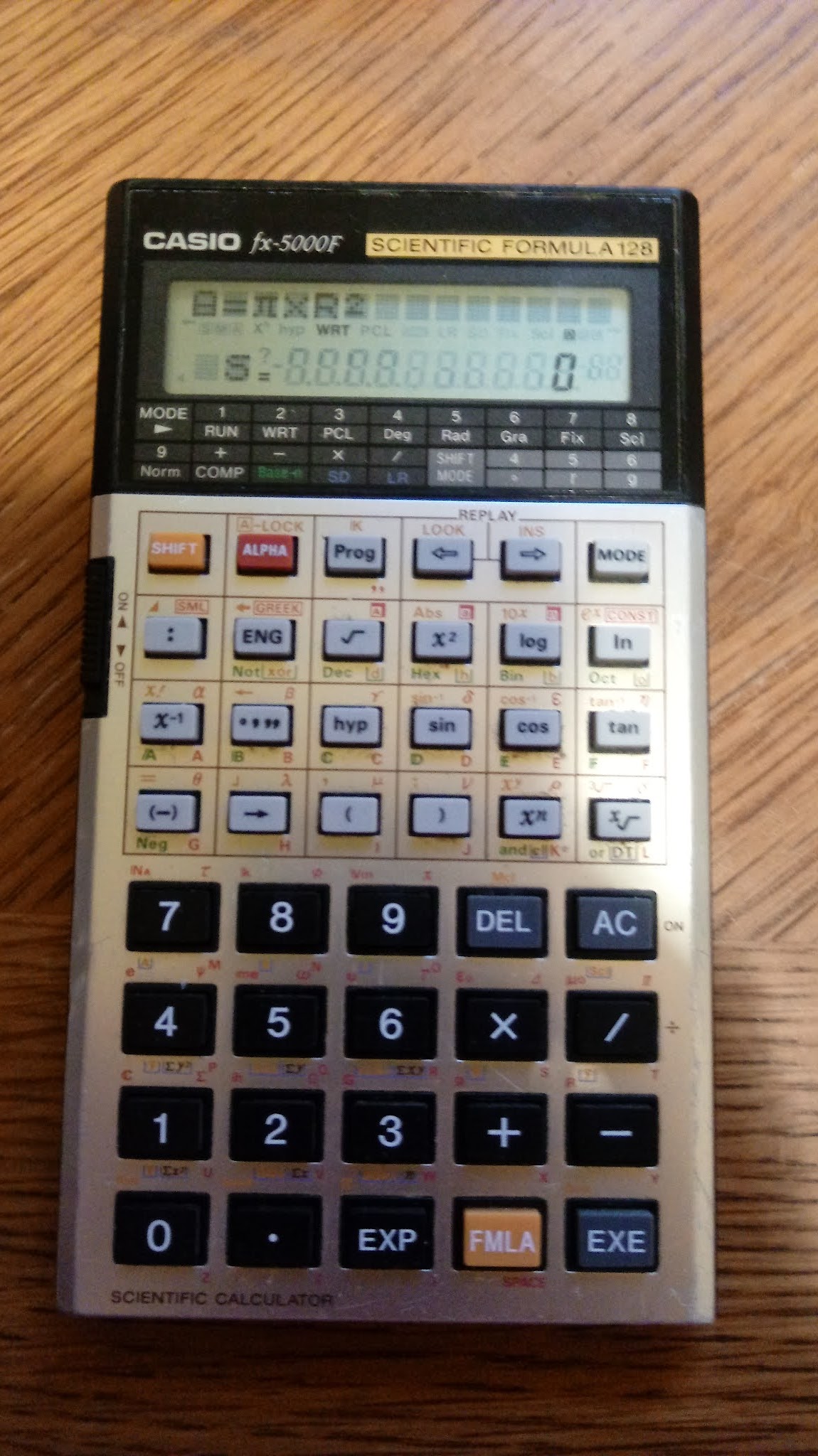
Retro Review: Casio fx-5000F

 Retro Review:  Casio fx-5000F


Quick Facts


Company:  Casio

Year Introduced:  1987

Type:  Scientific, Formula Programming

Memory:  675 steps

Batteries:  2 x CR-2032

Operating System: Algebraic

Display:  Scrolling 14 character screen

Formula Library: 128 formulas


Keyboard and ALPHA Key


The Casio fx-5000F has the keyboard split into two sections:  the scientific keys (gray keys, upper half) and the number and arithmetic keys (black keys, lower half).   There is a physical ON-OFF switch on the left side of the thin keyboard and a contrast wheel on the right side.   


There is a fx-1000F where is the same fx-5000F, except the keyboard of the fx-1000F is angled and the hyperbolic functions are not available.  


The keyboard of the fx-5000F is busy.  The alpha characters are presented in red, including symbols and Greek letters.   In fact, the [ ALPHA ] key serves multiple purposes:


*  Alone, the uppercase letter is typed (bottom right hand corner of the key)

*  [ ALPHA ] [ : ] (SMALL) combination: a lowercase letter is typed

*  [ ALPHA ] [ ENG ] (GREEK) combination: a Greek character is typed (top right hand of the key)

*  [ ALPHA ] [ √ ] combination:  small uppercase letters

*  [ ALPHA ] [ x^2 ] combination: small lowercase letters

*  [ ALPHA ] [ log ] combination: small numbers

*  [ ALPHA ] [ ln ] combination:  calls up constants (upper left hand of the keyboard)


Modes Included


* Formula Programming

* Statistics:  Single Variable (SD) and Linear Regression (LR)

* Base Conversions and Boolean Math


A Library of Formulas


The fx-5000F has a library of 128 formulas, which includes topics like:


*  geometry

*  quadratic equations

*  electricity

*  physics

*  probability

*  combinatorics


For a full listing, you can download the calculator's manual here:


http://www.usersmanualguide.com/info_redirect/manuals/casio/FX-1000F__FX-5000F.pdf.shtml


User Formulas


The fx-5000F can handle user formulas.   User formulas that are meant for one-time or temporary can be entered directly in Run mode (1) by using the format:


var = expression


Example:


A=π*R^2


Variables on the right side of the equation will be prompted automatically.  No input or print commands are required.  Multiple statements can be chained in one of three ways:


*  Colon ( : ):  variable values are carried over in multiple calculations

*  Right Triangle (◢):  intermediate calculations are shown and variables are re-prompted

*  Right Angle Symbol/"Fraction" Symbol ( _| ):  intermediate calculations are not shown and variables are re-prompted


At the conclusion of each formula, all the variables are treated as local variables and cleared.  The practice is different from other formula calculators like the TI-68, where values are stored in variable registers for future use.


We can store user formulas in 12 program slots (0-9, A, B) in WRT (Write) mode (Mode 2).  Up to 675 steps can be used, and storing operations (→) are allowed.  


There are no loop (for, Σ) commands or comparison commands (if, >, <, =); hence each written formula must be a closed expression.  However, multiple formulas can be stored in a program slot.


Example:


P1:  S=A+B:D=A-B


This program asks for A and B and displays S (the sum) and D (difference).


Verdict


I enjoy using this calculator, it is small and compact.  The fx-5000F is hard to get at a bargain price as it is one of more sought after calculators, commanding a premium price.  The closest thing to the fx-5000F that I can think of is the Casio fx-5800P, which has a formula feature and a library of formulas.   


I find the formula library to be one of the most underrated features.  


Eddie


All original content copyright, © 2011-2021.  Edward Shore.   Unauthorized use and/or unauthorized distribution for commercial purposes without express and written permission from the author is strictly prohibited.  This blog entry may be distributed for noncommercial purposes, provided that full credit is given to the author. 


Sunday, October 13, 2019

Casio fx-991EX Classwiz: Simple Programming With Mutli-Statements

Casio fx-991EX Classwiz:  Simple Programming With Mutli-Statements 

Formula Programming

With the use of the [CALC] key and multi-statment feature on the Casio fx-991EX, we can make simple temporary formula programs for repeated calculations.   Emphasis is on the word temporary:  once we go on to another mode, or press [ ON ],  the formula disappears.

There are also no comparison operators or loops to work with. 

Given these limitations, we can still program simple formulas with the fx-991EX. 

You are going to want to be in Norm mode for this.

Note:  This feature is present on other advanced solar calculators, however we will focus on the fx-991 EX Classwiz.

Let's illustrate formula programming with some examples. 

Formula 1

Let's start with a simple example. 

B(A) = 2A² + 1
C(B) = B/(B - 1)

To assign variables in multi-step calculations, use the syntax:

var = value. 

The equals symbol can be found by pressing pressing [ALPHA] [CALC] ( = ).  This is NOT the same as the equals key on the bottom right hand corner of the keyboard. 

Each calculation is separated by a colon (:).  Type a colon by pressing [ALPHA] [ ∫ ] ( : ). 

Set up:

B=2A²+1:C=B÷(B-1)

Each variable that is not assigned will be prompted for in the order that they are typed.  In the expression above, B and C are assigned while A is not.   Pressing [CALC] will prompt the user to enter a value for A. 

Keystrokes:

[ALPHA] ( B ) [ALPHA] ( = ) 2 [ALPHA] ( A ) [ x² ] [ + ] 1 [ALPHA] ( : ) [ALPHA] ( C )  [ALPHA]  ( = )  [ALPHA] ( B ) [ ÷ [ [ ( ] [ [ALPHA] ( B ) [  -  ] 1 [ ) ] [ CALC ]

Note:  For this to work, press [ CALC ], not the EXE key. 

You will be prompted for A.  The results for B and C will be displayed. 

Examples

Example 1:  A = 3
[CALC],  enter 3, press [ = ]
B:  19,  press [ = ]
C:  19/18  [ S ←→ D ] 1.0555555556

Example 2:  A = -6
Results:  B = 73,  C = 73/12 ≈ 1.013888889

R-C Circuit:  Voltage Charge and Discharge

The charge and discharge of an R-C time circuit are described by the following equations:

Charge = Y / ( 1 - B)
Discharge = Y / B

where B = e^(-A / (C*X))

Inputs:
A = time (s)
X = resistance (kΩ)
C = capacitance (μF)
Y = voltage across the capacitor (V)

In this example, B is going to be used as the temporary variable. 

Set up:

B=e^(-A÷(Cx)):Y÷(1-B):Y÷B

[CALC]

Example

Inputs:
A = 5 s
C = 2.6 μF
x = 10 kΩ
y = 30 V

Results:
B = 0.825052967 (sub-formula, press [ = ] )
171.4804732 V  (voltage charge, press [ = ] )
36.36130188 V (voltage discharge)

Solar Energy:  % of Solar Light Reflected

The proportion of solar light reflected off the surface is calculated by:

T = 1/2 ( sin(E - F)^2 / sin(E + F)^2 + tan(E - F)^2 / tan(E + F)^2 )

where

E = the angle of incidence (θi)
F = the angle of refraction (θt)

We can use Snell's law in connection with the equation above. 

Since both  E-F and E+F repeat, we can assign temporary variables, such as:
A = E - F
B = E + F

Therefore:
T = 1/2 ( sin(A)^2 / sin(B)^2 + tan(A)^2 / tan(B)^2 )

And the set up for the fx-991EX Classwiz is:

A=E-F:B=E+F:1÷2*(sin(A)²÷sin(B)²+tan(A)²÷tan(B)²)   [CALC]

Example:

For this example, the calculator is Degrees mode. 
Inputs:
E = 35° (θi)
F = 22° (θt)

Results:
A = E-F = 13
B = E+F = 57
0.04721102683  (% of reflected light)

Source (for R-C Circuit and Solar Energy)

Rosenstein, Morton  Computing with the Scientific Calculator  Casio.  1986. ISBN: 978-1124164130


Eddie

All original content copyright, © 2011-2019.  Edward Shore.   Unauthorized use and/or unauthorized distribution for commercial purposes without express and written permission from the author is strictly prohibited.  This blog entry may be distributed for noncommercial purposes, provided that full credit is given to the author.

Sunday, July 23, 2017

Retro Review: Texas Instruments TI-68

Retro Review:  Texas Instruments TI-68


Company:  Texas Instruments
Years:  1989 - 2002
Type:  Scientific, Formula Programming
Memory:  440 bytes, in 55 8-bit registers
Operating System: Algebraic
Memory Registers: Up to three characters

Batteries:  1 CR2032

Hard to Find:  One with a good screen is hard to find.  It took me two tries to do so. 

Features

The TI-68 is a popular scientific calculator and back in the day, it had pretty much most of the bells and whistles (with the obvious exception of graphing):

*  Base Conversions and Boolean Logic (9 bits, signed integer, max binary value: 511, minimum binary value: -511)
*  Linear Regression
*  Polynomial Solver: Quadratic, Cubic, Quartic
*  Simultaneous Equation Solver:  Up to 5 x 5 systems
*  Expanded Storage Arithmetic:  +, -, *, /, ^, Δ%, and, or, xor
* Number Parts: signum, integer, fraction, real, imaginary, absolute value (but strangely enough, no argument/angle function, did TI run out of space?)

Complex Numbers

What I love about the TI-68 is how complex numbers are integrated in the operating system.  There is no need to switch to a separate mode.  Best of all, the TI-68 handles exponential, logarithmic, power, and trigonometric functions with complex numbers. 

The simultaneous solver also allows for complex numbers.  This is indeed rare, as not even most graphing calculators’ simultaneous solving apps allow for complex numbers as coefficients.  (Note:  The HP Prime’s simult command allows for complex numbers)

Complex numbers on the TI-68 are notated as such:

Rectangular:  (x, y)
Polar:  (r θ)

Part extraction of complex numbers works slightly different:  real and imag extract the real and imaginary portions of the complex number, regardless of setting.  

Choosing the Precision?

The TI-68 allows for two precision settings:  10 digits or 13 digits.   The display uses 10 digits.  I think this is a rarity, if not a completely unique feature, since calculators in general uses an accuracy of 13 to 15 digits automatically.

I tested a couple of integrals and the precision setting does not affect the length of time either way.  Both integrals were calculated in about 3 seconds. 

Test Integral 1:  ∫ (T^3 * e^(-T) dT, 0, 100, intervals = 6)
Test Integral 2:  ∫ (X^2/(X^2 + X – 1) dX, 25, 75, intervals = 12)

Integration

The TI-68 uses the Simpson’s Rule during integration.  To integrate, during evaluation, designate the variable to be integrated by pressing [CLEAR], [ 3rd ], [ Σ+ ] (dx). 

Formula Programming

The TI-68 has formula programming.  There are no loops or comparison tests, but all variables are local, meaning their stored values can be transferred between formulas.

Something I learned about the TI-68: you can have variables up to 3 characters. 

Each formula can be evaluated (right hand side of the equation) by pressing [SOLVE].  Each variable can accept a real or complex number.

Keyboard


Let’s talk about the keyboard.  The keys are nice and responsive.  But get a look of all those shift keys!  There are two shift keys, [ 2nd ], [ 3rd ], along with an inverse key [ INV ].  This is reminiscent of the 1974 Hewlett Packard HP 65 calculator, where its shift keys were [ f ], [ f^-1 ], and [ g ].

Here is what the inverse [INV] key (it’s like a “4th” key) operates on:

Key
[ INV ] Key
Key
[ INV ] Key
[2nd] (DRG>)
D: D to R
R: R to G
G: G to D
Angle conversion*
D:  D to G
R:  R to D
G:  G to R

[2nd] (>DD)
Convert: DMS>DD
Convert: DD>DMS
[HYP]
Hyperbolic
Inverse hyperbolic
[2nd] (P>R)
Polar to Rectangular
Rectangular to Polar
[SIN] Sine
Arcsine (sin^-1)
[2nd] (in-cm)
Inches to centimeters
Centimeters to inches
[COS] Cosine
Arccosine (cos^-1)
[2nd] (gal-l)
Gallons to liters
Liters to gallons
[TAN] Tangent
Arctangent (tan^-1)
[2nd] (lb-kg) Pounds to kilograms
Kilograms to pounds
[ Σ+ ] add a data point
Erases the last data point (Σ-)
[3rd] (°F-°C)  Fahrenheit to Celsius
Celsius to Fahrenheit


‘*  D = Degrees, R = Radians, G = Grads.  Angle mode is unaffected.  To change angle mode, press [ 3rd ] (DRG) (it cycles Degrees, Radians, Grads).

The Basic Cousin, TI-60X

TI-60X (left), TI-68 (right).  Their memory capacities are shown.


In 1991, Texas Instruments released a more basic version of the TI-68, the TI-60X.  For more details, check out this link:  http://edspi31415.blogspot.com/2017/01/retro-review-ti-60x.html.

Final Verdict

I regret not getting the TI-68 when it first came out (which would have consisted in asking my family for one).  It’s finally nice to have one and it’s worth the hype and praise it got. 

Eddie


This blog is property of Edward Shore, 2017

First Look: HP 16C Collector's Edition

 First Look: HP 16C Collector's Edition I just got the HP 16C Collector's Edition.   This is the famous HP 16C that specializes in c...