Showing posts with label constants. Show all posts

Saturday, January 3, 2026

Comparison of Formula Evaluators: TI-60X, TI-68, Sharp EL-5150, fx-4200P, fx-5000f

Comparison of Formula Evaluators


Happy New Year! Let’s start the new year by comparing formula evaluator calculators. The calculators featured are:


TI-60X (early 1990s)


TI-68 (late 1980s/1990s)


Sharp EL-5150 (late 1970s/early 1980s)


fx-4200P (late 1980s/early 1990s)


fx-5000f (late 1980s/early 1990s)


Formula evaluator: A calculator which strictly evaluates simple formulas. There are no loops, no solvers, no sums. The formula evaluates to one answer but can have more than one inputs.


Example:

Allowed: f(x) = x² + 3 – 1 / x

Allowed: f(a,b) = (a * b) / (a + b)

Not Allowed: f(x) = Σ(x² / 3, x = 0, 10)

Not Allowed: f(x) = [1 if x ≥ 0, else 0]


TI-60X

TI-68

Sharp EL-5150

fx-4200P

fx-5000F

Battery

1 x CR2032

1 X CR2032

3 x SR44/LR44

1 x CR2032

2 x CR2032

Memory (bytes)

12 registers (84 bytes)

55 registers (440 bytes)

80 steps

279 steps

675 steps

Variables: Number and Type

12, Single letter: A through I, X, Y, Z

Up to three character variables (3 character variables take up 2 registers)

11: A – J, M

26 single letters for formulas only: A – Z; 6 separate numerical constants (K1-K6)

Letters and Greek characters for formulas only; separate numerical constants (K0-K9)

Does store values to variables take space?

Yes, each variable takes up a register

Yes, 1 register for 1 or 2 character variables, 2 for 3 character variables

No

No

No

How Formulas are accessed

[ 2nd ] [ EE ] (FMLA)

[ 2nd ] [ EE ] (FMLA)

AER Mode; up to 5 lines

[ IN ]/[ OUT ]

[ MODE ] 2: WRT

Prog 0-9,A,B: 12 slots

Integration?

∫ f(x) dx

Yes

Yes

No

No

No

Base conversions?

Yes, with Boolean logic

Yes, with Boolean logic

No

Yes, 32 bit binary block

No

Complex numbers?

No

Yes, with trig and log complex calculations

No

No

No

Engineering symbols?

No

No

Display toggle switch

Display toggle switch

Display toggle switch

Conversions?

Yes. 4 pairs (in/cm, gal/L, lb/kg, °F/°C)

Yes. 4 pairs (in/cm, gal/L, lb/kg, °F/°C)

No

No

No

Scientific Constants?

No

No

No

No

Yes ([ALPHA] [ ln ] (CONST)), 13


Other


Special 13 digit precision mode

Landscape form


128 built in formulas


The four pairs of conversions included in the TI-60X and TI-68 are:

in/cm: inches/centimeters

gal/L: gallons/liters

lb/kg: pounds/kilograms

°F/°C: degrees Fahrenheit/degrees Celsius


The scientific constants included on the fx-5000F are:

c: Speed of Light

h: Planck’s Constant

G: Universal Gravitational Constant

e: Elementary Charge

me: Electron Mass

u: Atomic Mass Unit

k: Boltzmann Constant

Vm: Molar Volume of Ideal Gas at Standard, Temperature, and Pressure

g: Earth’s Gravity Constant

R: Molar Gas Constant

ε0: Permittivity of Vacuum

µ0: Permeability of Vacuum


All the constants are in SI units.


Out of the calculators listed, my favorites are the TI-68 and fx-5000F.


Eddie


All original content copyright, © 2011-2025. Edward Shore. Unauthorized use and/or unauthorized distribution for commercial purposes without express and written permission from the author is strictly prohibited. This blog entry may be distributed for noncommercial purposes, provided that full credit is given to the author.


The author does not use AI engines and never will.


Monday, July 24, 2023

Review: Pen + Gear SS-6613 Scientific Calculator

Review:  Pen + Gear SS-6613 Scientific Calculator


For some of us, it's already near back-to-school season.  Need a scientific calculator and on a budget?  The Pen+Gear SS-6613, which I purchased from WalMart for five bucks, may be fit. (or really, at least one to hold you over)


Quick Facts


Model: SS-6613

Company: Pen + Gear 

Production Years:  2022 - present

Power:  Battery, 1.5V

Type:  Scientific

Operating System:  Algebraic

Memory Registers:  9:  A, B, C, D, E, F, X, Y, M 

Display:  Two lines.  10-digit numbers


The display has two lines.  The top line is for equations and expressions.  The bottom line is for results.  


Features


The feature set of the Pen + Gear calculator is similar to the Casio fx-991 MS series.  You get a lot a mileage for a five dollar calculator (that isn't an app).


Complex Mode:   complex mode arithmetic with polar/rectangular conversions


Statistics:  Single data (SD) and two-variable data statistics.  Normal distribution functions (lower tail area, mid area, and upper tail area), conversion to z (labeled t) functions are included.   The six regression models available are:  linear, logarithmic, exponential, power, inverse, and quadratic.  


Equation mode:  

Unknowns:  2 or 3:  2 x 2 or 3 x 3 linear systems

Degree: 2 or 3:  roots of quadratic or cubic polynomials


Matrices:  3 matrices up to 3 rows and 3 columns.   Functions include row reduction form, transpose, inverse (by the [ X~1 ] key), and determinant.


Vectors:  3 vectors, either 2D or 3D.  Cross product (by the [ × ] key), dot product, norm (via Abs, but it's hidden)


40 scientific constants and U.S.-SI conversions.   Constants and conversions are called up by number codes, so don't lose the paper manual that comes with the calculator.  


We also get multi-expression feature, which allows us to connect calculations with a colon (:).  However, on the Pen + Gear, this is a hidden feature as the colon is not printed on the calculator.  The colon is called up by pressing [ ALPHA ] [ SDX ].


The manual to the equivalent Casio fx-991MS is presented into two manuals:


Basic Operations, Complex Numbers, Statistics, Equations:

https://support.casio.com/pdf/004/fx115MS_991MS_E.pdf


Matrices, Vectors, Integration, Derivative, Constants, Conversions:

https://support.casio.com/pdf/004/fx570MS_991MS_E.pdf


Batteries


A major difference is the battery used.   Instead of a AA battery, a coin battery (I'm thinking AR44 or LR44) but the manual states the battery is 1.5 volts.   The battery is attached to the calculator's motherboard which will need careful removal.  I am thinking that company expects the user to buy a new calculator when the battery runs out.  I would prefer a better battery compartment.  


Keyboard


Wow, the keyboard.   First, all the text is in white.  No differentiation between the shifted functions, regular functions, and alpha letters.  Also the manufacture used plain text, which does not include advance math characters and Greek characters. 


Here are the all the keyboard quirks I could find:


[ SHIFT ] (Pai):   π  

[ SHIFT ] (sqrt3):  ³√

[ X~1 ]:  x⁻¹

[ SDX ]:  ∫ dx

[ YX ]:  ^ 

[ SHIFT ] (sqrtX):  √

[ SHIFT ] (10x): 10^x

[ SHIFT ] (ex):  e^x

[ SHIFT ] (R<Q):  r∠θ

[ SHIFT ] (<):  ∠


The strangest is the Pai for pi (π).  Theta, θ, could have been substituted with ang (for angle).   I could understand the rest of it.   


Hidden:


[ ALPHA ] [ SDX ]:  colon  ( : )

[ ALPHA ] [ ) ]:  abs  (absolute value, available only in complex and vector modes)


The keyboard is the weakest point of this calculator.  


Final Thoughts


The Pen + Gear SS-6613 Scientific Calculator has a lot of features for a low-cost calculator.  Unfortunately, the lack of keyboard color and math characters are what hold me back from giving this calculator a full recommendation.  Experienced users only. 


Eddie


All original content copyright, © 2011-2023.  Edward Shore.   Unauthorized use and/or unauthorized distribution for commercial purposes without express and written permission from the author is strictly prohibited.  This blog entry may be distributed for noncommercial purposes, provided that full credit is given to the author. 


Sunday, April 24, 2022

TI-84 Plus CE (Python): Using SciTools for Conversions and Constants

 TI-84 Plus CE (Python):  Using SciTools for Conversions and Constants


SciTools 


SciTools is a complementary application that comes with the purchase of the TI-84 Plus family.   The SciTools offers four tools:


1.  SIG-FIG Calculator:  calculate using a designated number of significant digits

2.  UNIT CONVERTER:  conversions and constants, which will be this blog entry's focus

3.  DATA/GRAPHS WIZARD

4.  VECTOR CALCULATOR:  vector mode


Converting Units in SciTools


The Unit converter has two screen:  upper screen has the units to be selected, bottom screen is where the conversion happens.   


1.  Press [ apps ] and select SciTools, you may have to scroll.    

2.  Select option 2: UNIT CONVERTER.

3.  You will be prompted for a Unit Category, either arrows or the number keypad can be used.

4.   Enter the value to be converted.  

6.  Use the arrow keys to select, by pressing [ enter ] to select the "from" unit and the "to" unit.   Results will be shown in scientific notation.


Example:  70 ft to m:

1:  LENGTH, 70, select ft, [ enter ] select m, [ enter ]


7E1 ft > 2.1336E1 m  (21.336 m)


To copy the results to the home screen, press [ zoom/f3 ] (EXPT).  You will have to leave the app entirely to use the export as the result starts a new calculation in Home mode.


Copying a Scientific Constant


The numeric value of a scientific constant can be copied from SciTools to the Home Screen (unfortunately this can be done to a programming editing page) by the following:


1.  Press [ apps ] and select SciTools.  

2.  Select option 2:  UNIT CONVERTER

3.  To get to the list of constants, press either [ y=/f1 ] or [window/f2].   

4.  Use the arrow keys to select the scientific constant.  The name, it's value, and units will be displayed at the bottom of the screen.

5.  Press [ zoom/f3 ] (EXPT) to export the constant to the Home screen.  

6.  Press [ 2nd ] [ mode ] (QUIT) three times to get back to the home screen.  

7.  To use the constant in operations, either press [ enter ] and use Ans, or store the value in a variable (A-Z, Θ) for future calculations.


I'll admit that this is cumbersome.  Unfortunately, a constant's value cannot be copied directly to a program editing screen.  It's better than nothing...


HP 32S and HP 32SII Week:  May 2, 2022 - May 6, 2022


Eddie 


All original content copyright, © 2011-2022.  Edward Shore.   Unauthorized use and/or unauthorized distribution for commercial purposes without express and written permission from the author is strictly prohibited.  This blog entry may be distributed for noncommercial purposes, provided that full credit is given to the author. 


Monday, February 7, 2022

Retro Review: Casio fx-991H

Retro Review:   Casio fx-991H


Quick Facts:


Model:  fx-991H

Company:  Casio

Years:  My guess would be the late 1980s-early 1990s

Memory Register:  1 independent memory, 6 registers

Battery:  Solar with battery back up (GR927)

Display:  10 digits, 2 digit exponent

Logic:  Algebraic 


The fx-991H works best when in full or almost full light.


Features


The fx-991H is similar to the fx-115D SUPER FX except:


*  The fx-991H has 32 built in scientific constants, based on ISO Standards of 1980 and (Japan Industrial Standards) of 1985.  Trust me, most values of the scientific constants do not change much.


* The fx-991H has a hard case cover instead of the pocket cover.  Personally, I like the hard case.


I also like the feel of the keyboard, I can feel definite clicks when I press the buttons.  


Here is a quick run down what you get with the fx-991H:


*  Six additional registers through Kin/Kout.   Kin is the shifted command of the [ Kout ] key.  Storage arithmetic is permitted (yay!).  For registers 1 through 6:


Addition:   x [ SHIFT ] ( Kin ) [ + ] K#

Subtraction:  x [ SHIFT ] ( Kin ) [ - ] K#

Multiplication:  x [ SHIFT ] ( Kin ) [ × ] K#

Division:  x [ SHIFT ] ( Kin ) [ ÷ ] K#


*  Constant arithmetic.  To use it, the arithmetic key must be pressed twice.


Addition:  x [ + ] [ + ] a [ = ], b [ = ], ....   for a + x, b + x, ....

Subtraction:  x [ - ] [ - ] a [ = ], b [ = ], ....   for a - x, b - x, .... 

Multiplication:  x [ × ] [ × ] a [ = ], b [ = ], ....   for a * x, b * x, ....

Division:  x [ ÷ ] [ ÷ ] a [ = ], b [ = ], ....   for a / x, b / x, ....


*  Percent Function, [ SHIFT ] [ = ] ( % ).  This percent function operates like a lot of the Casio basic calculators.  


What is n% of y?   y [ × ] n [ SHIFT] [ = ] ( % )

What is percent portion of part n of total y?   n [ ÷ ] y [ SHIFT ] ( % )

Percent difference from n to y?  n [ - ] y [ SHIFT ] ( % )

Add n% to y:   y [ × ] n [ SHIFT ] [ = ] ( % ) [ + ]

Subtract n% from y:  y [ × ] n [ SHIFT ] [ = ] ( % ) [ - ]

Find the percent ratio of (n + y)/y:  n [ + ] y [ SHIFT ] [ = ] ( % )


*  Engineering Mode, where all answers are displayed in the form of x ee, 

(x * 10^ee, ee is a multiple of 3).   We also have use of engineering constants (M for mega, G for giga, T for tera, etc.)


*  Base Conversions with Boolean functions.  The standard set of functions are present (AND/NOT/OR/XOR/XNOR/NEG) with the standard set of bases (HEX/DEC/OCT/BIN)


*  Statistics with Linear Regression.   


A =  constant term  (y-intercept)

B =  regression coefficient (slope)

r =  correlation


y = A + Bx


*  Complex Mode.   Complex mode is limited to arithmetic, independent variable storage, argument, absolute value


*  Fractions.  Simplification is automatic.  


*  Decimal/DMS conversions.   Convert all numbers in DMS (degrees-minutes-seconds) to decimals before operating.  


*  Hyperbolic functions.


*  Scientific Constants.  There are 32 scientific constants, accessed through the [ CONST ] key or the [ SHIFT ] [ CONST ] key combination.  Constants are stored in the keys 0-9, ., EXP, +, -, ×, ÷.   


Examples:


Speed of Light, [ CONST ]  [ 1 ]:  299792458 m/s


Earth's Gravity Constant, [ CONST ] [ + ]:  9.80665 m/s^2


Universal Gravity Constant, [ CONST ] [ 3 ]:  6.672 * 10^-11 N m^2/kg^2


Fine-Structure Constant, [ SHIFT ] [ CONST ]  [ 3 ]:  7.2973506 * 10^-3  (unitless)


Stefan-Boltzmann Constant, [ SHIFT ] [ CONST ] [ × ]:  5.67032 * 10-8 W/(m^2 K^4)


For a full list of the 32 constants:  

https://drive.google.com/file/d/1r0OP-R9wddhqo0xrsQfL26eJx8FkNolD/view?usp=sharing


I checked with the manual to be sure that these are constants and it checks out.


Closing Thoughts


I really like this keyboard.  It is clean and the keys are very responsive.  The display is sharp.   I am happy to add this calculator to the collection.  Prices vary, I think I got mine for about $13 U.S., but I have seen prices on the internet go as high as $40 U.S.  


I like how Casio puts a lot of features and makes calculators more affordable.  This is a good brand to consider if you need to get the most bang for your buck.  You also get good quality of calculator.


If you want to see my review of the fx-115D SUPER FX from 2014:

http://edspi31415.blogspot.com/2014/09/retro-casio-fx-115d-super-fx.html


Until next time,


Eddie


All original content copyright, © 2011-2022.  Edward Shore.   Unauthorized use and/or unauthorized distribution for commercial purposes without express and written permission from the author is strictly prohibited.  This blog entry may be distributed for noncommercial purposes, provided that full credit is given to the author. 


Thursday, January 27, 2022

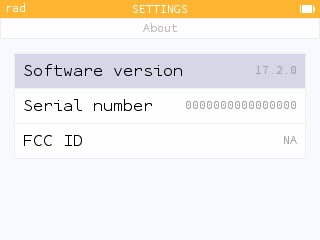
Numworks Update 17.2 - Highlights

 Numworks Update 17.2 - Highlights


Update is available at:

https://www.numworks.com/


The Numworks website will detect your calculator and will offer the update.


Here are some quick highlights:


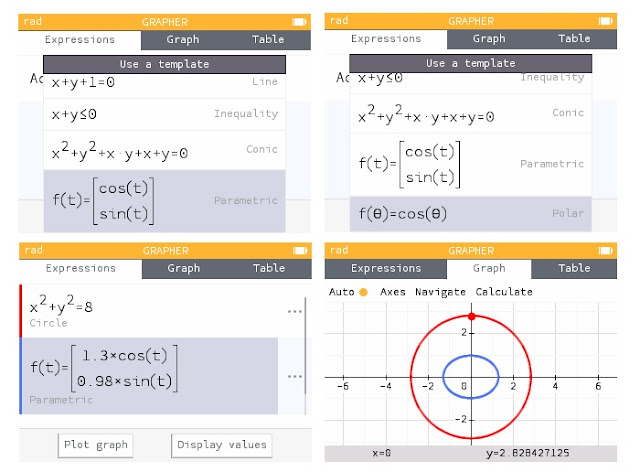
Extended graphing capabilities in Grapher.  In addition to functions f(x), lines, inequalities, conic sections, parametric equations, and polar equations can be graphed.  Different type of graphs can be plotted on the same screen.


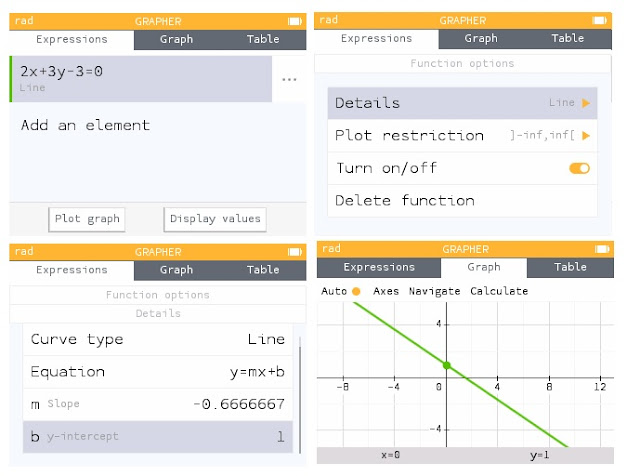
Detail next to a line in Grapher (three dots) will display the slope and y-intercept.  Not pictured:  additional details added to Conic graphs.


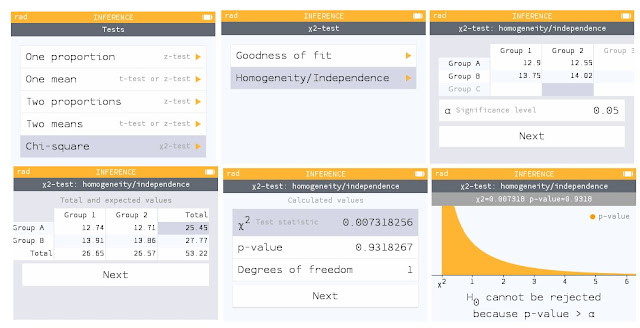
Major update to the Probabilities application, named Inference, includes tests and intervals.   Pictured here is a Chi-Square test of Independence.


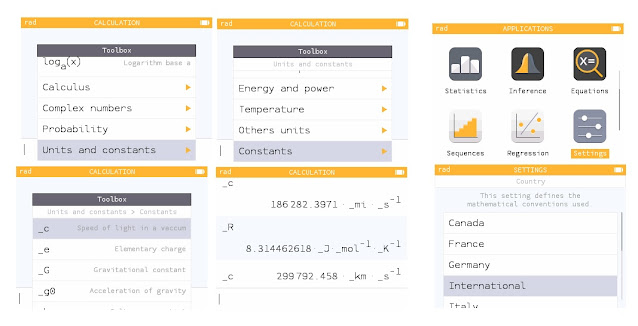
The toolbox contains scientific constants.  The units are determined by the Country setting in the Settings.  International is the SI units.   


The [ x, n, t ] cycles between x, n, t, and Θ.


For all the details (translation may be required):  https://www.numworks.com/calculator/update/version-17/


Eddie


All original content copyright, © 2011-2022.  Edward Shore.   Unauthorized use and/or unauthorized distribution for commercial purposes without express and written permission from the author is strictly prohibited.  This blog entry may be distributed for noncommercial purposes, provided that full credit is given to the author. 


Saturday, February 6, 2021

Retro Review: Texas Instruments TI-36X II

Retro Review:  Texas Instruments TI-36X II 


Quick Facts:


Model:  TI-36 XII

Company:  Texas Instruments

Years:  1999 - mid-2000s

Battery:  CR2025

Operating System:  Algebraic

Number of Memory Registers:  5: A, B, C, D, E


Datamath Calculator Museum page:  http://www.datamath.org/Sci/Modern/TI-36X-II.htm


Keyboard


I like the dark gray keyboard, giving a calculator a sleek look.  The dark mint green and white font on the keys and the keyboard provides a nice contrast.  The keys are a pleasure to push, however make sure the key registers on the screen before the next key is pushed; there is no key buffer.  


To keep the keyboard from possibly being cluttered, most of the funcitons are stored in menus.  This includes:


LOG:  log, 10^; ln, e^


HYP:  sinh, sinh^-1; cosh, cosh^-1; tanh, tanh^-1


COMPX (complex numbers):  conj (conjugate), real (real part); imag (imaginary part), abs (absolute value)


TRIG: sin, sin^-1; cos, cos^-1; tan, tan^-1


LOGIC:  and, or, xor; not, 2's


PRB (probability):  nPr (permutations), nCr (combinations), ! (factorial of positive integers up to 69); rand (random numbers between 0 to 1), randi (random integers between a and b)


Features


Base Conversion with Boolean Functions:  The TI-36X II overs conversions between integers in decimal (base 10), hexadecimal (base 16), or octal (base 8).  Somehow binary isn't included.  We get the nice basic set of Boolean functions.  The hexadecimal integers A through F are located on the shifted functions of keys [ 1 ] through [ 6 ].


Fractions:  Use the [A b/c] key to enter fractions.  There are two conversion functions:  F<>D converts between fractions and decimals, while A b/c<>d/e converts between mixed form and improper form.   Fractions are simplified automatically (example: entering 12/24 returns 1/2).


Operation Storage:  This is the programmable feature of the TI-36X II.  Two operations, OP1 and OP2, allow the user to store a simple operation (+, -, *, /, ^) followed by a number.  Operations are stored with >OP1 and >OP2.  


Example:  If I store +5 to OP1 and *2 to OP2, then: 

7 [ OP1 ] returns 12

7 [ OP2 ] returns 14

7 [ OP1 ] [ OP2 ] returns 24  (7+5=12, 12*2=24)

7 [ OP2 ] [ OP1 ] returns 19  (7*2=14, 14+5=19)


Conversions:  The TI-36X II features 20 metric-U.S. conversions.  It is really interesting how they are paired up.   Each conversion set is represented once, like cm←→in.  Pressing [ = ] gives the conversion "left to right", like cm to in.  However, pressing [ 2nd ] [ = ] gives the conversion "right to left", in to cm.


Constants:  The TI-36X II has 16 conversions in SI units.  


Complex Numbers:  Complex numbers are typed as ordered pairs:  (real, imaginary).   The complex operations are limited to arithmetic (+, -, x , /) and the COMPX menu only.  Strangely, there is no arg/angle function.


Integrals:  Integrals are done in Radian angle mode.   The variable of integration is A.   The steps to perform an integration:


1.  Store the lower limit in the variable A.

2.  Store the upper limit in the variable B.

3.  Store the number of divisions in the variable C.  The Simpson's rule is used, so the number of divisions is even, and the more divisions are used, the more accurate the answer but the longer the calculation takes.    

4.  Press the [ ∫dx ] key.  Type the function (in terms of A, use [MEMVAR], A).  Press [ = ].  During calculation, the calculator shows a clock icon with "CALC" displayed. 


The function must be continuous and defined everywhere.  


Example:  ∫ 4A^3 - 5e^A dA, lower (A) = 1, upper (C) = 5

C = 10 calculates the integral as -104.480831

C = 20 calculates the integral as -104.4747906


After each integral, the C is cleared  and the value of A matches value the B.  


Rectangular/Polar Conversions:  Like higher-end Texas Instrument calculators, conversions are handled on four functions:

R>Px(x, y)

R>Py(x, y)

P>Rx(r, θ)

P>Ry(r, θ)


Statistics:  The TI-36X II has four regression models:

Linear (LIN):  y = a + bx

Logarithmic (LN):  y = a + b ln x

Exponential (EXP):  y = a * b^x

Power (PWR):  y = a*x^b


A model, 1-Variable (1-VAR), or 2-Variable (2-VAR) must be selected first before data can be entered.  Up to 42 data points can be entered.  


Verdict


The TI-36X II is a predecessor to the TI-36X Pro and is a great calculator to use.  There are some missing functions that I think should have been present were the argument (angle) function, the conversion to binary integers, maybe integer and fraction parts.   I am not a fan of selecting variables through the menu, I personally prefer the use of ALPHA key.


Still a great calculator for the collection.  $20, $25 at most should be a good price, even though it is one of the rarer calculators from Texas Instruments. 


Eddie


All original content copyright, © 2011-2021.  Edward Shore.   Unauthorized use and/or unauthorized distribution for commercial purposes without express and written permission from the author is strictly prohibited.  This blog entry may be distributed for noncommercial purposes, provided that full credit is given to the author. 


Sunday, April 21, 2019

App Review: SciPro Math - Campusano (Revisited)

App Review:  SciPro Math - Campusano (Revisited)

The Return of SciPro Math

If you want to see my review of my previous version, please check here:  http://edspi31415.blogspot.com/2018/01/app-review-scipro-math-campusano-apple.html

This review is for the current version (Version 4).  I was emailed by the programmer Roberto A. Campusano when the latest version is now available. 

Quick Facts:

Title:  SciPro Math
Author/Programmer:  Robert A. Campusano
Platform:  iOS
Price: $9.99
Version:  4.0
Website:  https://scipromath.com/


Introduction

The SciPro Math calculator app is a scientific calculator that features over 648 functions that features many applications, including:

*  U.S.-SI Conversions
*  Finance
* Geometry
* Fractions and Proportions
* Solving Linear Systems up to 4 x 4
* Solving Polynomials up the order 4

The SciPro Math has two modes.  If your Apple device (iPhone, iPad, or iPod Touch) is in the portrait position, it is a simple, four function calculator.  If your Apple device  is in the landscape position, it is in the scientific calculator.

The calculator runs in Chain mode.  Therefore, there is no algebraic preferences or parenthesis.  It could get a little used to if you are accustomed to traditional scientific calculators, but not a big deal once get a hang of it.  If you are used to regular four-function calculators, you should feel right at home with the operation of the SciPro Math.

The rest of this review and blog will assume that you are working in scientific calculator mode (landscape). 

The Modifier Toggle Keys

The calculator has five modifier keys:  [ 2nd ], [ 3rd ], [ rad (off), deg (on) ] (4th), [ 5th ], and [ 6th ].  The modifier keys act as toggles, and depending on whether they are turned on and off, determine what keyboard is present.  You can quickly access any keyboard by entering the keyboard's number and pressing the purple [SC] key on top of the app.

I'm going to give details on some of the keyboards later, but information for all the 24 keyboards can be found here:  https://scipromath.com/the-screens/

Think of the modifier keys as "binary powers of 2:"

[2nd] is the 1 flag
[3nd] is the 2 flag
[rad/deg (4th)] is the 4 flag
[5th] is the 8 flag
[6th] is the 16 flag

Any total of flags that exceed 24 shows the 24th keyboard:  Storage Space keyboard.  Here you can access 26 memory registers Av through Zv.

Storing and Calculating

A lot of the keyboards is a dedicated solver for a specific application.  I will go over some of the details later but in general, the keys that belong to a calculation are all grouped by colors. 

In general, in a color group if the key has the format [ var.app ], that is an input variable.  Input the value by typing it, pressing the indigo [ →(X)v ] store button. 

If a key has an equal sign at the end, [ var.app= ], that is an output variable.  Press this button to get the answer. 

Documentation

One of the things that I wasn't crazy about in my previous review was the lack of documentation.  Thankfully, this has greatly improved.

First, the app will give prompts of what each key does.  The prompt will appear in indigo on the upper right hand screen.  I find this super helpful when learning how to use the app. 

Second, the app has its own YouTube channel, SciPro math.  The videos, by Roberto Campusano  explain on how to use some of the applications in a clear, concise fashion.  If you are using this app for the first time, I recommend going over the videos. 

SciPro Math's YouTube channel:  https://www.youtube.com/channel/UCKHZdGBoHBUazE--0CDn4aQ/videos

Some Keyboard Details

Keyboard 0:  Basic Operations - Angles are in Degrees
Modifiers:  None

Variable Registers:  Av, Bv, Cv
Trig Functions:  sin, cos, tan, sci, csi, bta, sihn, cosh, tanh
Functions:  log, ln, 10^x, e^x, x^2, x^3, √, x^1/3, x^-1
Constants:  π, e, Φ

The functions of sci, csi, and bta are specialized. 

Keyboard 1:  Basic Operations - Angles are in Degrees 
Modifiers:  [ 2nd ]

Variable Registers: Dv, Ev, Fv
Trig functions: sec, sec, cot, bsc, bcs, bct, csch, sech, coth
Functions: ln(x+1), x! (x must be an integer), power, roots, log base 2, e^(x-1)
Constants:  γ

Note:  bsc x = 1/sci x,  bct x = 1/csi x, bct x = 1/bta x

Keyboard 2:  Pythagorean Theorem (and Inverse Trig Functions) - Angles are in Degrees

Variable Registers: Gv, Hv, Iv
Inverse Trig Functions: sin^-1, cos^-1,  tan^-1, sinh^-1, cosh^-1, tanh^-1
Constants:  π/2, π/3, π/4, √2, ln 2
Angle Conversions:  r-deg (radians to degrees), d-rad (degrees to radians)

Hypotenuse Function:
x  [hyp] y [ = ] returns √(x^2 + y^2)

Side Function:
x [side] y [ = ] returns √|x^2 - y^x|    ( | n | = abs(n))

Keyboard 3:  Probability
Modifiers: [ 2nd ], [ 3rd ]

Variable Registers: Jv, Kv, Lv
Random Integers:  rand52 (1 -52), rand10 (1 - 10), coin (0 - 1), dice (1 - 6)
x [ x-y ] y [ = ] returns a random integer between x and y.  x and y can be negative

Probability:
x [ xCr ] r [ = ] returns x! / ( (x - r)! * r!): the number of the combinations
x [ xPr ] r [ = ] returns x! / (x - r)!:  the number of permutations

Conversions: between temperatures °F, °C, K

Keyboard 4:  Conversions, Trig in Radians
Modifiers:  [rad/deg] turned to deg

Trig Functions: sci, cos, tan, sci,csi, bta
Conversions: in/mm, in/cm ft/cm, ft/m, yd/m, mi/km, lb/kg

Keyboard 6:  Conversions, Trig in Radians
Modifiers:  [ 3rd ], [ rad/deg ] turned to deg

Trig Functions: sin^-1, cos^-1, tan^-1
Conversions: tsp/Tsp, Tsp/cu, tsp/mL, cu/pt, pt/qt, qt/gal, gal/L

Keyboard 8:  Fractions and Ratios, Slope
Modifiers: [ 5th ]

Two fractions in the form of a/b and c/d
[ a ]:  numerator input of a/b
[ b ]:  denominator input of a/b
[ c ]:  numerator input of c/d
[ d ]: denominator input of c/d

Addition of fractions: Numerator:  [ ad + bc ], Denominator: [ bd ]
Subtraction of fractions: Numerator: [ ad - bc ], Denominator: [ bd ]
Multiplication of fractions: Numerator: [ ac ], Denominator: [ bd ]
Division of fractions: Numerator: [ ad ], Denominator: [ bc ]

Slope of two points (x1, y1) and (x2, y2): 
Input:  [x1 ], [ y1 ], [ x2 ], [ y2 ]
Output:  [ slope ]:  (y2 - y1)/(x2 - x1);  [ -m^-1 ]:   -(x1 - x2)/(y1 - y2)

Keyboard 9:  Linear Equations
Modifiers: [ 2nd ], [ 5th ]

Linear Form:  ax + by = c
s(x) and t(x) contains this form. 
Input:  [ ax1 ], [ by1 ], [ cx0 ]
Output: [ x-int ]: x-intercept of s(x); [ y-int ]: y-intercept of s(x);
[ s(x)= ]: solve for y given x; [ s^-1(x) ]: solve for x given y

Slope Intercept Form: mx + b
f(x) and g(x) contains this form
Input: [ mx1 ], [ bx0 ]
Output: [ f(x)= ]:  solve for y given x; [ f^-1(x) ]: solve for x given y

Keyboard 10: Quadratic Equations
Modifiers: [ 3rd ], [ 5th ]

Equation:  j(x) = a0 *x^2 + a1 * x + a2
Input:  [ a0x^2 ], [ a1x^1 ], [ a2x^0 ]

Output:
Roots:  Real: [ x21  ], [ x22 ];  Imaginary:  [ x21i ], [ x22i ]
[ D2 ]: discriminant

Keyboard 11:  Cubic Equation - Modifiers [ 2nd ], [ 3rd ], [ 5th ]

Keyboard 12:  Quartic Equation - Modifiers [ rad/deg ] set to deg, [ 5th ]

Keyboard 16:  3 x 3 Linear System - Modifiers [ 6th ]

Keyboard 20: Geometry 
Modifiers:  [ rad/deg ] set to deg, [ 6th ]

Sphere:  Input:  r.sp (radius).  Output: D.sp (diameter), V.sp (volume), S.sp (surface area)
Circle: Input: r.c (radius).  Output: D.c (diameter), A.c (area), C.c (circumference)
Trapezoid: Input: b1 (base 1), b2 (base 2), h/t (height).  Output: A/t (area)
Rectangle:  Input: l.r (length), w.r (width).  Output: A.r (area), P.r (perimeter)
Triangle: Input: a.t (side a), b.t (side b), c.t (side c). Output:  A.t (area), P.t (perimeter)
Box:  Input: l.b (length), w.b (width), h.b (height).  Output: V.b (volume), S.b (surface area)

Verdict

I'm really happy with this updated version of SciPro Math, the online prompts make a huge difference, and the how-to videos are top notch.  Also, the operation of the calculator is simple and is good for quick calculations. 

This app is worth looking into and now I see the justification of spending the $9.99 on this app. 

Eddie

All original content copyright, © 2011-2019.  Edward Shore.   Unauthorized use and/or unauthorized distribution for commercial purposes without express and written permission from the author is strictly prohibited.  This blog entry may be distributed for noncommercial purposes, provided that full credit is given to the author.

Earth's Radius by Latitude

Earth's Radius by Latitude Introduction: Calculating the Earth’s Radius In quick, general calculations, we assume that the...