Saturday, November 5, 2022

Retro Review: hp 9g

Retro Review:   hp 9g


Quick Facts:


Model:  hp 9g

Company:  Hewlett Packard

Years:  2003 (short production life)

Battery:  2 x AR76 or 2 x LR 44

Display:  10 digits, 2 digit exponent

Logic:  Algebraic - type in expressions the way you write them

Memory:  400 bytes, but can be designated as additional memory registers

Memory Registers:  26, can be extended to 59 memory registers 

Slide Case

Range:  9.999999999 * 10^-99 to 9.999999999 * 10^99, real numbers only


The hp 9g is a small sized graphing calculator, similar to the Citizen SRP-325G and the Casio fx-6300g.  The 9g offers more features than the fx-6300g. 


Features


*  Trig, logs, power, permutations, combinations, hyperbolic functions

*  Random numbers and integers, integer factorials, fraction, integer, sign, absolute value

*  Maximum, minimum, sum, and average up to 10 numbers 

*  Base conversions (decimal, binary, octal, hexadecimal) with Boolean logic (NOT, AND, OR, XOR, NXOR, NEG)

*  20 scientific constants, all SI units   

*  Conversions:  length, area, temperature, volume, mass, calories, pressure (always a good thing to have!)

*  Function graphing, more than one function can be plotted on top of each other.

*  One and Two Variable Statistics

*  Regressions:  linear, logarithmic, exponential, power, inverse, quadratic


Percent


The percent (%) just divides the argument by 100.   For example:  58% converts the number to 0.58.   That is good for multiplying or dividing but not for direct addition and subtraction.


Undo


The [ 2nd ] [ ENTER ] brings back the last thing that has been cleared or deleted.  I don't think this brings back programs that have been deleted though.  


Normal Distribution - One Variable Statistics


Normal distribution is based on one-variable statistics.  The t value is based on data point a_x, which is entered in the DATA menu.  The t point is calculated with the formula:


t = (a_x - mean) / σ


Three areas can be calculated:


P(t):  lower tail cumulative distribution

Q(t):  absolute value of the cumulative distribution between 0 and t

R(t):  upper tail cumulative distribution (I think)


Process Capability - One or Two Variable Statistics


A very unique function, available to the 9G are process capability calculations.  Depending on the mode, the following can be calculated:


C_ax = capability accuracy of x values

C_ay = capability accuracy of y values

C_px = potential precision of x values 

C_py = potential precision of y values

C_pkx = minimum of capability of values or capability precision of x values

C_pky = minimum of capability of values or capability precision of y values

ppm = parts per million (One variable stat mode only)


See the User Manual for formulas.


Storing a Formula


Formulas can be stored into any one of the program areas (P0- P9), using the [ SAVE ] [ PROG ] key sequence.  We can run programs from the Main mode by pressing [ PROG ] with 0 - 9.  Variables are prompted.


Example:  


X^2-3X+1 [ SAVE ] [ PROG ] 9  stores x^2 + 3*x + 1 into program P9.


Evaluating the function at x = -1 and x = 8.5


[ PROG ] 9 [ = ], (formula is displayed), [ = ], [CL/ESC], -1 at the X prompt, [ = ], result:  5


[ PROG ] 9 [ = ], (formula is displayed), [ = ], [CL/ESC], 8.5 at the X prompt, [ = ], result:  47.75


At all prompts, to enter a new number, press [CL/ESC] first, very important.  


Screen


The screen is split up in different sections.  


There are two lines during calculations.  The top line shows what is being calculated, while the bottom line shows the results on the right hand of the screen, in a smaller font.  


In program editing mode, we only get the top line as the bottom of the screen is taken by the two lines EDIT:  and *MAIN* (*DEC/HEX/OCT/BIN* for BASE-N programs).   


In data input, only the top line shows the data points.   


If you graph a function, the left side of the screen is the graph.  Pressing [ Trace ] will alternate between showing the x-coordinate and the y-coordinate.   Personally, I would like it better if both x and y were shown.   The small graph screen means that we really can't do much (no shading, no integration, have to arrow to approximate roots, but can draw lines and plot points).   


Not perfect, but one of the best uses of a small graphics calculator screen.  


Programming


The hp 9g has 400 steps that can be divided among 10 programs (P0 to P9).   Each program can either work in Main mode or Base mode.  Base mode programs are designated for base conversions and Boolean logic.  


The programming language is somewhat like the C programming language.   Each instruction or line can, but doesn't have to end with a semicolon (;).    However, any command called from the INST menu inserts a semicolon.  


Some program commands include:


INPUT var1[, var2, var3... ]  

Input with prompt "[var] = ".  


PRINT "text"/var, "text"/var, ...     

Display strings and variable values


IF (condition) THEN { do if true, commands separated by a semicolon } ; ELSE { do if false, commands separated by a semicolon }

If-Then-Else structure.  The Else part is optional.


Lbl/GOTO n

Lables can take values 0-9


GOSUB PROG n;

Calls a subroutine program n.  Semicolon is required.


SLEEP(time)

Pauses execution for seconds up to 105 seconds.


SWAP(varA, varB)

Swaps the values of variables A and B


; ◢

Stops the program and shows immediate results.   Press [ = ] to continue.


var++, var--   (The ++ and -- is from the INST menu, not pressing + or - twice)

Increase or decrease the variable by 1 after the expression is evaluated.


++var, --var (The ++ and -- is from the INST menu, not pressing + or - twice)

Increase or decrease the varaible by 1 before the epression is evaluated.


FOR(start condition; continue condition; next expression) {loop commands separated by a semicolon}

For loop that works more like a WHILE loop


start condition

WHILE continue condition

loop commands

next expression

END


The FOR loop is in C language.  This is the same syntax of the FOR equation editor command of the Plus42.  


On tomorrow's blog I will have sample programs for the hp 9g.  


Final Thoughts... For Now


I wish the hp 9g had better manuals or manuals that were formatted like a book instead of two large sheets.   But better than nothing and the documentation is detailed.  


The biggest drawbacks are the lack of screen space and small amount of programming steps.  Despite this, the hp 9g is an underrated marvel and is very unique in a line of HP calculators.    


Sources


hp 9g User Manual:  https://literature.hpcalc.org/official/hp9g-ug-en.pdf


hp 9g Examples:  https://literature.hpcalc.org/official/hp9g-htg-en.pdf


"HP 9g"  Wikipedia.   Last edited May 15, 2022.   Last Accessed September 24, 2022.  https://en.wikipedia.org/wiki/HP_9g


All original content copyright, © 2011-2022.  Edward Shore.   Unauthorized use and/or unauthorized distribution for commercial purposes without express and written permission from the author is strictly prohibited.  This blog entry may be distributed for noncommercial purposes, provided that full credit is given to the author. 


Monday, October 31, 2022

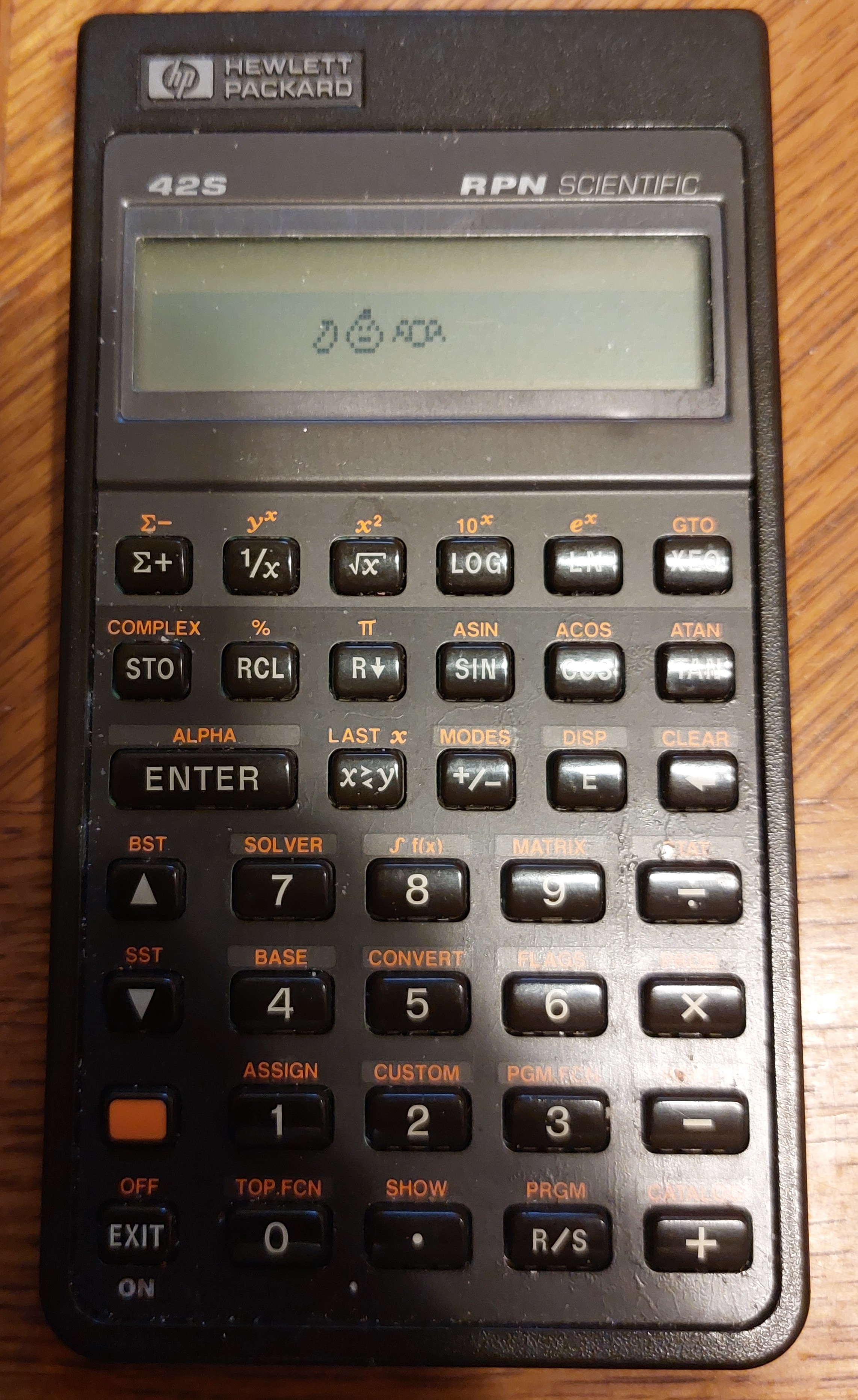
Happy Halloween and Happy Birthday, HP 42S

Happy Halloween and Happy Birthday, HP 42S


The HP 42S calculator was released to the market on October 31, 1988.  


I also want to wish you a safe and Happy Halloween.  Thank you.


Eddie 


All original content copyright, © 2011-2022.  Edward Shore.   Unauthorized use and/or unauthorized distribution for commercial purposes without express and written permission from the author is strictly prohibited.  This blog entry may be distributed for noncommercial purposes, provided that full credit is given to the author. 


Sunday, October 30, 2022

Paco Arjonilla: HP 35S Program Suite

 Paco Arjonilla:  HP 35S Program Suite


On today's blog post, I am going to highlight a recent suite of programs, written by Paco Arjonilla, is designed to compliment the rich function set of the HP 35S calculator.


Each category will have a set of programs of functions.  Stack diagrams are provided in the documentation.  Each category belongs to a single label.


Label P:  vector functions (includes norm, cross product, 3 x 3 determinant) - 149 steps


Label G:  complex numbers (conjugate, polar/rectangular conversions, construct and break down complex numbers) - 48 steps


Label Q:  quaternions (construction, angle, rotation) - 80 steps


Label K:  quadratic equation solver - 28 steps


Label H:  save stack data to variables - 55 steps


Label I:  recall saved stack - 55 steps


Label J:  stack operations (push and pop the x stack, delete the x stack, clear reserved memory registers, copy memory registers) - 159 steps


Paco's website also has a cheat sheet which can be downloaded as a PDF file.


For the programs and for license information, click here:  


http://www.pacoarjonilla.es/HP-35s.html


Special thanks to Paco Arjonilla.


Eddie 


All original content copyright, © 2011-2022.  Edward Shore.   Unauthorized use and/or unauthorized distribution for commercial purposes without express and written permission from the author is strictly prohibited.  This blog entry may be distributed for noncommercial purposes, provided that full credit is given to the author. 


HP 71B and TI-84 Plus CE: Binary Decimal Conversions Revised

HP 71B and TI-84 Plus CE:  Binary Decimal Conversions Revised


The programs presented can easily convert integers without the needs of lists or strings in input.  


HP 71B Programs:  BINDEC, DECBIN


No modules are required.


BINDEC (137 bytes)


100 DISP "BIN>DEC" @ WAIT .5

105 DESTROY A,B,C,D,E

110 INPUT "BIN? ";A

115 B=1 @ D=0 @ C=A

200 E=A/10 @ A=INT(E)

205 D=D+10*B*(E-A) @ B=2*B

210 IF A THEN 200

300 DISP "(2)";C;"="D


DECBIN (130 bytes)


100 DISP "DEC>BIN" @ WAIT .5

105 DESTROY A,B,C,D

110 INPUT "DEC? ";D

115 B=0 @ A=D @ C=1

200 E=D/2 @ D=INT(E)

205 B=B+C*(D<E)

210 C=C*10

215 IF D THEN 200

300 PRINT A;"=(2)";B


TI-84 Plus CE Programs:  BINDEC2, DECBIN2


BINDEC2


"V.2"

Disp "BIN>DEC"

Input "BIN? ",A

1→B:0→D:A→C

Lbl 2

A/10→E:iPart(E)→A

D+10*B*(E-A)→D

2*B→B

If A:Goto 2

Disp "(2) "+toString(C)+"= "+toString(D)


DECBIN2


"V.2"

Disp "DEC>BIN"

Input "DEC? ",D

0→B:D→A:1→C

Lbl 2

D/2→E:iPart(E)→D

B+C*(D<E)→B

10*C→C

If D:Goto 2

Disp toString(A)+"=(2) "+toString(B)


This is recommended for only integer values of 512 (decimal base) or less.  


Example


Decimal: 476  (DEC>BIN)

Result Binary:  111011100


Binary:  10111011 (BIN>DEC)

Result Decimal:  187


Source


Craig, John Clark.  119 Practical Programs For The TRS-80 Pocket Computer  TAB Books Inc.  Blue Ridge Summit, PA.  1982 pg. 133


Happy computing,

Eddie 


All original content copyright, © 2011-2022.  Edward Shore.   Unauthorized use and/or unauthorized distribution for commercial purposes without express and written permission from the author is strictly prohibited.  This blog entry may be distributed for noncommercial purposes, provided that full credit is given to the author. 

Saturday, October 29, 2022

Plus42 Solver: Derivatives

Plus42 Solver: Derivatives 


Introduction


The Technical Applications book for the HP 27S and HP 19B (and can apply to the HP 17B outside of trigonometry) shows the numerical first and second derivative can be calculated by the formulas:


f ' (x) = (f(x+h) - f(x-h)) / (2 * h)


f ' ' (x) = (f(x + h) - 2 * f(x) + f(x + h)) / h^2 


where h is sufficiently small, like 10^-5 to 10^-12.


Legacy Formulas vs. Plus42 Formulas 


The formulas suggested by the Technical Applications Book are:


First Derivative:


Second Derivative:


Depending on the function FX, this above can turn the above into long equations.  With the ability of user functions, this allows us to use the original definitions.


FX(X): f(x) (insert f(x)


First Derivative:


F'X=(FX(X+H)-FX(X-H))÷(2×H)


Second Derivative:


F''X=(FX(X+H)-2×FX(X)+FX(X-H))÷SQ(H)


SQ:  press by the key sequence [(shift)] (x^2)


':  (ALPHA) [ ↓ ] (PUNC) [ ↓ ] ( ' )


Note:  Radians mode 


Examples 


FIX 5 mode is set.


Example 1:


f(x) = 0.5 * cos(3*x)

x = π/4


FX(X):0.5×COS(3×X)

f'(x) ≈ -1.06066

f''(x) ≈ 3.18198


Example 2:


f(x) = (x^2 + 3*x + 5) / (4*x - 1)

x = 2


FX(X):(X^2+3×X+5)÷(4×X-1)

f'(x) ≈ -0.22449

f''(x) ≈ 0.54227


Functions with Variable Constants


It is easy to expand the user function FX to include variable constants.  For example:


f(x) = -ln(cos(√(a*x)))

Calculate the value and first derivative at x = 0.11 and a = 0.46


Attach variable constants at the end of FX:


FX(X:A):-LN(COS(SQRT(A×X)))

F'X=(FX(X+H:A)-FX(X-H:A))÷(2×H)


f(x:a) ≈ 0.02552

f'(x:a) ≈ 0.23396


The user function makes the calculating numerical derivatives easier.  


Source:


Technical Applications: Step-by-Step Solutions for Your HP-27S or HP-19B Calculator Hewlett Packard.   Edition 2.  Corvallis, OR.   November 1988.  pg. 44


Have any Halloween plans?  Wishing you a great day,


Eddie 


All original content copyright, © 2011-2022.  Edward Shore.   Unauthorized use and/or unauthorized distribution for commercial purposes without express and written permission from the author is strictly prohibited.  This blog entry may be distributed for noncommercial purposes, provided that full credit is given to the author. 


Wednesday, October 26, 2022

Retro Review: Texas Instruments Financial Investment FIA-10

Retro Review:   Texas Instruments Financial Investment FIA-10


Possibly a predecessor to the well known BA-II Plus, the FIA-10 introduced financial worksheets for various financial applications.  


Quick Facts


Model:  FIA-10

Company:  Texas Instruments

Years:  1988 - 1990

Type:  Finance

Batteries: 1 x CR-2032

Operating Modes:  Chain

Number of Registers: 10

Display:  large display, 5 lines for variables, 1 line for calculations 


A Collector's Calculator


The FIA-10 is a collector's calculator! The FIA-10 is a financial calculator has a large screen with five soft keys located to the right side of the screen.  There is a sixth button, Compute, is used to solve for variables.  


The FIA-10 has ten worksheets.  Each worksheet has up to four columns, in which each column can have a separate list of data.


1.  Time Value of Money/Amortization:  4 columns

2.  Cash Flow including net present value, net future value, internal rate of return:  2 columns

3.  Bond Calculations:  yields and prices:  4 columns

4.  Depreciation:  including straight line, sum of the year's digits, declining balance:  1 column

5.  Statistics with Linear Regression: 1 column

6.  Interest Conversions between APR and EFF/NOM:  1 column

7.  Percent Change: 1 column

8.  Profit:   cost vs. selling price vs. margin:  1 column

9.  Date Calculation:  for dates from October 15, 1982 to February 28, 4000:  1 column

10.  Memory:  up to ten memory registers R0- R9 can be seen in this worksheet:  1 column


Storage arithmetic is allowed  (STO+, STO-, STO×, STO÷, STO^).  Any variable can be recalled by using the [ RCL ] key.   


In short, this rare calculator is worth collecting.  If you are familiar with the BA II Plus, the FIA-10 will be easy to work with.  


Eddie 


All original content copyright, © 2011-2022.  Edward Shore.   Unauthorized use and/or unauthorized distribution for commercial purposes without express and written permission from the author is strictly prohibited.  This blog entry may be distributed for noncommercial purposes, provided that full credit is given to the author. 


Sunday, October 23, 2022

Happy Kibibyte Day! (October 24)


Unlike a kilobyte, that is 1,000 bytes, a kibibyte has 2^10 bytes.   


Happy programming,


Eddie

HP 71B, TI 84 Plus CE: Egyptian Fractions to Unit Fractions by the Greedy Algorithm

HP 71B, TI 84 Plus CE:  Egyptian Fractions to Unit Fractions by the Greedy Algorithm


Introduction 


An Egyptian fraction consists of a sum of unit fractions.  A unit fraction is a fraction with 1 in its numerator and a positive integer in its denominator.   


Yesterday, we calculated the Egyptian fraction given unit fractions, full simplified.   Today, we will attempt the reverse process, breaking down an Egyptian fraction into a sum of unit fractions.


N/D = 1/A1 + 1/A2 + 1/A3 + 1/A4 + ....


The Algorithm


The Greedy Algorithm is used.  


The Greedy Algorithm attempts to start the expansion by using the division of ceiling(D/N) = int(D/N) + 1.   Please be aware that this may not be the fastest or more efficient way.  


We also have the problem of a lot of calculators inability to display long integers, that is longer than 10 (usually) before switching to scientific notation mode.  In order to accommodate for memory and the calculator's ability to display integers, I set the algorithm to stop should the denominator for the next step exceed 10^8.  In that case, the remainder fraction is displayed.  


TI-84 Plus CE Program EGYPTUNT


"2022-09-04 EWS"

Disp "EGYPT>SUM UNIT FRACS"

Input "NUM? ",N

Input "DEN? ",D

N→M:D→C

Disp "SUM: ":Wait .5

While M≠1

int(C/M)+1→B

Disp "1/"+toString(B)

Pause 

M*B-C→M

B*C→C

If C>1E8:Goto 2

End

Disp "1/"+toString(C)

Stop

Lbl 2

Disp "REMAIN:"

Disp toString(M)+"/"+toString(C)


* This assumes your TI-84 Plus CE is at least has the 5.5 operating system.


HP 71B Program EGYPTUNT


100 DISP "EGYPT>SUM UNIT FRACS" @ WAIT .5

105 DESTROY N,D,C,M

110 INPUT "NUM? ";N

115 INPUT "DEN? ";D

120 M=N @ C=D

125 DISP "SUM=" @ WAIT .5


200 B=INT(C/M)+1

205 DISP "1/"&STR$(B) @ PAUSE

210 M=M*B-C @ C=C*B

215 IF C>10^8 THEN 400

220 IF M#1 THEN 200


300 DISP "1/"&STR$(C)

305 STOP


400 DISP "REMAIN: " @ WAIT .5

405 DISP STR$(M)&"/"&STR$(C)

410 STOP


Examples:


6/7

NUM = 6

DEN = 7

Results:  1/2, 1/3, 1/42


6/7 = 1/2 + 1/3 + 1/42


181/360

NUM = 181

DEN = 360

Results: 1/2, 1/361, 1/129961, REMAIN: 2/33779463120


Note:  Please be aware that this Greedy Algorithm  is only one approach and just because we get a REMAIN message does not conclude that the fraction cannot be broken into a sum of unit fractions.  For example:  181/360 = 1/5 + 1/8 + 1/9 + 1/15


See the source below for more information.


"Greedy algorithm for Egyptian fractions" Wikipedia.  Edited December 10, 2021.  Last Accessed September 4, 2022.  https://en.wikipedia.org/wiki/Greedy_algorithm_for_Egyptian_fractions


Eddie


Halloween is just around the corner!


All original content copyright, © 2011-2022.  Edward Shore.   Unauthorized use and/or unauthorized distribution for commercial purposes without express and written permission from the author is strictly prohibited.  This blog entry may be distributed for noncommercial purposes, provided that full credit is given to the author. 


Saturday, October 22, 2022

HP 71B, TI 84 Plus CE: Sum of Egyptian Fractions

HP 71B, TI 84 Plus CE:  Sum of Egyptian Fractions


Introduction 


An Egyptian fraction consists of a sum of unit fractions.  A unit fraction is a fraction with 1 in its numerator and a positive integer in its denominator.   


Today's blog entry will calculate the Egyptian fraction given unit fractions, full simplified.   On tomorrow's entry, we will attempt the reverse process, breaking down an Egyptian fraction into a sum of unit fractions.


N/D = 1/A1 + 1/A2 + 1/A3 + 1/A4 + ....


The Algorithm


Start out with two unit fractions 1/A1 and 1/A2.  


Let N2/D2 = 1/A1 + 1/A2


Then:

N2/D2 = 1/A1 + 1/A2

N2/D2 = (A1 + A2)/(A1*A2)


Let N3/D3 = 1/A3 + N2/D2


Then:  N3/D3 = (A3*N2 + D2)/(N2*D2)


For any general point:


N_x+1/D_x+1 = (N_x * A_x + D_x)/(A_x * D_x)


This allows the user to input as many unit fractions as allowed.  


TI-84 Plus CE Program EGYPTSUM


Disp "EGYPT FRACTION SUM"

"2022-09-03 EWS"

Input "NO. TERMS? ",S

Input "1/A1? ",A

Input "1/A2? ",B

A+B→N

A*B→D

For(I,3,S)

"1/A"+toString(I)+"? "→Str1

Input Str1,A

A*N+D→N

A*D→D

End

gcd(N,D)→G

N/G→N

D/G→D

Disp "NUM= "+toString(N)

Disp "DEC= "+toString(D)

Disp "FRAC="+toString(N/D)


* This assumes your TI-84 Plus CE is at least has the 5.5 operating system.


HP 71B Program EGYPTSUM 


100 DISP "EGYPT FRACTION SUM" @ WAIT .5

105 DESTROY S,A,B,I,N,D,G

110 INPUT "# TERMS? ";S

115 INPUT "1/A1? ";A

120 INPUT "1/A2? ";B

125 N=A+B @ D=A*B

130 IF S=2 THEN 300


200 FOR I=3 TO S:

205 DISP "1/A"&STR$(I)&"?" @ WAIT .5

210 INPUT "1/A? ";A

215 N=A*N+D

220 D=A*D

225 NEXT I


300 A=N @ B=D

305 G=MOD(A,B)

310 A=B @ B=G

315 IF G THEN 305

320 N=N/A @ D=D/A


400 DISP "NUM= ";N

405 DISP "DEN= ";D

410 DISP "FRAC= ";N/D

415 STOP


The 300-325 section calculates the common greatest divisor, based off the "Greatest Common Divisor" program from 119 Practical Programs for the TRS-80 Pocket Computer (see source below).


Examples:


1/2 + 1/6

# TERMS = 2

Result:  2/3 (NUM = 2, DEN = 3)


1/7 + 1/8 + 1/2 

# TERMS = 3

Result:  43/56 (NUM = 43, DEN = 56)


1/9 + 1/5 + 1/15 + 1/8

# TERMS = 4

Result: 181/360 (NUM = 181, DEN = 360)


Source


Craig, John Clark.  119 Practical Programs For The TRS-80 Pocket Computer  TAB Books Inc.  Blue Ridge Summit, PA.  1982 pg. 133


All original content copyright, © 2011-2022.  Edward Shore.   Unauthorized use and/or unauthorized distribution for commercial purposes without express and written permission from the author is strictly prohibited.  This blog entry may be distributed for noncommercial purposes, provided that full credit is given to the author. 


Sunday, October 16, 2022

TI-65: Relativity Applications

TI-65:  Relativity Applications


Introduction


The programs on today's blog entry were programmed on the Texas Instruments TI-65 calculator.   One of the features of the TI-65 is the set of physical constants.  


The programs call up the speed of light, c = 299,792,458 m/s, by the [ 3rd ] [ 2 ] key combination.  If you are using a TI-58, TI-59, or TI-66, where there are no physical constants, please store 299792458 in a memory register first, and replace the key sequence by recalling that register.  


These programs will use the shortcut:


cos(arcsin x) = √(1 - x^2) for all -1 ≤ x ≤ 1


This allows us to cut down on the number of bytes required.  


Redshift vs. Blueshift


f0 = fs * √((1 - v/c) / (1 + v/c))


v = velocity of the source/star in m/s

blueshift:  v < 0

redshift:  v > 0

fs = frequency given off by the source/star in Hz

f0 = observed frequency in Hz


v/c is stored in register 0.


Program 


Keys:

LBL F1

1

-

(

R/S

÷

[c]

)

STO 0

=

÷

(

+

RCL 0

)

=

×

R/S

=

RTN


Key Codes:

2nd 53.53

1

49

16

51

28

3rd 46

17

12.0

39

28

16

1

59

13.0

17

39

33

38

51

39

2nd 52


Instructions:

1.  Press  [ F1 ]. 

2.  Enter v when execution stops, press [ R/S ].

3.  Enter fs when execution stops, press [ R/S ].

4.  f0 is calculated.


Example:

v = 210,000,000 m/s

fs = 450 * 10^6 Hz  (450 [ EE ] 6)

Result:  f0 = 1.888581542E8 Hz  (188.8581542 * 10^6)


Relativistic Doppler Effect


f0 = (fs * √(1 - v^2/c^2)) / (1 - v/c * cos Θ)


v = velocity of the source

Θ = direction of source's motion relative to the observer (angle from the observer's perspective)

fs = frequency given off by the source/star in Hz

f0 = observed frequency in Hz


Program


Key:

LBL F2

(

R/S

÷

[c]

)

STO 0

INV SIN

COS

×

R/S

=

÷

(

1

-

RCL 0

×

R/S

COS

)

=

RTN


Key Code:

2nd 53.54

16

51

28

3rd 46

17

12.0

-22

23

38

51

39

28

16

1

49

13.0

38

51

23

17

39

2nd 52


Instructions:

1.  Press  [ F2 ]. 

2.  Enter v when execution stops, press [ R/S ].

3.  Enter fs when execution stops, press [ R/S ].

4.  Enter Θ when the execution stops, press [ R/S ].

5.  f0 is calculated.


Example:

v = 196 * 10^6 m/s

fs = 500 * 10^6 Hz  

Θ = 40°  (degrees mode)

Result:  f0 = 7.579362482 * 10^8 Hz = 757.9362482 * 10^6 Hz


Time Dilation


t' = t0 * √(1 - (v/c)^2)


t0 = source's time 

v = velocity of source in m/s

t' = observer's time


Key:

LBL 0

R/S

÷

[ c ]

=

INV SIN

COS 

×

R/S

=

RTN


Key Codes:

2nd 53.0

51

28

3rd 46

39

-22

23

38

51

39

2nd 52


Instructions:

1.  Press  [ SBR ] [ 0 ]. 

2.  Enter v, press [ R/S ].

3.  Enter t0 when execution stops, press [ R/S ].

4.  t' is calculated.


Example:

v = 164 * 10^6 m/s

t0 = 1.5 yr

Result:  t' = 1.255654687 yr


Source:


"Sinclair Enterprise Programmable: Physics Engineering Electronics Program Library"  Sinclair Radionics Inc.  New York, NY and St. Ives, Huntingdon, Cambridgeshire UK.  1976


All original content copyright, © 2011-2022.  Edward Shore.   Unauthorized use and/or unauthorized distribution for commercial purposes without express and written permission from the author is strictly prohibited.  This blog entry may be distributed for noncommercial purposes, provided that full credit is given to the author. 

Saturday, October 15, 2022

Swiss Micros DM42, Free42, Plus42: FUNC command

Swiss Micros DM42, Free42, Plus42:   FUNC command


Turning Programs into User Functions


The FUNC command saves the stack contents and treats the program like it is a function.  This allows the program to work with a temporary stack which is "deleted" when the program reaches either END or RTN (and RTNYES, RTNN), while storing the original contents of the X stack in the L (LAST X) stack.  


FUNC requires a two digit argument.  The first digit is the stack levels used in input, while the second digit is the stack levels used in output.


FUNC 11:  Takes the argument from the X stack and returns the answer in X stack, while leaving the rest of the stack intact.

X:  f(x),  Y: y0,  Z: z0,  T:  t0,  Last X:  x0


FUNC 21:  Takes the arguments from the X and Y stacks and returns the answer in the X stack.

X:  f(x,y),  Y:  z0, Z: t0, T: t0, Last X: x0


FUNC22:  Takes the arguments from the X and Y stacks and returns the answers in the X and Y stacks.

X:  x from f(x,y),  Y:  y from f(x,y), Z:  z0,  T:  t0, Last:  x0


Example 1:  f(x,y) = (y + x)/(y - x)


Stack set up:

T = 24

Z = 15

Y = 45

X = 21


PR1:  Program 


00 { 17-Byte Prgm }

01▸LBL "PR1"

02 -

03 ENTER

04 ENTER

05 LASTX

06 +

07 LASTX

08 +

09 X<>Y

10 ÷

11 RTN

12 END


BEFORE PR1:

T=               70.0000

Z=               15.0000

Y=               45.0000

X=               21.0000


AFTER PR1:

T=               15.0000

Z=               15.0000

Y=               15.0000

X=                2.7500


FN1:  Using FUNC21


00 { 20-Byte Prgm }

01▸LBL "FN1"

02 FUNC 21

03 -

04 ENTER

05 ENTER

06 LASTX

07 +

08 LASTX

09 +

10 X<>Y

11 ÷

12 RTN

13 END


BEFORE FN1:

T=               70.0000

Z=               15.0000

Y=               45.0000

X=               21.0000


AFTER FN1: 

T=               70.0000

Z=               70.0000

Y=               15.0000

X=                2.7500


Example 2:  f(x,y) = x * y * √(x^2 + y^2)


Stack set up:

T = 64

Z = 11

Y = 15

X = 25


Note: The →POL command calculates that  x^2 + y^2 on the x stack


PR2:  Program 


00 { 17-Byte Prgm }

01▸LBL "PR2"

02 STO ST Z

03 X<>Y

04 STO× ST Z

05 →POL

06 RCL× ST Z

07 RTN

08 .END.


BEFORE PR2:

T=               64.0000

Z=               11.0000

Y=               15.0000

X=               25.0000


AFTER FN2:

T=               64.0000

Z=              375.0000

Y=                1.0304

X=           10,933.0348


FN2:  Using FUNC21


00 { 20-Byte Prgm }

01▸LBL "FN2"

02 FUNC 21

03 STO ST Z

04 X<>Y

05 STO× ST Z

06 →POL

07 RCL× ST Z

08 RTN

09 END


BEFORE FN2:

T=               64.0000

Z=               11.0000

Y=               15.0000

X=               25.0000


AFTER FN2:

T=               64.0000

Z=               64.0000

Y=               11.0000

X=           10,933.0348


As we can see, the FUNC command is a powerful command that allows programs to act like user functions, and is a great function for the DM42, Free42, and Plus42.  Unfortunately, FUNC is not available on the original HP 42S.


Until next time, happy programming,


Eddie 


All original content copyright, © 2011-2022.  Edward Shore.   Unauthorized use and/or unauthorized distribution for commercial purposes without express and written permission from the author is strictly prohibited.  This blog entry may be distributed for noncommercial purposes, provided that full credit is given to the author. 


Sharp EL-5200/EL-9000 AER II Program Collection – September 2026

Sharp EL-5200/EL-9000 AER II Program Collection – September 2026 For my review on the Sharp EL-5200 (also known as the Sharp EL-9000)...