Showing posts with label Android. Show all posts

Monday, February 2, 2026

Dozenal RPN Calculator App for Android for Android Smartphones and Numworks Beta Firmware Version 25

 Dozenal Calculator App for Android Smartphones and Numworks Beta Firmware Version 25


Dozenal Calculator App for Android Smartphones


The Dozenal RPN Calculator app is by Unum Designum for the Android smartphones. It is a classical, four-level stack RPN (Reverse Polish Notation) app that operates in both dozenal (i.e. duodecimal, Base 12) and decimal (Base 10). The calculator app features a standard set of scientific functions:


* arithmetic, square, square root

* sin, cos, tan, and inverses

* e^x, 10^x, ln, log

* DMS/Decimal conversions and HMS/Hours conversions (not sure how there are two sets, since they seem to do the same thing)

* Pol/Rect conversions

* percent function (%)

* Stack functions: roll down, roll up, swap, last x


Originally Released: July 1, 2020

Last Updated: December 17, 2025 (as of January 22, 2026)

Version I am reviewing 1.0.11


The polar/rectangular conversions follow the conventional RPN calculator format:


Rectangular

Polar

Y Stack:

Y

Θ

X Stack:

X

R


The percent function follows the conventional RPN calculator format:


Before

After

Y Stack:

Y

Y

X Stack:

X

Y * X ÷ 100


However, the decimal/DMS (decimal-minute-seconds) and hours/HMS (hours-minute-seconds) follow up this format:


Decimal/Hours

DMS/HMS

Z Stack:

0 after conversion

seconds

Y Stack:

0 after conversion

minutes

X Stack:

decimal/hours as a decimal

decimal/hours


Conversion between bases is just a matter of pressing [ f ] [ DOZ/DEC ].


Symbols:


* Upside down 2 (↊) represents 10 (Unicode 218A); commonly symbolized by X

* Backwards 3 (↋) represents 11 (Unicode 218B); commonly symbolized by E

(Unicode is from Wikipedia: https://en.wikipedia.org/wiki/Duodecimal)


Two constants provided by the Dozenal RPN app:


Base 10 (e: 10^n)

Base 12 (e: 12^n)

π

3.141592653589793

3;184809493↋9186459↊↊

Planck

6.6206070149999999e-34

1;↊79611175↊0925342846e-27


App information: https://play.google.com/store/apps/details?id=dozecal.unumdesignum.com&hl=en_NZ#/


Numworks: Beta Firmware 25


Version 25 Information: https://www.numworks.com/calculator/update/version-25/


Nuwmorks has released a firmware update 25.1. It is a beta version software where new features are tested. To try it, Numworks is inviting Numworks users to download and become a beta test or us the beta emulator on the Numworks website.


Verison 25 Beta Emulator: https://www.numworks.com/calculator/update/version-25/

Please keep in mind that this emulator is probably only available for the testing period and may become unavaiable once the official release is made.


Major updates include:

* Data in the Statistics app can either be qualitative (data points, the way the statistics mode was always used) or categorial (data points always belong to specific categories, up to 10)

* The Grapher app can shade area of intersection for a given set of inequalities.

* The Grapher app also finds intersection points of conic sections and vertical lines.

* In the Calculations app, results with five or more decimal place will have at least a fractional approximation in the Additional Results quick tab.

* The degree and radian symbol/indicators are added to the Toolbox.

* Sequences have new notations.

* Installing this version will limit roll back deinstalls to versions 24.11 or later.


No word on any additions or changes to the Python app.


I have installed version 25 on my older Numworks calculator (N0110) so I can try them out.


Saturday, July 6, 2019

Review: SpecExp Calculator App (Android)

Review:  SpecExp Calculator App (Android)

Welcome to my blog post 1,001!   (happy dance)


Quick Facts

Author:  Scientific Software Team
Type:  Scientific and Function Graphing
Input:  Textbook
Platform:  Android
Current Version:  4.0.4
Price:  Free version (has ads),  $19.99 (no ads)

Links

To the SpecExp Calculator website:  https://spec-exp.appspot.com/#

To the Paid Version:  https://play.google.com/store/apps/details?id=az.elten.specexp.calculator.paid

I recommend the paid version, I'm not a fan of the ads.

Features

*  Textbook input of mathematical expressions
*  Matrices and vectors
*  Fractions
*  Base conversions
*  Function Graphing

The File System

Calculations and graphs are stored in files.  To start a new calculation, press the round plus button ( + ) on the bottom right hand of the screen.  You will be prompted to select CALCULATE or GRAPH.

Entering Mathematical Calculations

Each mathematical calculations are stored in separate files.  The calculations can be simple or complex as you want.  You can pinch zoom to adjust the font on the calcuation.  Multiplication is symbolized by a middle dot.

Functions are located on top of the soft keypad, and is a scrollable menu:

π i :   Π (inserts π), e, i (√-1 for complex numbers), ° (degrees), ' (minutes/seconds), % (to divide the number by 100)

sin sec:  sin, cos, tan, ctan (cot), csc, asin, acos, atan, actan (acot), sec

The angle measure defaults to radians, but you can use the degree symbol to indicate any angle in degrees ( ° ).

ln sh:  sh (sinh), ch (cosh), th (tanh), cth (coth), ln, lg (log), Log_ (log to any base)

√ | | :  √, | | (absolute value), arg (argument or angle), _√ (universal root), sign

Matrices:
det rang:  det (determinant),  rang (rank)*,  ransp (transpose, the menu shows the key as ransp, but the function is transp)

* I wasn't sure about the rang function.  I emailed the author and he stated it was the rank function.

( ) [ ] { }:
*  Use the parenthesis in expressions and to signify vectors.  Separate arguments by the colon ( ; )
*  The square brackets are used in expressions with sum (Σ), product (Π), and limit
*  The menu has both LCM and GCD

A  C:   A (permutations),  C (combinations), ! (factorials, positive integers from 0 to 170)

| |:  Matrix template and builder

lim ∫:  limits (two sided and one sided), sums, products, integrals, you can use ∞

ABC_ : used for base conversions (A = 10, B = 11, C = 12, D = 13, E = 14, F = 15), ABC_ puts a subscript

Use two subscripts to convert bases.  For example, converting 11101 from binary to octal:  11101_2_8, result 35_8

Viewing Answers

To calculate the result, press the equals key ( = ).  The result will be displayed on a separate page.  There are four options:

* Improper fraction (when available)
* Decimal
* Mixed Fraction
* Degrees (the result is assumed to be radians unless marked by °, shown in degrees-minutes-seconds format)

Graphing Functions

Graphing pages are represented by two arrows are right angles (going right and up).  You can graph multiple functions.  The function's colors are automatic (blue for the first, red for the second, etc).  The graphs are displayed  and can be pinch zoomed.

Verdict

I like how the screen is used to write and display expressions.  This is a very promising app.

There are few things I would like to see in future updates:  numerical derivatives, graphing analysis (intersections, roots, tracing, areas, slopes, etc).

The $19.99 price tag may be high for some, so if are not sure, you can try the free version first (of course you get ads).

Eddie

All original content copyright, © 2011-2019.  Edward Shore.   Unauthorized use and/or unauthorized distribution for commercial purposes without express and written permission from the author is strictly prohibited.  This blog entry may be distributed for noncommercial purposes, provided that full credit is given to the author.

Saturday, February 9, 2019

App Spotlight: MyScript Calculator 2


App Spotlight: MyScript Calculator 2


App: MyScript 2
Platform: Android, iOS
Price:
Android: Free Until February 12, 2019, $2.99 Thereafter
iOS: $2.99

I received an email from MyScript about their newly released MyScript Calculator 2 for Android.

MyScript Calculator 2 is an update to the MyScript calculator. You can see my review for the original version here: http://edspi31415.blogspot.com/2013/01/review-myscript-calculator.html.

What is in the new version?

* You can display results in decimal (up to 6 decimal places) with one of two settings: truncated or rounded, or you can display answers in simplified fractions (improper or in mixed form)
* The ability to turn on automatic calculation or manual calculation
* You can solve some equations. Caveats: Limited to simple equations (not full quadratic or cubic equations, yet)
* We can drag numbers to copy them in different calculations. Dragging numbers to the blue bar on top of the screen will store them in memory. Stored numbers will be available even if the workspace is cleared. To pick a number for dragging, all you have to do is to press on a number, hold until the number is boxed. At that point, you can drag the box.

Here are some screen shots from Version 2.


Here is a video demonstration of MyScript Calculator 2 by the company: https://www.youtube.com/watch?v=EpU24ooMY-8&feature=youtu.be

I thank Giovanni Rodriguez of Marketing for introducing me to MyScript 2.

Eddie

All original content copyright, © 2011-2019. Edward Shore. Unauthorized use and/or unauthorized distribution for commercial purposes without express and written permission from the author is strictly prohibited. This blog entry may be distributed for noncommercial purposes, provided that full credit is given to the author.


Wednesday, July 18, 2018

Fun with the FX-603P Emulator


Fun with the FX-603P Emulator


Author for the Emulator:  Martin Krischik


Cost: $5.99 (there is an fx-602P scientific calculator emulator for $4.99, similar programming language but only 10 programming spaces instead of 20)

The app is emulates the 1990 Casio fx-603P calculator.


Decibels to Pressure

Program: (29 steps)

“DB?”  HLT  ÷ 20  = 10^x  *  2E-5  = “Pressure:” HLT

Examples:

DB = 30 dB; Result:  6.32455532 * 10^-4 N/m^2

DB = 120 dB; Result:  20 N/m^2

Turn Performance

Given a plane’s true air speed (TAS in knots), stall speed (in knots), and required bank turn (in degrees), the following are calculated:

1. G force
2.  Normal stall speed for the plane during the turn (knots)
3.  Turn diameter (nautical miles)
4.  Time it takes for the turn to be complete (in minutes)

Formulas:

G = 1/(cos(bank))

Stall speed = normal stall speed * G

Diameter = TAS^2 / (34208 * tan(bank))

Time = (0.0055 * TAS) / tan(bank)

Memory Registers:

Input:

M00 = TAS, M01 = Stall speed, M02 = Bank

Output:

M03 = G force, M04 = resulting stall speed, M05 = diameter, M06 = time

Program: (110 steps)

DEG “TAS?” HLT Min00
 “Norm. Stall?” HLT  Min01
 “Bank?” HLT Min02
MR02 cos 1/x Min03 “G:” HLT
MR03 √ * MR01 = “Stall Speed:” HLT
MR00 x^2 ÷ ( MR02 tan * 34208 ) = Min05 “Diameter:” HLT
0.0055 * MR00 ÷ MR02 tan “Time:” HLT Min06

Notes: 
DEG:  [ MODE ] [ 4 ]


Example:

Inputs:
TAS: 123 knots
Norm. Stall:  60 knots
Bank:  44.8°

Results:
G:  1.409302674
Stall Speed: 71.22843498 knots
Diameter:  0.445363387 n.m.
Time: 0.681239424 minutes (about 40.87 seconds)

Source:  “Turn Performance” HP 65 Aviation Pac-1 Hewlett Packard.  1974
.

Sum of a Function

This program uses the subroutine (under P9 with the variable MinF, or any register M04 or after) to calculate the summation:

Σ f(x) for x = a to b

The sum is stored in M03.

Note: when entering a new f(x), clear P9 (MODE, 3, P9, AC) first before entering the new function.  It’s a lot cleaner.

Main Program:  (34 bytes)

0 Min03
“a?” HLT Min01
“b?” HLT Min02
MR02 – MR01 + 1 = Min00
Lbl0
MR01 GSBP9 M+03
1 M+01
DSZ Goto0
MR03 “Σ=”

Note: 
Lbl0:  [ LBL] [ 0 ]
GSBP9: [GSB] [ P9 ]
Goto0:  [ GOTO ] [ 0 ]
The character Σ:  (in ALPHA) [SHIFT] [ 7 ]
Memory F:  [ Min ], [ MR ], etc.  [EXE] for F.

Examples:

Σ n^2 + 3*n – 6 for n = 1 to 8 
Subroutine:
Min0F x^2 + 3 * MR0F – 6 =

Result:  264

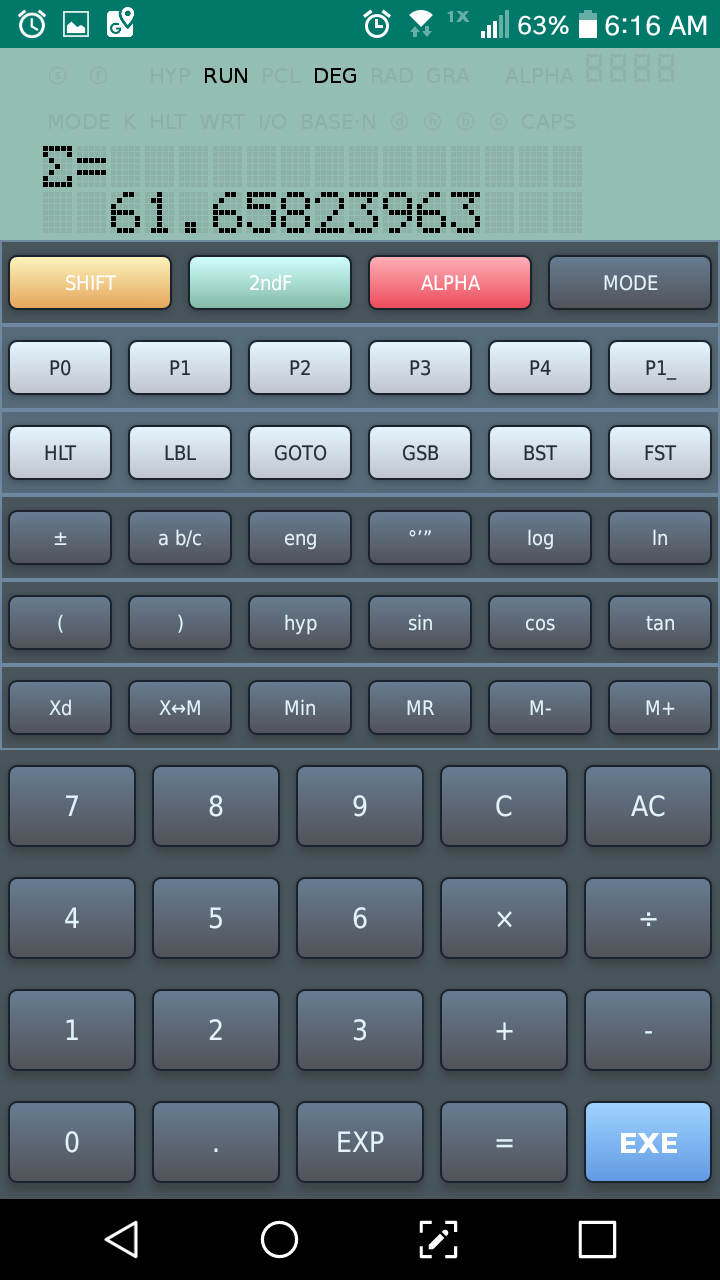
Σ (n^3 – 1)/(n^2 + 1) for n = 0 to 11
Subroutine:
( Min0F x^y 3 – 1 ) /div (MR0F x^2 + 1 ) =

Result: 61.6582396282

Combinations: where Repetition is allowed

The program calculates the number of combinations where repeats are allowed.

nHr = (n + r – 1)! / (r! * (n -1)!)

Program:  (39 steps)

“n?” HLT Min01
“r?” HLT Min02
( MR01 + MR02 – 1) x!
÷ ( MR02 x! * ( MR01 – 1 ) x! )
= “nHr=”

Examples:

Input: n = 5, r = 3.  Result:  35

Input: n = 12, r = 6.  Result:  12376

Aviation:  Rate of Climb

This program calculates the rate-of-climb (ft/min) when plane increases the elevation (in feet) given the distance to the mountain (in nautical miles, n.m.) and the true air speed (TAS, in knots). 

Formula:

ROC = ( TAS * ΔALT  ) / (60 * (dist^2 + (ΔALT/6077.1155)^2) )

Program: (88 steps)

6077.1155 Min0F
“TAS (knots)?” HLT Min01
“CHG ALT (ft)?” HLT Min02
“DIST (n.m.)?” HLT Min03
( MR01 * MR02 ) ÷
( 60 * ( MR03 x^2 + (
MR02 ÷ MR0F ) x^2
)   √ = “ROC:”

Example:

Input:
TAS = 87 knots
CHG ALT = 4800 ft
DIST = 13.3 n.m.

Result:
522.3878955 ft/min

Source:  “Rate of Climb and Descent” HP 65 Aviation Pac-1 Hewlett Packard.  1974

Eddie


All original content copyright, © 2011-2018.  Edward Shore.   Unauthorized use and/or unauthorized distribution for commercial purposes without express and written permission from the author is strictly prohibited.  This blog entry may be distributed for noncommercial purposes, provided that full credit is given to the author.  Please contact the author if you have questions.

Saturday, September 30, 2017

Adventures in Python: Installing and Matplotlib Package

Adventures in Python: Installing and Matplotlib Package

October: Adventures in Python

I am going to spend some of October concentrating on programming in the popular program Python.  Python is available on most operating systems:  Windows, iOS (such as Pythonista), Android (most popular QPython), and Linux.  

Python comes in two versions, 2 and 3.  The latest version is 3.6.

My focus is on mathematics and mathematical application.  I plan to use a Windows version of Python and the iOS Python.

Python comes with several expansion modules out of the box:  math (mathematics), random (random numbers and generation), statistics, cmath (complex numbers), and time (time functions). 

However, if we want to generate plots, including histograms and box plots, we will need to download and add an appropriate package.  The package that I am going to use is matlibplot, which also contains the module numpy which allows for matrices and matrix calculations.  The file format of matlibplot is .whl (wheel). 

Download – Windows

Download Python here:  https://www.python.org/ 


I downloaded the Win32 verison.

When downloading, make sure you use custom installation. I recommend watching this YouTube video by APMonitor here:  https://www.youtube.com/watch?v=Ju6zw83PoKo&feature=youtu.be

The video saved me a lot of headaches when I tried to download and install Python, along with downloading and installing mathlibplot.  For instance, to install mathlibplot (which includes numpy), you will need to work with the Windows command prompt.

Note:  To install matplotlib, you must install pip and matplotlib thorugh the Windows Command Prompt, not the program itself.

For the Windows version, I am going to use the IDLE program which allows me to run Python both on the module and also create and run scripts. 


Android – installing matplotlib – Help Needed!

I tried to install matplotlib on QPython3 without success.  There documentation for this is scare and often not a help at all.   If anyone knows how to do it, please share.  I need type of version (Linux, win32, etc) is needed, what folder, etc. 

Download Pythonista – Apple iOS

For portable Python I am going to use the Pythonista app for Apple iOS engine.  It costs $9.99.  The best part about Pythonista is that numpy and matplotlib are both included.

More information about the app can be found here:  http://omz-software.com/pythonista/

Eddie

This blog is property of Edward Shore, 2017.


Sunday, July 2, 2017

App Review: Programmable Calculator (Jeff Glenn)

App Review:  Programmable Calculator (Jeff Glenn)

Programmable Calculator app screen shots

Author:  Jeff Glenn
Date: 2014
Cost:  99 cents
Version Reviewed: 1.2.0, 3/20/2015
Type: Programmable, Basic
Platform:  Android

Mathematical Programming From Scratch

The Programmable Calculator app lives up to its name.  It gives you barebones as far as features are concerned: just the four arithmetic functions (addition, subtraction, multiplication, and division) and nothing else.  Not even square root or π. 

Their website, http://igram.org/progcalc/user_manual.html, has a program to calculate square roots.

Before there were scientific calculators and scientific functions arrived on our computers, they had to all be programmed using just arithmetic functions. 

If you want to try scientific programming on this app, you may want to consult the 1975 book Scientific Analysis on the Pocket Calculator by Jon M. Smith (John Wiley & Sons), or this website by Ted Muller:  http://tedmuller.us/Math/Calculator-1'Introduction.htm 

Needless to the say, the Programmable Calculator operates on Chain logic.  That is, it doesn’t follow the algebraic order of operations ( 2, [ + ], 3,  [ * ], 4, [ = ] returns 20 instead of 14).

Press [ f ], [R/S] to access the options and user manual. Options include turning sound and vibration on for key presses, which I highly recommend. 

Programming

The programming features on this app are laid directly on the keyboard.  There are 10 memory registers (R0 through R9), 10 labels (again, 0 – 9), and the accumulator (number on the display) to use.  Programs can be saved and loaded with file names.  The limit seems to be the amount of memory on your Android device (phone).

What is weird is that certain commands, such as the comparison, store, and recall, will prompt you for either the accumulator (display, by pressing the [ . ]), a specific memory register (0 – 9), or a constant, which will require a press of the equals key [ = ] first.  This takes getting used to.

Here are some commands. 

[ IN ].  Input.  (in).   Stores the prompted value to a designated memory register.  This command also acts as a prompt.  If a print string proceeds the input command, the prompt gets attached to the end of the screen.

[ OUT ].  Output.  (out)   Displays the contents of a designated memory register.  Execution doesn’t stop on output, so if this command is the last command before eof (end of file), you’ll need either an R/S (run/stop) or sleep.  If a print string proceeds the output command, the value gets attached to the end of the print string.

[ PRT ].   Print  (prt).  Prints a string.  Without a string, this command would clear the display instead.

[ LBL] and [ GTO ].   Label (lbl) and go to (gto), respectively.

[ DSZ ].  Decrement and skip.  (dsz)  Designates a register to decrease by 1.  If the result is zero, the next command is stepped.

[ < ], [ = ], [ > ], ≤, ≠, ≥.  Comparisons.  Compares the accumulator (display) to a designated register.  If the test is true, the next command is executed.  Otherwise, the next command is skipped. Code names: lt, eq, gt, le, ne, and ge respectively.

[ SET ].  Sets the accumulator (display) to a designated value.

[ CLR ].  Clears the accumulator (display). 

[ STO ] and [ RCL ].  Store and recall.

The arithmetic keys: [ + ], [ - ], [ * ], [ ÷ ].  These keys work quite differently in program mode.  You are prompted to designate a register for the operation to work on (like recall arithmetic).  You can also choose the accumulator by pressing [ . ].  Pressing the equals key [ = ] allows for a numeric constant to be entered.  All numeric constants are shown as floating point numbers.  For example, add 1.0 would add 1, but add 1 would add the value of register 1.  Code names are add, sub, mul, and div, respectively.

[SLEEP]  This command pauses execution.  A value of 1,000 amounts to 1 second. 2,000 for 2 seconds, etc. Code name: slp.  This works similarly to the comparison and arithmetic commands.

[R/S]  Run/Stop.  Code name: stp.

[REM]  Remark, comment.

If I understand [TIME] correctly, this records the time value onto the calculator app.  I haven’t tried this yet.


Sample Programs

I suggest trying the sample programs listed below or listed online manual ( http://igram.org/progcalc/user_manual.html  ) before programing on your own.  I really got stuck with the input instruction and how to get the R/S key to work out.

Square Plus 1

This program calculates the function f(x) = x^2 + 1

Step
Line
Comment
00
prt “Number: “
Prompt
01
in 0
Input to R0
02
prt  (blank string)
Keys: [PRT], [DONE]
Clears the display
03
rcl 0

04
mul 0
R0 * R0
05
add 1.0
Keys: [ + ], [ = ], 1, [ = ]
06
sto 1
Store result in R1
07
out 1
Display R1
08
sleep 1000.0
Keys:  [ f ], [OUT] (SLEEP), [ = ], 1000, [ = ]
09
eof
End of Program

Example:
Input: 6, Result:  37
Input: 11, Result: 122

Area of a Circle

The value of π must be manually entered.  I use 10 digits.

Step
Line
Comment
00
rem “Area: Circle”
Remark
01
prt ([DONE])
Clear the display
02
prt “Radius: “
Prompt: “Radius”
03
in 0
Input to R0
04
prt

05
rcl 0

06
mul 0
R0 * R0
07
mul (=) 3.1415926535
Use [ = ] to enter the constant π
08
sto 1
Store result in R1
09
out 1
Display R1
10
eof
End of Program

Example:
Input:  2.5, Result:  19.634954084375

Power:  x^y

Conditions:  x > 0, y is an integer.  Neither condition is tested.  Since only arithmetic functions are available, a loop is used.

Step
Line
Comment
00
prt
Clear the display
01
prt “x = “
Prompt for x
02
in 0
Input R0
03
rcl 0

04
sto 2
Store R0 in R2 (copy x)
05
prt

06
prt “y (integer) = “
Prompt for y, with reminder
07
in 1
Input R1
08
lbl 0
Label 0, begin the loop
09
rcl 0

10
mul 2

11
sto 0
R0 * R2 → R0
12
rcl 1

13
sub 1.0
Keys: [ - ], [ = ], 1, [ = ]
R1 – 1
14
sto 1
R1 – 1 → R1
15
rcl 1
Put R1 in the display (accumulator)
16
gt 1.0
Keys: [ > ], [ = ], 1, [ = ]
Is R1 > 1?
17
gto 0
Goto Label 0 if R1 > 1
18
prt

19
prt “x^y = “
Start result string
20
out 0
Attach R0 (result) to string
21
eof


Examples:
Input:  x = 3, y = 5.  Result:  243
Input:  x = 2.7, y = 8.  Result: 2824.2953648100015

Modulus

This program calculates x mod y, where x and y are both positive and x > y.

Step
Line
Comment
00
prt
Clear the display
01
prt “x (>0) = “
Prompt for x
02
in 0
Input R0
03
prt

04
prt “y (>0) = “
Prompt for y
05
in 1
Input R1
06
lbl 0
Label 0, begin the loop
07
rcl 0

08
sub 1
Subtract R1
09
sto 0
R0 – R1 → R0
10
rcl 0

11
sub 1

12
ge 0.0
Keys: [ ≥ ], [ = ], 0 , [ = ]
R0 – R1 ≥ 0?
13
gto 0
Goto label 0, repeat loop if R0 ≥ R1
14
prt

15
prt “x mod y = “
Begin result string
16
out 0
Attach R0 to the result string
17
eof


Examples:
Input:  x = 44, y = 3.  Result:  44 mod 3 = 2
Input:  x = 76, y = 20.  Result:  76 mod 20 = 6

Final Verdict

The programming language seems to be clumsy at first and it will take some getting used to.  Turning on the sound and vibration made operating the app much better because the touch has to be precise.  I can see how this app can easily frustrate people. 

Also it is very unusual that the equals key is at the top row of the keyboard instead of the usual location at the bottom. 

With a lack of scientific functions, I recommend this app if:

(1) You want to engage mathematical programming from scratch.  Remember that all the scientific, financial, and advanced features had to be originally programmed using the four arithmetic functions themselves!
(2)  You want a challenge.

Eddie


This blog is property of Edward Shore, 2017.

Numworks (Python): Parallelograms Described by Vectors

Numworks (Python): Parallelograms Described by Vectors Introduction The script drawpgram.py draws a parallelogram constructed by ...