Saturday, April 3, 2021

Carnival of Mathematics #192

Carnival of Mathematics #192

Welcome to a very special edition of Eddie's Math and Calculator Blog.  Today I am hosting the 192nd Carnival of Mathematics, which is hosted and facilitated by The Aperiodical.  You can check out all of the carnivals, plus submit your entries to be featured in the monthly series at https://aperiodical.com/carnival-of-mathematics/.  Special thanks to Katie Steckles, Christian Perfect, and Peter Rowlett.

The Carnival of Mathematics is a monthly blog.   Please check out March's Carnival (191) by Fractal Kitty.  May's Carnival (193) will be hosted by Ben from Math off the grid.

The Number 192

Per tradition, every Carnival looks at the number associated with the month's entry, and mine is 192.  192 is an even integer and the factorization is 2^6 × 3.  The divisors of 192 are: 1, 2, 3, 4, 6, 8, 12, 16, 24, 32, 48, 64, 96, and 192.  Adding up the proper divisors (all the divisors except the number itself) will get us the sum of 316, which makes 192 an abundant number. 

On the calendar, the 192nd day of the year is July 11.  On leap years, the 192nd days of the year becomes July 10.  192 hours converts to 8 days.  

192 can be expressed as sums and differences of squares, such as:

192 = 1^2 + 3^2 + 5^2 + 6^2 + 11^2
192 = 1^2 + 5^2 + 6^2 + 7^2 + 9^2
192 = 14^2 - 2^2
192 = 15^2 - (7^2 - 4^2)

The Carnival

Our first entry comes from Gödel's Lost Letter and P=NP.   This blog entry is all about the Rubik's Cube, featuring the decades-long interest by the Wall Street Journal, and the Distinguished Professor and speed-Rubik's Cube champion Jessica Fridrich.  The blog entry gives an introductory look on how the Rubik's Cube lends to group theory.

In his entry, Stacking LEGO Bricks, Peter Kagey uses combinatorics, with a simple set of rules, to demonstrate how many ways 2 x n LEGO pieces can be stacked, and how it is related to the function 3^(n-1). 

Next up is a great video by Ganit Charcha titled A Walk Through Number Land. Highlights include the multiplicative properties of 1089 and 142857, Harshad numbers, Taxicab numbers, Kaprekar numbers, Happy numbers, and palindromic numbers.  

Ganit Charcha submitted a second video, Colour Coding of some Decimal Representations - An Interesting Activity, where each digit of π, 1/3, 1/7, and other non-integers is giving its own color.  I like how color coding gives us a visual representation of numbers.  

Next up is a four part series by Lisa Charlotte Rost:


The four part blog discusses various strategies on how to use color scales to illustrate statistical data.  The series has illustrations to demonstrate which scales work the best (and not so much) for each situation.  I recommend this series to business and finance students and professionals.

Anna of One + εpsilon created a mathematical board game based on the 3N + 1 Conjecture.  The 3N + 1 conjecture is consists of one of two steps based on whether the integer N is even or odd:  if N is even, divide it by 2.  If N is odd, multiply by 3 and add 1.  The goal is to reduce N to one.  The board game is presented as a PDF file and it is a great way to engage mathematics students.

Thank you to everyone who submitted articles, and to Aperiodical for inviting me to host a Carnival!

Until next time,  

Eddie

All original content copyright, © 2011-2021.  Edward Shore.   Unauthorized use and/or unauthorized distribution for commercial purposes without express and written permission from the author is strictly prohibited.  This blog entry may be distributed for noncommercial purposes, provided that full credit is given to the author. 


Python on Calculators: Python Files used as Modules

Python on Calculators:  Python Files used as Modules

(and Programming Tutorials by Mike Dane)


Python Files Can Be Transferred Between Calculators


Python scripts that are calculators have the .py extension, allowing the files to be transferred to and from calculators and python computer applications.   The calculators that I have with Python are:


* Casio fx-9750GIII

* Casio fx-CG 50

* Numworks

* TI-NSpire CX II


To my knowledge, other calculators with a Python module are:


* TI-83 Premium CE Edition Python (primarily sold in France)

* Casio fx-9860GIII (the fx-9750GIII model sold outside of the United States)


Importing Python Files - Extended Functions (extf.py)


For a Python file to imported in a python script, the source python file must be included in the calculator.   


Example: 


I would be working on the file usethesource.py and I want to import the functions defined on the source.py to be used.  All is needed is an import statement:


import source


To use any of the functions from the source.py, use the source-dot prefix, like:


source.function()


Remember to type the name of the module, the decimal point, and the function.  The Casio calculators do not store custom functions in a catalog, while the NSpire CX and Numworks do include the custom functions in the variable list but not the module prefix.


The python scripts extf.py and extfdemo.py serves as an illustration:


extf.py


# create a custom module

# 2021-02-03 EWS


import math


# functions code


def radius(a,b):

  return math.sqrt(a**2+b**2)


def angle(a,b):

  t=math.acos(a/math.sqrt(a**2+b**2))

  t=t*180/math.pi

  if b<0:

    t=-t

  return t


def pchg(a,b):

  return (b-a)/a*100


def taxplus(a,b):

  return a*(1+.01*b)


def pvaf(a,b):  

  return (1-(1+.01*b)**(-a))/(.01*b)


def fvaf(a,b):

  return ((1+.01*b)**a-1)/(.01*b)


def rsum(a,b):

  return 1/(1/a+1/b)


# constants

# gravity of Earth

g=9.80665  

# speed of light

c=299792458


extfdemo.py


# 2020-02-03 EWS


# import extf.py file

import extf


print("Import any py file.")

print("The source file must")

print("be in memory.")


# \n new line

print("\n")

print("extf.radius(a,b)=abs(a+bi)")

print("extf.angle(a,b=arg(a+bi) in degrees")

print("a=11.25, b=13.36")

print(extf.radius(11.25,13.36))


# other functions

print("\n")

print("extf.pchg: percent change")

print("old,new")

print("pchg(78.95,96.95")

print("a =22.52,b=29")

print(extf.pchg(22.52,29))


print("\n")

print("present value annuity factor")

print("extf.pvaf(n,i%)")

print("pv = pmt*pvaf")

print("pmt=250, n=24, i%=4.5")

print(extf.pvaf(24,4.5)*250)


# more to discover

print("\n")

print("More to discover!")


You can download the two files here: 

https://drive.google.com/file/d/1-g7oIru7SGFvg-1IhM4CDr6lrmMK7Nrv/view?usp=sharing


Programming Tutorials by Mike Dane


Mike Dane, also known as Giraffe Academy, has many tutorials of current popular programming languages, including Python, C++, Javascript, and HTML. It is his channel where I learned about the ability to use any Python script to be imported as a module and other basic skills for Python.  


Dane has both playlists of short tutorials and a comprehensive tutorial of programming languages.  Please check out his YouTube page at:  https://www.youtube.com/c/GiraffeAcademy/videos


His web site:  https://www.mikedane.com


Eddie


All original content copyright, © 2011-2021.  Edward Shore.   Unauthorized use and/or unauthorized distribution for commercial purposes without express and written permission from the author is strictly prohibited.  This blog entry may be distributed for noncommercial purposes, provided that full credit is given to the author. 


Sunday, March 28, 2021

Fun With the Casio fx-3650P (March 28 Edition)

Fun With the Casio fx-3650P (March 28 Edition)


Square Root Simplification


This program attempts to simplify the square root √D  to M√A, where D, M, and A are positive integers.


Program:  (68 bytes)

? → D : 2 →  M : Lbl 0 : D ÷ M ² → A : Fix 0 : Rnd : Ans →B : Norm 1 : A - B = 0 ⇒ Goto 1 : 1 M+  : M √ D ⇒ Goto 2 : Goto 0 : Lbl 2 : 1 → M : D →B : Lbl 1 : M ◢ B


Example:

D = 188.  Result:  M = 2, B = 47.   √188 = 2√47

D = 775.  Result:  M = 5, B = 31.   √775 = 5√31


Present Value of a Growing Annuity


Calculate the present value of an annuity where the payments grow X% of each period, where the Y% is the interest rate of the annuity.  


Variables:

A = PV

X = periodic growth rate, G%

Y = periodic interest rate, R%

B = payment

C = number of periods, N


Programs:  (77 steps)

? → B : ? → X : ? → Y : ? → C : 0 → A : 1 → M : Lbl 0 : A + ( 1 + .01 X ) ^ ( M - 1 ) ÷ ( 1 + .01 Y ) ^ M → A : 1 M+ : M > C ⇒ Goto 1 : Goto 0 : Lbl 1 : A B → A


Examples:


1.  B = 1000.00 (PMT), X = 3 (G%), Y = 5  (R%), C = 10

Result:  A = 8747.596154 ($8,747.60)


2.  B = 1000.00, X = 8, Y = 5, C = 10

Result:  A = 10846.42231  ($10,846.42)


Smoke:  Front Velocity and Time for a Corridor to Fill


This program estimates:

*  The front velocity of the smoke (how quickly the smoke fills a corridor)

*  The time it takes for smoke to fill the corridor.


The program uses SI units (meters, seconds, kilograms).  


Program:  (44 bytes)

? → A : ? → B : ? → Y : ? → X : √ ( 9.80665 Y ( 1 - A ÷ B ) ) ÷ 2 → C  ◢ X ÷ C → D


Variables:


Inputs:

A: Ambient Temperature, °C

B:  Gas Temperature, °C

Y:  Height, m

X:  Length, m


Outputs:

C:  Velocity, m/s

D:  Time, s


Example:

Inputs:

A: Ambient Temperature = 28°C

B:  Gas Temperature = 38°C

Y:  Height = 2.95 m

X:  Length = 4.18 m


Results:

C:  Velocity = 1.379588456 m/s

D:  Time = 3.029889081 s


Source:

Lawson, J.R. and Quintiere, J.G. "Slide Rule Estimates of Fire Growth".  Fire Technology, Vol 21., No. 4, November 1985, pg. 267


Sailing:  Distance by Bearings


This program calculates the distance off the abeam for either one or two bearings on the bow.  The variable C is the choice variable.  For one bearing, enter 1 for C.  For two bearings, enter 2 for C.  The fx-3650P is set to Degrees mode. 


Distance Using One Bearing

D = X * sin A / cos A = X * tan A

A = angle off the bow, X = run,  D = distance off the abeam


Distance Using Two Bearings

D = (X * sin A) / (sin abs(A - B))

A = first angle, B = second angle


Program: (60 bytes)

Deg : ? → C : ? → X : ? → A : C = 2 ⇒ Goto 2 : X tan A → D : Goto 3 : Lbl 2 : ? → B : √ ( ( A - B ) ² ) : X sin A ÷ sin Ans → D : Lbl 3 : D


 Example:


1 Angle:   X = 150 ft, A = 15°.   Enter 1 for C.   Result:  D = 40.192378886 ft


2 Angles:  X = 150 ft, A (first) = 15°, B (second) = 19°.  Enter 2 for C.  Result:  D = 556.5484418 ft


Source:

Shufeldt, Henry H. and Newcomer, Kenneth E.   The Calculator Afloat:  A Mariner's Guide to the Electronic Calculator  United States Naval Institute.  Annapolis, Maryland. 1980.


Eddie 


All original content copyright, © 2011-2021.  Edward Shore.   Unauthorized use and/or unauthorized distribution for commercial purposes without express and written permission from the author is strictly prohibited.  This blog entry may be distributed for noncommercial purposes, provided that full credit is given to the author.


Saturday, March 27, 2021

HP 17BII+: Actuary and Finance Formulas

HP 17BII+:  Actuary and Finance Formulas


Simple Interest


Simple Interest is different from compound interest.   In simple interest, the interest is calculated only on the base principal amount, no matter how much time passes.   In compound interest, the interest is calculated each period (typically monthly or annually) on both the amount of current principal and accumulated interest.  The time value of money (TVM) keys on financial calculators deal work on compound interest.   


The formula to calculate future value on a base amount (no annuity) based on simple interest is:

FV = PV * (1 + I%) * N

where the formula to calculate the future value on a base amount (no annuity) compound interest is:

FV = PV * (1 + I%)^N = PV * (1 + I%)N  


HP 17BII+ formula:


SIMPLE: FV=PV×(1+0.01×I%×YEARS)


Note:  

*  The percent sign (%) is just a character in the HP 17B's solver.

*  I%  =  periodic interest, YEARS = number of years 


Example:

1.  Find the future value of a 6% simple interest loan of $150.00.  The loan last 90 days on a 365-day year.

PV = 150.00, I% = 6, YEARS = 90/365 (90 [÷] 365 [=] in ALG mode, 90 [ENTER] 365 [÷] in RPN mode)

Result: FV = 152.22

(Note that the cash flow convention is not followed here)


2.  Find the simple interest rate if you made an auto business loan of $1,750.00 for 6 months (1/2 year) and received $1,790.00.

PV = 1,750.00, FV = 1,790.00, YEARS = 0.5

Result:  I% = 4.90  (about 4.9%)


Ordinary Growing Annuity 


The following formula calculates the present value of a growing annuity:  with R% the interest rate of the annuity and G% the growth of each payment.  Note that both R% and G% are both periodic rates.  


For more information, along with a program for both the Swiss Micros DM42 and HP 71B, click here:  http://edspi31415.blogspot.com/2021/01/swiss-micros-dm42-and-hp71b-present.html


HP 17BII+ formula:


GROWING: PV=PMT×∑(K:1:N:1:(1+.01×G%)^(K-1)÷(1+.01×R%)^K)


Examples:

1.  Find the present value of a growing annuity with base payment of $1,000, if each payment grows 5% each period for 12 periods.  The interest rate of the annuity is 4%.

PMT = 1,000.00, G% = 5, R% = 4, N = 12

Result:  PV = 12,168.66

(Note that the cash flow convention is not followed here)


2.  Same situation as Example 1 except the payment grows 3%.

PMT = 1,000.00, G% = 3, R% = 4, N = 12

Result:  PV = 10,947.40


3.  What is the required growth rate if the present value is $12,000.00?

PMT = 1,000.00, R% = 4, N = 12, PV = 12,000.00

Result: G% = 4.74  (4.73859628349)  (after some time)


Present Value or Payment of a Annuity of Variable Interest Rate


This formula calculates the present value of an annuity of constant payment that varies in interest rate per period.  


1.  Create a SUMS list named LIST.   This will be the list of each interest rate from Period 1 to Period N. 

2.  Go to the Solver, enter the required parameters (PMT or PV) and solve (for either PMT or PV).   


HP 17BII+ formula:

PVVARI%: PV=PMT×∑(I:1:SIZES(LIST):1:(1+ITEM(LIST:1)×.01)^(-I))


Example:

What is the annual payment of a loan of $5,000.00 loan with a variable interest rate:

Years 1-3:  5.0%

Years 4-6:  4.0%

Year 7:  4.5%


LIST  = {5, 5, 5, 4, 4, 4, 4.5}

PV = 5,000.00

Result:  PMT = 843.86


Solve for Interest and Number of Periods Given Present Value Annuity Factor and Future Value Annuity Factor


Given the present value of annuity factor (PVAF) and the future value of annuity factor (FVAF), we can solve the periodic interest rate and number of periods are:


I% = (1/PVAF - 1/FVAF) * 100

N = ln(FVAF/PVAF) / ln(1 + I%*.01)


HP 17BII+ formula:

IF(S(I%):L(I:INV(PVAF)-INV(FVAF))×100-I%:LN(FVAF÷PVAF)÷LN(1+G(I))-N)


Solve for I% first, then for N.


Example:

PVAF = 12, FVAF = 18

Result:  I% = 2.78, N = 14.8


You can find more information here:  http://edspi31415.blogspot.com/2021/01/hp-12c-solving-two-actuarial-problems.html


Source:


Finan, Marcel B.  A Basic Course in the Theory of Interest and Derivatives Markets:  A Preparation for the Actuarial Exam FM/2   Arkansas Tech University, 2017.  


Note:  This is the first post done with a Chromebook using the editor in both Blogger and Google Docs, and eventually make diagrams using Sketchpad or an applicable Google/Android app. For the better part of three years, I used Windows based application WordPad and Paint.  I miss having a laptop, being able to visit favorite local coffee shops and being able to do work there.   I can't wait until the world opens up again.  Time's are a changing.   


Special gratitude to all the nurses and doctors who have and continually to be on the front lines in the COVID-19 crisis.  


Eddie


All original content copyright, © 2011-2021.  Edward Shore.   Unauthorized use and/or unauthorized distribution for commercial purposes without express and written permission from the author is strictly prohibited.  This blog entry may be distributed for noncommercial purposes, provided that full credit is given to the author. 


Sunday, March 21, 2021

HP Prime: Testing Random Normal Distribution Generators

 HP Prime:  Testing Random Normal Distribution Generators


Introduction


The HP Prime's randNorm generates random numbers to fit a normal distribution curve.  The Box-Muller Method is used, and calls for the use of the formula:


x1 = √(-2 * ln u1) * cos(2*π*u2) 


where

u1 and u2 came from random generated numbers which takes the values in the range [0, 1).


The Box-Muller Method also includes a second formula, which isn't used by the calculator:


x2 = √(-2 * ln u1) * sin(2*π*u2) 


I imply that the radians mode is used in this calculation.  


What about using the direct normal distribution function?


(I)  y = 1/√(2*π) * e^(-x^2/2) 


Where y represents the probability and the maximum value y can take is when x=0:


(II)   y = 1/√(2*π) 


Solving (I) for x returns the solution:


(III) x = ± √(-2*ln(y*√(2 * π)))


Can (III) be a generator of random numbers that fit a normal distribution?   


TESTBX uses the cosine portion of the formula to generate random numbers:


x = √(-2 * ln u1) * cos(2*π*u2) 


While TESTND uses the following formula to generate random numbers:


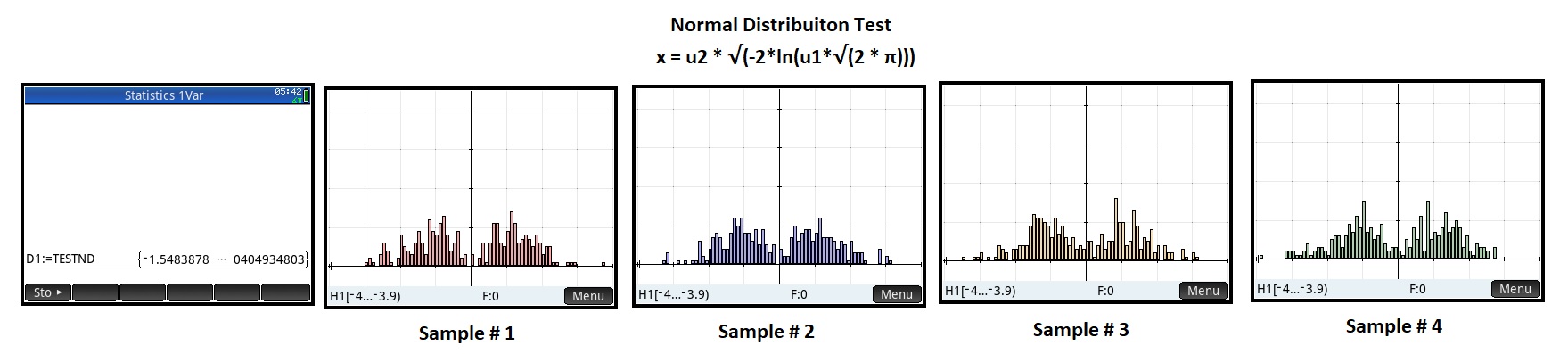
x = u2 * √(-2*ln(u1*√(2 * π)))


where: u1 a random number between [0, 1) and u2 is either -1 or 1 chosen at random.  To accomplish the -1 or 1 choice, I use a wide range of random integers. 


The programs generate a list of 300 data points and I used a histogram plot of four samples to see whether the sample fits a normal curve.  While this isn't a rigorous proof, the plots give an idea of what the results would look like.  


HP Prime Program: TESTBX


EXPORT TESTBX()

BEGIN

// Box-Muller, 300 points

// EWS 2021

// Radian mode

HAngle:=0;


LOCAL u1,u2,i,x,l;

l:={};

FOR i FROM 1 TO 300 DO

u1:=RANDOM();

u2:=RANDOM();

x:=√(−2*LN(u1))*COS(2*π*u2);

l:=CONCAT(l,{x});

END;

RETURN l; 


END;


HP Prime Program: TESTND


EXPORT TESTND()

BEGIN

// Normal Dist, 300 points

// EWS 2021

// Radian mode

HAngle:=0;


LOCAL u1,u2,i,x,l,m;

l:={};

FOR i FROM 1 TO 300 DO

// maximum

m:=1/√(2*π);

u1:=m*RANDOM();

u2:=SIGN(RANDINT(−100,101));

x:=u2*√(−2*LN(u1*√(2*π)));

l:=CONCAT(l,{x});

END;

RETURN l; 


END;


As you can see, the four samples match nowhere near a normal distribution curve.  Clearly, the Box Muller transform does a better job.   


Sources:


"Box-Muller transform" Wikipedia.  Last edited December 27, 2020.  https://en.wikipedia.org/wiki/Box%E2%80%93Muller_transform  Retrieved January 20, 2021.


"Which formula does randNorm use?"  Thread.  The Museum of HP Calculators.  Last edited October 31, 2017.  https://www.hpmuseum.org/forum/thread-9403.html  Retrieved January 21, 2021.  


Eddie


All original content copyright, © 2011-2021.  Edward Shore.   Unauthorized use and/or unauthorized distribution for commercial purposes without express and written permission from the author is strictly prohibited.  This blog entry may be distributed for noncommercial purposes, provided that full credit is given to the author. 


Saturday, March 20, 2021

Testing The Accuracy of LN and EXP Approximations

Testing The Accuracy of LN and EXP Approximations


Introduction


Today we are testing an approximation polynomial for two common scientific functions.  I used a TI-84 Plus CE in testing.   The values take a range from x = 0.5 to x = 11.  


Approximating e^x


Approximation used:


e^x ≈ 1 + x * (1 + x/2 * (1 + x/3 * (1 + x/4 * (1 + x/5 * (1 + x/6)))))

(fractions are simplified, see source)


TI-84 Plus CE Program:  EXPTEST


"EWS 2021-01-19"

Disp "e^(X) TEST","JON M. SMITH"

Disp "RANGE, MIN. 0.5"

Input "START? ",A

Input "INCREMENT? ",I

Input "NO STEPS? ",N

seq(X,X,A,A+I*N,I)→L₁

e^(L₁)→L₂

1+L₁*(1+L₁/2*(1+L₁/3*(1+L₁/4*(1+L₁/5*(1+L₁/6)))))→L₃

abs(L₂-L₃)→L₄

iPart(log(L₄))→L₅

Disp "L₁:X, L₂:EXP, L₃:APPROX","L₄:ABS ERROR","L₅:PLACES"

SetUpEditor L₁,L₂,L₃,L₄,L₅

Disp "PRESS STAT, 1. EDIT"


Test: x range:  0.5 to 11, increments of 0.5


Approximating ln x


Approximation used:


ln x ≈ y * (1 + y/2 * (1 + 2y/3 * (1 + 3y/4 * (1 + 4y/5))))

where x ≥ 0.5

and y = (x - 1)/x

(see source)


TI-84 Plus CE Program:  LNTEST


"EWS 2021-01-19"

Disp "ln(X) TEST","JON M. SMITH"

Disp "RANGE, MIN. 0.5"

Input "START? ",A

Input "INCREMENT? ",I

Input "NO STEPS? ",N

seq(X,X,A,A+I*N,I)→L₁

ln(L₁)→L₂

(L₁-1)/L₁→L₆

L₆*(1+L₆/2*(1+2*L₆/3*(1+3*L₆/4*(1+4*L₆/5))))→L₃

abs(L₂-L₃)→L₄

Disp "L₁:X, L₂:LN, L₃:APPROX","L₄:ABS ERROR"

SetUpEditor L₁,L₂,L₃,L₄

Disp "PRESS STAT, 1. EDIT"


Test: x range:  0.5 to 11, increments of 0.5


Final Thoughts


The approximation for ln x hold much better than e^x as x increases.   I would not recommend the following approximations for values above 5.  


Source:


Smith, Jon M.  Scientific Analysis on the Pocket Calculator John Wiley & Sons: New York. 1975


Eddie


All original content copyright, © 2011-2021.  Edward Shore.   Unauthorized use and/or unauthorized distribution for commercial purposes without express and written permission from the author is strictly prohibited.  This blog entry may be distributed for noncommercial purposes, provided that full credit is given to the author. 


Sunday, March 14, 2021

Retro Review: Radio Shack EC-21 (Blackjack Calculator)

Retro Review: Radio Shack EC-21 (Blackjack Calculator) 


Welcome to my birthday blog.  44 years today (March 14, 1977).  

Quick Facts:

Models:  EC-21
Company:  Radio Shack
First Manufactured: 1978
Memory Register:  1 independent memory
Battery:  3 AAA

The Calculator and The Game

The Radio Shack EC-21 is a dual-purpose calculator:  a 10-digit calculator and full blackjack game.

The Calculator

The calculator is a 10 digit, four function calculator with something extra:  a parenthesis [ ( ) ] key.   The parenthesis key allows the user to put certain calculations in higher priority.   The calculator operates in chain mode, the order of operations is not taken into consideration.

Example:  

2 x (3 + 9) = 24

Keystrokes:  2 [ x ] [ ( ) ] 3 [ + ] 9 [ ( ) ] [ = ]

The calculator has a square root function, but it does not have a memory register.

The Game:  Blackjack

In GAME mode, the EC-21 is a one player blackjack game.  It is you against the house.  The house stands on 17 - 21.   

Enter a bet and press the [ √ ] (BET) key.   You are not limited in bankroll.  Once you place the bet, the screen shows all zeroes as the calculator shuffles a deck of 52 playing cards.  Kings, queens, jacks, and tens are shown on the display as an F (face card).  Aces, shown by an A, count as either 1 or 11.  The ace is counted to the player's best benefit.  

If you get a blackjack (Ace and a Face card) you automatically win, the payout is 3:2.  

The game keys are:

[ = ] (HIT): Hit: The player takes a hit.  Be careful, going over 21 will cause you to bust and lose the game.

[ - ] (INS):  Insurance:  If the Dealer's up card is an Ace, you can take insurance, which is half of your bet.  If you take Insurance and the Dealer has a blackjack (Ace and a Face card), you lose only half your bet.

[ + ] (STD):  Stand.   Press this key when you decide to take no more cards.

[ ÷ ] (SPL):  Split.  If you are dealt a pair, you can split your cards into two hands.  If you split aces, you only get one more card per ace.   In this case, any 21 pays off at 1:1.  

[ × ] (DBL):  Double Down.  If you have strong starting hand, such as a 10 or 11 against a Dealer's favorable up card, you can double your bet for one more card.  

After each hand, press the total key ( [ ( ) ] (TOL) ) to check your earnings.  

Keyboard

The keyboard has a solid feel.  However, the keys require a firm press to register.  I have the best luck of holding the calculator in my hand.  In my experience, laying the keyboard down flat did not allow me to register all the keys, particular the zero key.  If wish the keys were not hard to press.  It may be the luck of the draw when I made the purchase. 

I love the colors:  green for the number keys, red of the clear keys, blue for the function keys.  

Verdict

The calculator is stored in a beautiful leather case, and the green display is awesome.  I also like the two-in-one calculator/game.  I wish the keyboard is better, but buying it is not expensive, and I am happy to have this in my collection.  

Source:

Flow Simulation, Ltd.  "Radio Shack EC-21 (Blackjack 21)"  Retrieved January 22, 2021.  https://americanhistory.si.edu/collections/search/object/nmah_334462 

National Museum of American History Behring Center.  "Radio Shack EC-21 Handheld Electronic Calculator, Blackjack"  Washington D.C. Retrieved January 23, 2021.  https://americanhistory.si.edu/collections/search/object/nmah_334462

Eddie

All original content copyright, © 2011-2021.  Edward Shore.   Unauthorized use and/or unauthorized distribution for commercial purposes without express and written permission from the author is strictly prohibited.  This blog entry may be distributed for noncommercial purposes, provided that full credit is given to the author. 

Saturday, March 13, 2021

Retro Review: Texas Instruments Personal Banker

Retro Review:   Texas Instruments Personal Banker


Quick Facts:


Models:  Personal Banker

Company:  Texas Instruments

Years:  1987 - 1988

Memory Register:  1 independent memory, 5 financial registers

Battery:  Solar


Finance in a Clamshell Calculator


The Texas Instruments Personal Banker is a basic solar financial calculator.   The calculator opens up like a book.  The gray case gives the calculator a professional look.


On the left side, we have the arithmetic functions with the memory functions (M+, M-, MRC).   There are three keys of note:


[ AC ]:  The key clears everything, resets the format to 2 decimal fixed mode, clear the memory register, and the financial register.  


[ CE/C ]:  Clear the last entry but keeps everything in the memory register and financial registers intact.


[ DEC ]:  This sets the fixed decimal format.  The default is 2 places.  [ DEC ] [ . ] (decimal point) sets the Personal Banker to floating mode.  


On the right side are the Time Value of Money keys:


[ 1st Amt ]:   Present Value  (PV)


[ # Pmts ]:  Number of Payments (n)


[ Int Rate ]:  Interest Rate per Period (i%)


[ Pmt Amt ]:  Payment (PMT)


[ Final ]:  Future Value (FV)


The [ Solve ] and [ Recall ] keys work exactly the way you expect.  


The cash flow convention (positive for inflows, negative for outflows) is followed.


It is very simple.  A four function calculator with a full time value of money solver.


To help the user, included with the Personal Banker are four cards:


Blue Car Symbol:  Loans & Mortgages


Red Dollar Symbol:  Savings with Periodic Deposits


Gold Stock Graph Symbol:  Investments


Green House Symbol:  Loans & Mortgage with a Balloon Payment


Keyboard


The feel of the keys are solid.  However, the keys take a small fraction of a second for the key to register, so make sure the key registers before typing the next key.  


Verdict


The Personal Banker is a basic financial calculator.  I really like the folding design on this calculator and how the keys work.  Unfortunately, the high price point of $50 (see source) and it's basic set of functions (arithmetic, percent, time value of money, but no cost-sell-margin solver, amortization, statistics, logarithms, or exponents) did not help sales of the Personal Banker.  


It is a good collector item, since vintage solar-powered Texas Instruments financial calculators yield premium prices.


Source


Woerner, Joerg.  "Texas Instruments TI-2600 Personal Banker"  Datamath.  Updated July 22, 2002.  Retrieved January 23, 2021.  http://www.datamath.org/Sci/Modern/PersonalBanker.htm


On Sunday, we'll take another trip back in time.  

Eddie


All original content copyright, © 2011-2021.  Edward Shore.   Unauthorized use and/or unauthorized distribution for commercial purposes without express and written permission from the author is strictly prohibited.  This blog entry may be distributed for noncommercial purposes, provided that full credit is given to the author. 


Sunday, March 7, 2021

Fun with the TI-73 Part II: Rolling Two Dice, Numerical Derivative, Rectangular/Polar Conversions

Fun with the TI-73 Part II: Rolling Two Dice, Numerical Derivative, Rectangular/Polar Conversions


TI-73 Program:  TWODICE - Rolling Two Dice


Introduction:


The program TWODICE will roll two regular dice and give the sum of those dice in three lists:


L_1: die 1

L_2: die 2

L_3: total


If there are seven rolls or less, the program displays the rolls.  In any case, the results are stored in the above lists.


Access L_1 by pressing [ 2nd ] [ STAT ] (LIST), 1

Access L_2 by pressing [ 2nd ] [ STAT ] (LIST), 2

Access L_3 by pressing [ 2nd ] [ STAT ] (LIST), 3


Program:


"EWS 2021"

Disp "ROLL THE DICE"

Input "ROLLS? ",X

dice(X)→L_1

dice(X)→L_2

L_1+L_2→L_3

If X≤7

Then

ClrScreen

For(A,1,X)

Output(A,1,L_1(A))

Output(A,3,L_2(A))

Output(A,6,L_3(A))

End

Pause

End

ClrScreen

Disp "L_1 = DIE 1","L_2 = DIE 2","L_3 = TOTAL"

Pause


Your results will vary.


TI-73 Program:  DERIVY1 - Numerical Derivative of y1(x)


The simple program DERIVY1 calculates the numerical derivatives of the equation stored in Y_1.  


Access Y_1 by pressing [ 2nd ] [ APPS ] (VARS), 2, 1


Program:


"EWS 2021"

Disp "D/DX Y_1"

Prompt X

10^(-8)→H

(2*H)^-1*(Y_1(X+H)-Y_1(X-H))→D

Disp "APPROX D/DX"

Pause D


Example:


Y_1 = (X^2-3)^2 + 1

Derivative at x = 0.95, Result:  -7.9705

Derivative at x = 2, Result:  8


Y_1 = e^(X^3/4)

Derivative at x = 0.46, Result: 0.16261

Derivative at x = 1.55, Result:  4.571295


TI-73 Program: RECPOL - Rectangular/Polar Conversion


This program has two conversions:


1.  >RECT:  Polar (r, θ) to Rectangular (x, y)

2.  >POLAR:  Rectangular (x, y) to Polar (r, θ)


This program works in either Degree or Radian mode.


I take a different approach to calculate angle than the atan2 method.  Approached this as calculating the angle between the vectors [ x, 0 ] and [ x, y].  The angle between vectors v1 and v2 is:


θ = acos( dot(v1, v2) / ( norm(v1) * norm(v2) ) = acos( x / √(x^2 + y^2))


The angle is negative if y<0.   


Like the argument and angle conversions, the point (0,0) is defined to have an angle of 0.


Since there is no theta character (θ) on the TI-73, I use the variable A instead.


Program:


"EWS 2021"

Lbl 0

Menu("MENU",">RECT",1,">POLAR",2,"EXIT",3)

Lbl 1

Input "R? ",R

Input "ANG? ",A

R*cos(A)→X

R*sin(A)→Y

Disp "X= ",X,"Y= ",Y

Pause

Goto 0

Lbl 2

Input "X? ",X

Input "Y? ",Y

√(X^2+Y^2)→R

If X=0 and Y=0

Then

0→A

Else

cos^-1(X/√(X^2+Y^2))→A

If Y<0

-A→A

End

Disp "R=",R,"ANG=",A

Pause

Goto 0

Lbl 3


Examples:


Examples are in Degree mode.


R = 19, ANG = 87.3°

Result:  X = 0.8950225635, Y = 18.97890762


X = -11.5, Y = 2.4

Result:  R = 1.74776575, ANG = 168.2118167


Eddie


All original content copyright, © 2011-2021.  Edward Shore.   Unauthorized use and/or unauthorized distribution for commercial purposes without express and written permission from the author is strictly prohibited.  This blog entry may be distributed for noncommercial purposes, provided that full credit is given to the author. 


Saturday, March 6, 2021

Fun with the TI-73 Part I: Logarithmic Regression, Percent, Square Root Simplification

 Fun with the TI-73 Part I: Logarithmic Regression, Percent, Square Root Simplification


TI-73 Program:  LNREG - Logarithmic Regression


Introduction:


The program LNREG fits the data to the equation:


y = a * ln x + b


The lists used are:

L_1:  x list  

L_2:  y list


Access L_1 by pressing [ 2nd ] [ STAT ] (LIST), 1.

Access L_2 by pressing [ 2nd ] [ STAT ] (LIST), 2


You can edit lists by pressing [LIST].  


The lower case a and b are from the VARS, Statistics, EQ menu.


Program:


"EWS 2021"

Disp "FIT Y=A LN X +B","USES X=L1,Y=L2:

ln(L_1) → L_1

LinReg(ax+b) L_1,L_2

a → A

b → B

Output(4,1,"A=")

Output(4,5,A)

Output(5,1,"B=")

Output(5,5,B)

Output(6,5,r²)

e^(L_1) → L_1

Pause

Menu("PLOT?","YES",1,"NO",2)

Lbl 1

PlotsOff

FnOff

"A*ln(X)+B"→Y_1

Plot1(xyLine,L_1,L_2,□)

ZoomStat

Lbl 2


Example:


X:  L_1 = {1, 2, 3, 4, 5, 6}

Y:  L_2 = {-1.26, 2.1018, 4.0683, 5.4635, 6.5458, 7.43}


Results:

y = A ln x + B

A = -1.259978557

B = 4.849985251

r^2 ≈ 1


TI-73 Program: PERCENT - Percent Calculations


Introduction:


The program gives the users four options:


1.  Adding tax (plus percent)

2.  Subtracting tax (minus percent)

3.  Percent Change

4.  Percent Total


The percent key divides the amount by 100.  Example:  5% turns to 0.052.


Program:


"EWS 2021"

Menu("PERCENT","TAX+",1,"TAX-",2,"%CHG",3,"%TOT",4)

Lbl 1

Prompt N

Input "X% ",X

N*(1+X%)→Y

Pause Y

Stop

Lbl 2

Prompt N

Input "X% ",X

N*(1-X%)→Y

Pause Y

Stop

Lbl 3

Input "OLD=",O

Input "NEW=",N

(N-O)*100/O→Y

Pause Y

Stop

Lbl 4

Input "PART=",P

Input "WHOLE=",W

100*P/W→Y

Pause Y

Stop


Example:


TAX+:   Add 15% to 19.95

N: 19.95, X%:  15

Result:  22.9425


TAX-:  Subtract 15% from 19.95

N:  19.95, X%:  15

Result:  16.9575


%CHG:  Old (O):  11700, New (N):  15420

Result:  31.79487179


%TOT:  Part (P):  11700, Whole (W):  15420

Result:  75.7548638


TI-73 Program: SQROOT - Simplification Square Root


This program tries to factor √N to A√B.  N, A, and B are integers.


Program:


"EWS 2021"

Disp "√(N)->A√(B)"

Prompt N

iPart(√(N))→X

While X≠0

If fPart(N/X^2)=0

Then

X→A

N/X^2→B

Goto 1

Else

X-1→X

End

End

Lbl 1

Disp "A=",A,"B=",B

Pause


Examples:


N = 88;   √88 = 2√22


N = 1225;  √1225 = 35√1


Notes:


*  There is no ALPHA key for the TI-73 (family).   Text is entered by use of the [ 2nd ] [ MATH ] (TEXT) key sequence.  Letters are selected by using the arrow keys and selecting them with the ENTER key.


*  The underscore character ( _ ) acts like a space.


*  The TEXT has the letters A-Z, _, <, =, >, ≤, ≠, ≥, and the logic functions and, or.  For the question mark character, ?, press [ 2nd ] [ PRGM ] (CATALOG) [ ↑ ] [ ENTER ]. 


* The programming language of the TI-73 is the robust as the TI-83 family (TI-83, TI-83 Plus, TI-84 Plus family, TI-82).  


* The main difference is that results are shown on a separate screen for output.   When a program terminates, the TI-73 returns to the Home screen.  It is necessary to include a Pause at the end to keep the results on the screen.


Stay tuned tomorrow for more programs for the TI-73.  


Eddie


All original content copyright, © 2011-2021.  Edward Shore.   Unauthorized use and/or unauthorized distribution for commercial purposes without express and written permission from the author is strictly prohibited.  This blog entry may be distributed for noncommercial purposes, provided that full credit is given to the author. 


Sunday, February 28, 2021

TI-84 Plus CE and TI-73 Explorer: Analog Clock

 TI-84 Plus CE and TI-73 Explorer:  Analog Clock


Introduction


The program ANALOG draws a 12-hour analog clock for any given time, given the hour and minute.  The TI-73 program covers the TI-73 Explorer and should be ported to any of the Texas Instruments calculators with monochrome screens with no or little adjustment.


The TI-84 Plus CE adds colors:  hour hand is black, minute hand is brown, the markers are orange.  Adjust colors to your liking.


Notes:


*  The program pauses when the clock is drawn.  Pressing [ENTER] restores turns the Axes back on.


*  The Pt-On command has the syntax Pt-On(x, y, mark, color*).   Mark:  Dot (1 or default), Open Square (2), Plus (3).   Color applies only to the TI-84 Plus CE or TI-84 Plus C Silver Edition.


*  The program sets the calculator to degrees mode.


Math:


Let H be the hour and M be the minute.


Set S = H + M/60,  where S is the decimal hour of the time given.


For a circle of 360°, each hour occupies 30° of the clock (360/12).  Like wise, each minute occupies 6° of the clock  (360/60).


A = 30*S,  B= 6*M


Lines are drawn from the origin (0,0) to a point (x,y).  If we set x and y to an angle θ, then:


x = r * cos θ,  y = r * sin θ, where r is the length of the line.


Angels on a cartesian plane start from the positive x-axis and measured going counter-clockwise.  However, on the analog clock requires angels to measured from the top (due north) and rotate clockwise.  This will require a vertical flip and adjusting the angle by 90°.  The adjusted coordinates are:


x = r * cos (θ-90°),  y = -r * sin (θ- 90°), where r is the length of the line.


TI-73 Program: ANALOG

(this includes TI-73 Explorer)


"EWS 2021"

FnOff

PlotsOff

ClrDraw

Degree

Disp "12 HR ANALOG"

Input "HOUR? ",H

Input "MINUTE? ",M

ZStandard

ZSquare

AxesOff

Circle(0,0,8)

For(X,30,360,30)

Pt-On(7*cos(X-90),-7*sin(X-90),2)

End

Line(0,0,5*cos(30H+M-90),-5*sin(30H+M-90))

Line(0,0,7*cos(6M-90),-7*sin(6M-90))

Pause

AxesOn


TI-84 Plus CE Program:  ANALOG


"EWS 2021-01-18"

FnOff 

PlotsOff 

ClrDraw

Degree

Disp "12 HOUR ANALOG CLOCK"

Input "HOUR? ",H

Input "MINUTE? ",M

ZStandard

ZSquare

AxesOff

GridOff

"FACE"

Circle(0,0,8,MEDGRAY)

For(I,30,360,30)

Pt-On(7*cos(I-90),­7*sin(I-90),2,ORANGE)

End

"HOUR"

Line(0,0,5*cos(30H+M/2-90),­5*sin(30H+M/2-90),1,BLACK)

"MINUTE"

Line(0,0,7*cos(6*M-90),­7*sin(6*M-90),1,BROWN)

Pause 

AxesOn 


Next week, more fun with the TI-73 Explorer.  


Eddie


All original content copyright, © 2011-2021.  Edward Shore.   Unauthorized use and/or unauthorized distribution for commercial purposes without express and written permission from the author is strictly prohibited.  This blog entry may be distributed for noncommercial purposes, provided that full credit is given to the author. 


Saturday, February 27, 2021

Review: Victor 940

 Review:  Victor 940


Just the Facts


Company:  Victor

Type:  Scientific - Algebraic

Display:  10 digits with 2 digit exponents

Power:  Solar with battery back up LR43 battery

Memory Registers: 8:  A, B, C, D, E, F, X, Y, M

Cost:  about $8 to $10

Website:  https://www.victortech.com/product/940


Features


*  Trigonometry, Exponential, Logarithms

*  Factorial, Combinations, Permutations

*  Algebraic Expression Evaluation with fractions

*  Memory Arithmetic with M+ and M-

*  Statistics

*  Regressions:  Linear, Logarithm, Exponential, Power, Inverse, Quadratic

*  Two Line Display:  the top line is for typing mathematical expressions, the bottom line is for displaying results.


Essentially, the Victor 940 is a clone of the Casio fx-300MS/fx-85WA.  Many calculators are OEM clones, two other examples include the Bazic 300 and Hewlett Packard HP 10s+.  


You can find more information about the Casio fx-300MS/fx-85WA here:  

http://edspi31415.blogspot.com/2019/01/retro-review-casio-fx-85wa.html


Keyboard


The Victor 940 has a white keyboard with sky blue and orange font.   What differs the Victor 940 are:


*  The display is nice and large compared to the rest.  


*  I like the colors on the keyboard and the contrast on the font.  It could be just personal preference.  


*  The placement of the [ ON ], [ MODE ], [ALPHA], and [SHIFT] keys are different:  with the [ ON ] and [ MODE ] keys on the left of the arrow keys and [ALPHA] and [SHIFT] keys on the right of the arrow keys.  


I am not a fan of the plastic cover case.  Removing the case the first time was difficult and will require force.  The case does not cover the entire calculator, leaving the top of the calculator is left uncovered.  The case does cover the screen, keys, and solar panels are covered.


Verdict


I like the big screen on the Victor 940.  Other than that, it is like the Casio fx-300MS: plenty of functions for a low price.  


Eddie


All original content copyright, © 2011-2021.  Edward Shore.   Unauthorized use and/or unauthorized distribution for commercial purposes without express and written permission from the author is strictly prohibited.  This blog entry may be distributed for noncommercial purposes, provided that full credit is given to the author. 


Sunday, February 21, 2021

TI-84 Plus CE and HP 17BII+: Euclidian Divison

 TI-84 Plus CE and HP 17BII+: Euclidian Division


What is the ├ symbol on the calculator?

(├ the symbol is a vertical line with a horizontal line coming from the center to the right)


In several scientific calculators sold in Europe such as the Texas Instruments TI-40 Galaxy:


http://www.datamath.org/Sci/Galaxy/TI40_Galaxy.htm


and the current TI-Primaire Plus, which is sold in France, 


http://www.datamath.org/Sci/Modern/TI-PrimairePlus.htm


There is a key marked [ ├ ].  Going through the manual for the TI-40 Galaxy, this is the Euclidean Division key, which returns the quotient and remainder of the division.


x ├ y returns two results:

Q = int(x/y)   (quotient)

R = x - frac(x/y) * y   (remainder)


The TI-84 Plus family has the remainder function (I think it is OS 2.5 and later).  Here are several ways to emulate the Euclidian Division function:


TI-84 Plus CE Program:  EUCDIV


Prompt X,Y

{int(X/Y),remainder(X,Y)}


HP 17BII+ Formula:


EUCDIV: 0=IF(S(Q): IP(X÷Y)-Q: MOD(X:Y)-R)


Inputs: X,Y

Outputs:  Q (quotient), R (remainder)


Examples:


25 ├ 7 ->  Q = 3, R = 4

77 ├ 6 ->  Q = 12, R = 5


Can we use the [ a b/c ] fraction key?  


Calculators such as the Casio fx-260 Solar II calculator could be used to simulate the Euclidean division with the [ a b/c ] key.  The fraction would be illustrated in the mixed fraction format.  Let us illustrate:


56 [ a b/c ] 5 [ = ]   11 _ 1 / 5    

(Q = 11,  R = 1, divisor = 5)


125 [ a b/c ] 14 [ = ]  8 _ 13 / 14

(Q = 8,  R = 14, divisor = 14)


So far so good, but...


9314 [ a b/c ] 60 [ = ]  155 _ 7 / 30

Look at the denominator:  it is 30 not in 60, the fraction has been simplified.   Of course, we know that 7/30 = 14/60, hence Q = 155, R = 14. 


Note:  if you use the [ a b/c ] key, be sure to look at the resulting denominator is not the same,  it is not in the Q _ R / D form.  


Eddie


All original content copyright, © 2011-2021.  Edward Shore.   Unauthorized use and/or unauthorized distribution for commercial purposes without express and written permission from the author is strictly prohibited.  This blog entry may be distributed for noncommercial purposes, provided that full credit is given to the author. 


Saturday, February 20, 2021

Sharp EL-501X: Some Complex Powers

 Sharp EL-501X:  Some Complex Powers 


Introduction


This covers the class of calculators, including the Sharp EL-501X, TDE ATC-1335 Scientific Calculator, the 1980s calculator Texas Instruments TI-35 Plus and some scientific calculators (including Jot) that are purchased from dollar stores.


These set of calculators have a complex mode which allows with arithmetic calculations (addition, subtraction, multiplication, division) and conversions between polar and rectangular form.   The keys [ a ] and [ b ] serve as two temporary registers in calculations.


However, since the complex mode does not allow for extended calculations or storing and recalling numbers in the memory register, I am not going to use the complex number mode for today's algorithms.  


Let z = x + yi  (i = √-1), we can calculate the following:


Square of the complex number:  z^2


Square root of the complex number:  √z


Cube Root of the complex number:  z^(1/3)


Reciprocal of the complex number:  1/z  


Recall the complex number can be taken by any power n, where n is a real number, can be found by:


(x + y*i)^n = (r * e^(i*θ))^n = r^n * e^(i*θ*n) 


where 


r = abs(x + yi) = x^2 + y^2

θ = arg(x + yi) = atan2(x,y)

e^(i*θ*n) = cos(θ*n) + i * sin(θ*n)

r^n * e^(i*θ*n) = r^n * cos(θ*n) + i * r^n * sin(θ*n)


We can use the memory register and the polar (→rθ) and rectangular (→xy) conversions.


I used and tested the following calculators:  Sharp EL-501X and TDE ATC-1335 (the calculators pictured above).


Warning:  Pressing the equals key [ = ] clears out the a and b registers.  This limits the range of powers n can be take (without having to write immediate results).  


The Algorithms


Note:  Due to potential keyboard differences, I will leave out the shifted key.  Please refer to your calculator manual for details.  


Please note the sequence of the keystrokes.  Recall that pressing the equals key clears out the a and b registers.  


Also, since there are conversion to and from the polar form, the angle measure does not matter.


Finally, do not switch the calculator to complex number mode.  Be in regular mode. 


Square:  (x + yi)^2 


x [ a ] y [ b ] [ →rθ ] [ STO ]

[ b ] [ × ] 2 [ = ] [ b ] 

[ RCL ] [ x^2 ] [ a ] [ →xy ]

(real part displayed) 

[ b ] (imaginary part displayed)


Example:  (6 - 3i)^2 = 27 - 36i


6 [ a ] 3 [+/-] [ b ] [ →rθ ] [ STO ]

[ b ] [ × ] 2 [ = ] [ b ] 

[ RCL ] [ x^2 ] [ a ] [ →xy ]

27

[ b ] -36


Square Root:  √(x + yi)


x [ a ] y [ b ] [ →rθ ] [ STO ]

[ b ] [ ÷ ] 2 [ = ] [ b ] 

[ RCL ] [ √ ] [ a ] [ →xy ]

(real part displayed) 

[ b ] (imaginary part displayed)


Example:  √(6 - 3i) ≈ 2.52073441 - 0.595064674i


6 [ a ] 3 [+/-] [ b ] [ →rθ ] [ STO ]

[ b ] [ ÷ ] 2 [ = ] [ b ] 

[ RCL ] [ √ ] [ a ] [ →xy ]

2.52073341

[ b ] -0.595064674


Cube Root:  (x + yi)^(1/3)


x [ a ] y [ b ] [ →rθ ] [ STO ]

[ b ] [ ÷ ] 2 [ = ] [ b ] 

[ RCL ] [ ³√ ] [ a ] [ →xy ]

(real part displayed) 

[ b ] (imaginary part displayed)


Example:  (6 - 3i)^(1/3) ≈ 1.863493911- 0.290316636i


6 [ a ] 3 [+/-] [ b ] [ →rθ ] [ STO ]

[ b ] [ ÷ ] 2 [ = ] [ b ] 

[ RCL ] [ ³√ ] [ a ] [ →xy ]

(real part displayed) 

[ b ] (imaginary part displayed)


Reciprocal:  1/(x + yi)


x [ a ] y [ b ] [ →rθ ] [ STO ]

[ b ] [ ÷ ] 1 [ +/- ] [ = ] [ b ] 

[ RCL ] [ 1/x ] [ a ] [ →xy ]

(real part displayed) 

[ b ] (imaginary part displayed)


Example:  1/(6 - 3i) ≈ 0.133333333 + 0.066666667i


6 [ a ] 3 [+/-] [ b ] [ →rθ ] [ STO ]

[ b ] [ ÷ ] 1 [ +/- ] [ = ] [ b ] 

[ RCL ] [ 1/x ] [ a ] [ →xy ]

0.133333333 

[ b ] 0.066666667


Eddie


All original content copyright, © 2011-2021.  Edward Shore.   Unauthorized use and/or unauthorized distribution for commercial purposes without express and written permission from the author is strictly prohibited.  This blog entry may be distributed for noncommercial purposes, provided that full credit is given to the author. 


HP 67 Collection: October 2026

HP 67 Collection: Oct ober 2026 All examples are done in FIX 4. (DSP 4) Earth's Gravity at a Specific Latitude The true ea...